



QuickBooks Error 3371 occurs when attempting to activate or open the QuickBooks Desktop application. This technical error is related to unsuccessful license authentication.
Due to the occurrence of this issue, access to the company file is restricted, which pauses accounting operations. Consequently, payroll and invoicing are delayed, resulting in cash flow problems. Due to such operational delays, the workflow is hindered.
In this guide, the root causes and troubleshooting steps to fix QuickBooks error 3371 have been shared. Implementing the solutions shared in this guide will help to recover license authorization. Additionally, it will help to restore QuickBooks capabilities and minimize the risk of reactivation.
Table of Contents
- 1 What is QuickBooks Error 3371 Status Code 11118?
- 2 Causes of QuickBooks error 3371 status code 11118
- 3 How to Fix QuickBooks Error 3371 Status Code 11118
- 3.1 Solution 1: Update your Windows Operating System
- 3.2 Solution 2: Erase the ECML file and Rename Entitlement file
- 3.3 Solution 3: Download the QuickBooks Tool Hub and access Quick Fix My Program
- 3.4 Solution 4: Fixing the Corrupted MSXML file
- 3.5 Solution 5: Fix the error manually
- 3.6 Solution 6: Erase System Junk Files
- 3.7 Solution 7: Update Windows to its Latest Version
- 4 Conclusion
- 5 Frequently Asked Questions
- 5.1 How to avoid the occurrence of error 3371 in the future?
- 5.2 Can the QuickBooks error 3371 error code 11118 result in data risk?
- 5.3 Can installing more than one QuickBooks version trigger error 3371 in the system?
- 5.4 Do wrong Windows user permissions lead to error 3371?
- 5.5 Can erasing the EntitlementDataStore.ecml file delete the company data?
- 5.6 What are the symptoms and indications of the QuickBooks license authentication issue 3371?
What is QuickBooks Error 3371 Status Code 11118?
This error implies unsuccessful license authentication as QuickBooks Desktop opens. This issue arises when QuickBooks does not acknowledge license data from QBregistration.dat files or EntitlementDataStore.ecml. These files are responsible for product ID and license number verification.
The local license verification information is saved in the EntitlementDataStore.ecml file. Antivirus interruption, corrupted file, damaged registry, or sudden shutdowns often prevent license activation. This failure of license initialization is then highlighted by QuickBooks using error messages.
Theoretically, error 3371 displays a disruption between Windows and QuickBooks licensing. This disruption prevents program startup and limits access to company files till licensing files are restored.
Here are the messages and status codes appearing in QuickBooks Desktop for error 3371:
Could not initialize license properties. Error 3371: QuickBooks could not load the license data. This may be caused by missing or damaged files.
Could not initialize license properties. [Error 3371, Status Code -11118] QuickBooks could not load the license data. This may be caused by missing or damaged files.
Could not initialize license properties. [Error 3371, Status Code -1] QuickBooks could not load the license data. This may be caused by missing or damaged files.
Causes of QuickBooks error 3371 status code 11118
This error can arise due to the following reasons:
- The QBregistration.dat file is missing or unavailable. This file stores the license details. Hence, QuickBooks cannot operate without this file, triggering error 3371.
- The MSXML component assists QuickBooks in understanding the QBregistration.dat file. Error 3371 arises when this file is missing or unavailable.
- QuickBooks files are often restricted by the antivirus software, or the Windows operating system is not updated. This interferes with QuickBooks performance, triggering the error.
- The EntitlementDataStore.ecml file stores license and registration details. Error 3371 arises when this file is missing or corrupted.
- Accessing a WebConnect file in QuickBooks Enterprise on cloud hosting without saving can trigger issues with .QBO file.
Things to Remember Before Eradicating QuickBooks Error 3371
Fixing error 3371 becomes seamless when the following prerequisites are met before fixing the error. Here are the two key essential checks:
- Update Windows to its current version. This will guarantee the QuickBooks installation finishes without any disruption.
- In case the issue persists post troubleshooting, the issue is a damaged Windows installation package. It needs to be fixed.
Note: Ensure these prerequisites are met before starting with the troubleshooting. In case these prerequisites are not met, conflicts or disruptions can arise, leading to unsuccessful troubleshooting.
How to Fix QuickBooks Error 3371 Status Code 11118
QuickBooks error 3371 status code 11118 can be fixed by implementing certain simple solutions. Ensure to implement every solution properly without skipping any step to ensure correct license restoration.
Solution 1: Update your Windows Operating System
The Windows Operating System can impact how QuickBooks operates. Outdated Windows operating systems can block QuickBooks installation files, triggering error 3371.
To fix this, update the Windows operating system to its current version using the following steps:
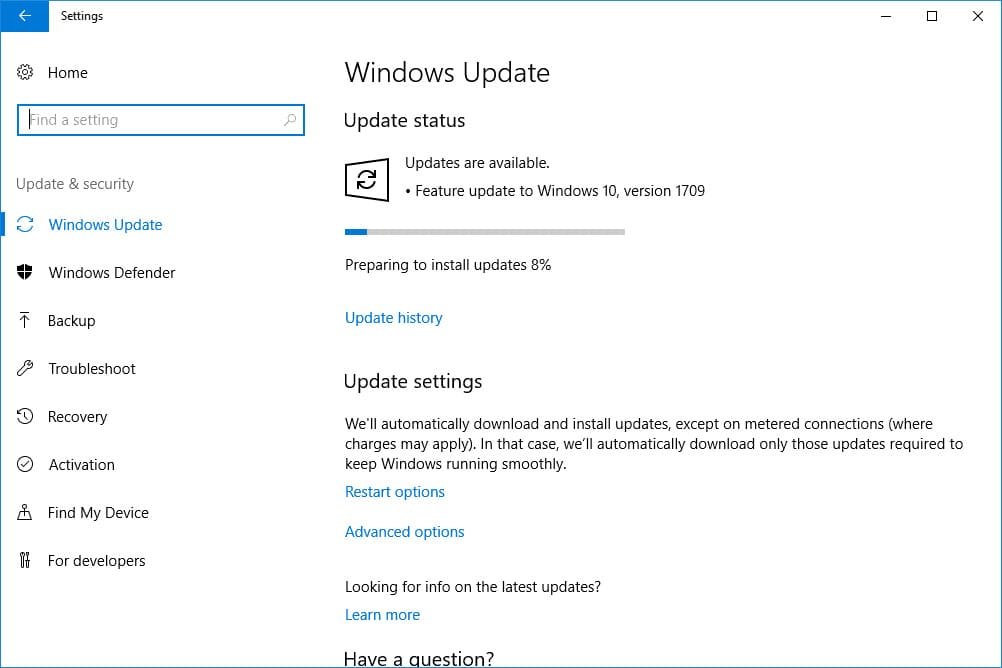
- Choose the Windows Start menu, click it, and then choose the “Settings” option.
- Click the “Update and Security” option.
- Now, click the “Windows Update” tab.
- Click the option “Check for updates” and allow for Windows time to download and install the updates available.
- Reboot the system.
- Now, open the QuickBooks application once more.
Solution 2: Erase the ECML file and Rename Entitlement file
Erasing the QBRegistration.dat file or the ECML file erases the present QuickBooks registration. QuickBooks then requests to perform re-registration and rebuilds valid and uncorrupted license files.
Follow these steps to erase the ECML file and change the Entitlement file name:
Step 1: Erase the ECML file
Here are the steps to erase the ECML file successfully:
- Close the QuickBooks application.
- Now, on the keyboard, click the keys “Ctrl + Shift + Delete”.
- The Task Manager screen appears.
- Go to the “Processes” tab and look for the QBW32.exe file.
- Now, right-click the process and click the “End process Tree” option.
- Now, click the “OK” button.
- Click the “Windows + R” keys. The Run Command screen appears.
- Now, enter C:\ProgramData\Intuit\Entitlement Client\v8.
- Now, click the “OK” button. This folder stores the QuickBooks entitlement details.
- When the folder is open, find the ecml file (EntitlementDataStore.ecml file). Once located, select it and right-click it. Next, choose the “Delete” option.
- Exit the screen and run the QuickBooks application again.
- It will ask the user to register the product once more.
Step 2: Retitle the Entitlement Data File
Here are the steps to rename the Entitlement Data file, depending on the Windows versions:
For Windows XP:
- Navigate to the “Start” button and select the “Run” option.
- Add the following path: C: Documents and Settings AllUsersApplicationDataIntuitEntitlement Clientv2.
- The DataStore.ecml file opens.
- Next, click the “OK” button to open the folder.
- When the ECML file is located, change the name to DataStore.ECML
For Windows 7:
- Head to the file path C:/Program/Data/Intuit/EntitlementClientv*.
- After the Entitlement file is renamed, access the QuickBooks application.
- A new file will be issued for the user.
- In case any program data folder is not present in the file, it is likely to be hidden.
- To find the hidden file, click the “My Computer” option.
- Now, click the “Organizer” option and click the “Folder” tab.
- Now, click the “Search” option.
- Locate the hidden folders and files and open QuickBooks to see if the issue is fixed.
Solution 3: Download the QuickBooks Tool Hub and access Quick Fix My Program
Here are the steps to access the QuickBooks Tool Hub and resolve the error 3371:
Step 1: Run the Quick Fix My Program feature
- Exit the QuickBooks Desktop application.
- Next, download the latest version of QuickBooks Tool Hub and save it on the system.
- Run the downloaded QuickBooksToolHub.exe file.
- Next, click the “Accept and Agree” box for Intuit’s license agreement.
- After the tool hub is installed, click the “Finish” button.
- To open the application, click twice on the QuickBooks Tool Hub icon.
- Now, head to the “Program Problems” tab.
- Select the “Quick Fix My Program” option.
- Now, click the “OK” button.
- Once the process ends, access QuickBooks to use the data file.
Step 2: Run the QuickBooks Install Diagnostic Tool
- Download the QuickBooks Tool Hub.
- Now, open the downloaded tool and choose the “Installation Issues” tab. It is available in the tools hub.
- Next, choose the “QuickBooks Install Diagnostic Tool” and run it.
- Allow the tool to run and determine the problem, if any. The process is likely to take some time to complete.
- To complete the process, restart the device.
Step 3: Open the Tool Hub and run the 3371 Error fix
In case the QuickBooks Tool Hub is installed and running already, start the 3371 error fix tool. Alternatively, download the Tool hub and install it, then complete the steps shared below:
- Exit the QuickBooks Software.
- Download the current version of QuickBooks Tool Hub.
- Save the application in a preferred location.
- Open the downloaded file.
- Complete the on-screen guidelines to install and accept the terms and conditions.
- To open the application, click twice on the “QuickBooks Tool Hub” icon visible on the Windows desktop.
- Choose the “Installation Issues” tab in the tool hub.
- Select the option “3371 Error Fix.
- Now, click the “OK” button and then start the QuickBooks application.
- Access the data file and verify whether the issue is resolved.
Solution 4: Fixing the Corrupted MSXML file
A corrupted MSXML component prevents the activation of QuickBooks Desktop. Here are the steps to fix this Windows component:
Step 1: For a 64-bit operating system, perform the following steps:
- Click the Windows “Start” menu.
- Now, enter “cmd”.
- Select the “cmd” icon and right-click it.
- Next, select the option Run as Administrator.
- Enter “cd\windows\syswow64” in the “Command Prompt” screen.
- To start both commands on the same workstation, click the “Enter” button.
- The MSXML component will be fixed, and QuickBooks Desktop can be accessed to finish the activation procedure.
Step 2: For a 34-bit operating system, perform the following steps:
- Click the “Windows + R” keys on the keyboard to use the “Run” screen.
- Now, add “cmd” and then click the “Enter” button.
- Head to the “Command Prompt” screen and enter the command “regsvr32 MSXML6.dll”.
- Click the “Enter” button to start the command. Now, the user can activate the QuickBooks Desktop application successfully.
Solution 5: Fix the error manually
To fix the error manually, follow the steps shared below:
- First, generate the corrupted entitlement file again.
- Now, fix the license and registration issues manually.
- Repair MSXML, Microsoft .NET Framework, and C++ errors with the help of the Diagnostic tool.
- Perform a clean installation to restart the file.
- Finally, restart the files and ensure QuickBooks Desktop is updated to its current release.
Solution 6: Erase System Junk Files
It is crucial to remove system junk files by erasing the temporary files. This will allow users to activate QuickBooks Desktop swiftly.
Here are the steps to clean system junk files:
- Use the file explorer and choose the “This PC” option.
- Now, choose the “Properties” tab.
- Once done, click the “Disk Cleanup” option.
- Now, choose the option to erase system files.
- Now, click the “OK” button and choose the “Delete File” option.
- Alternatively, erase temporary files in the system by following the steps shared below:
- Use the “Run” screen by clicking the “Win + R” option.
- Now, in the box type “%TEMP%”.
- Click the “Enter” tab.
- Once completed, the folder with temp files will appear.
- Next, click the keys “Ctrl + A” and choose all the files.
- Now, click the “Delete” tab. This will help to erase all the temporary files.
Solution 7: Update Windows to its Latest Version
Updated Windows fix corrupted system components, enhance QuickBooks compatibility, and apply software fixes. Here are the steps to install the current version of Windows to resolve error 3371 while performing program startup:
- Navigate to the Search box near the Start menu and enter “Windows Updates”.
- Now, click the option “Check for Updates”.
- On the Windows Update settings screen, click the “Check for Updates” option.
- Enable Windows some time to locate the updates available.
- When the updates are available, download and use them on the system.
- Now, reboot the system.
- Run QuickBooks Desktop and check if the issue persists.
Conclusion
In this guide, the causes and steps to fix the QuickBooks error 3371 status code 11118 have been shared. Ensure to follow the steps and solution in the given order. However, if there is any query or doubt, feel free to reach out to QuickBooks professionals and experts.
You can also reach out to our team of QuickBooks experts at SMBAccountants.com. Our team of QuickBooks professionals has expertise in handling such queries.
Frequently Asked Questions
How to avoid the occurrence of error 3371 in the future?
To avoid the occurrence of error 3371, ensure Windows is updated, and the system is in peak condition. In addition, conduct disk cleanup daily and perform defragmentation. Along with it, check the firewall and antivirus settings do not restrict the QuickBooks application. In some scenarios, preventing sudden system crashes while using the software can help avoid error 3371.
Can the QuickBooks error 3371 error code 11118 result in data risk?
QuickBooks error 3371 is linked to licensing instead of company file data. The data stays secure; however, it is suggested to generate frequent backups. Backups secure files from sudden errors or issues that may arise while conducting troubleshooting.
Can installing more than one QuickBooks version trigger error 3371 in the system?
Yes. Multiple QuickBooks versions can trigger error 3371 due to issues between shared files and license locations. Unsuccessful updates or disruptions while installing the latest versions may disrupt files required by outdated QuickBooks versions.
Do wrong Windows user permissions lead to error 3371?
Wrong Windows user permissions can give rise to QuickBooks error 3371. It restricts access to system files and the license. Hence, run QuickBooks as an administrator. In addition, verify that the user account has complete access to QuickBooks folders and needed Windows components.
Can erasing the EntitlementDataStore.ecml file delete the company data?
No. Erasing or changing the name of the EntitlementDataStore.ecml file is completely safe. The file saved here only includes license activation information. The files do not include any financial or company data. QuickBooks automatically regenerates it during activation without impacting the saved company files.
What are the symptoms and indications of the QuickBooks license authentication issue 3371?
QuickBooks error 3371 status code 11118 displays indications like application crashes, while launching, etc. In some cases, an unresponsive system, HTML file issues, and the inability to open company files signify error 3371. These symptoms verify license authentication failure during QuickBooks startup.


