


QuickBooks Error 6154 is a 6000-series accessibility error that occurs when the software cannot connect to your company file (.QBW). This error typically signifies that the file path is invalid, the storage folder is restricted, or the system lacks necessary Windows permissions. Users often encounter a message stating QuickBooks must close, followed by the specific error code 6154. Whether your data is stored on a local drive, a network server, or cloud storage, this disruption stops all accounting operations. Promptly resolving this pathing issue is necessary to regain access to your financial records and ensure data integrity.
This guide provides comprehensive, step-by-step instructions to eliminate these connectivity barriers and restore your software’s functionality.
Table of Contents
- 1 What Causes QuickBooks Error Code 6154?
- 2 How to Identify QuickBooks Desktop Error Code 6154?
- 3 How to Fix QuickBooks Error 6154 (Step-by-Step Solutions)
- 3.1 Method 1: Log in as Administrator
- 3.2 Method 2: Move Company File to Local Drive (C: Drive)
- 3.3 Method 3: Reset Sync Manager Settings
- 3.4 Method 4: Sync Company File with QuickBooks
- 3.5 Method 5: Use QuickBooks Tool Hub and File Doctor
- 3.6 Method 6: Remove File Compression or Encryption
- 3.7 Method 7: Verify and Rebuild Company Data
- 3.8 Method 8: Run QuickBooks in No Desktop Mode
- 3.9 Method 9: Reinstall or Repair QuickBooks Desktop
- 3.10 Method 10: Update QuickBooks Desktop
- 3.11 What are the Prerequisites to Fix QuickBooks Desktop Error Code 6154?
- 4 How to Prevent QuickBooks Error Code 6154?
- 5 Conclusion
- 6 Frequently Asked Questions
- 6.1 How to avoid the future occurrence of error 6154 QuickBooks?
- 6.2 What can be done when the data file is damaged?
- 6.3 Does shifting company files cause QuickBooks error 6154?
- 6.4 Can the QuickBooks company file error trigger data loss?
- 6.5 Can data be retrieved from corrupted QuickBooks company files?
- 6.6 What causes QuickBooks Error 6154 and how can I resolve it?
- 6.7 Who can remotely troubleshoot persistent QuickBooks Error 6154?
- 6.8 Is my data safe when QuickBooks Error 6154 appears?
- 6.9 Related Articles:
What Causes QuickBooks Error Code 6154?
The most common causes of this error include:
- Invalid File Path: The software points to a drive or folder that has been renamed or moved.
- Permission Blocks: The active Windows user account lacks “Read/Write” privileges for the Intuit folder.
- Sync Manager Malfunction: In older installations, a failure in the Intuit Sync Manager prevents file updates.
- Disconnected Drives: A loss of network connectivity to a mapped drive where the file is stored.
- Corrupted Program Files: Damage to essential installation files prevents the program from executing file commands.
How to Identify QuickBooks Desktop Error Code 6154?
When working with QuickBooks Desktop, users often encounter Error 6154 when the application fails to access or locate the company file due to permission conflicts, incorrect file paths, or system-level restrictions. The following are the tips to identify the Error Code 6154 in QuickBooks Desktop.
- QuickBooks fails to open the company file or stops during loading
- A pop-up appears showing Error 6154 or indicating file access failure
- The software cannot detect the correct company file path or folder location
- Multi-user environments fail to sync, allowing access on one system but not others
- QuickBooks freezes or shuts down unexpectedly while accessing company data
- Incorrect directory references appear during file launch or navigation
- Network or sync delays prevent proper retrieval of the company file data
How to Fix QuickBooks Error 6154 (Step-by-Step Solutions)
Follow these steps in the logical order presented to resolve the error, starting with pathing and permission checks.
Method 1: Log in as Administrator
This step ensures QuickBooks gets full system-level access, which is often required to open company files without restrictions. Many access-related errors occur when the software runs without admin privileges.
The following are the tips to resolve access permission issues:
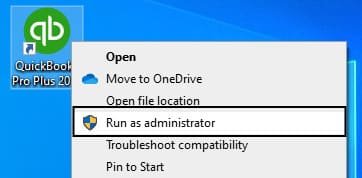
- Close all running applications and restart the computer
- Sign in using a Windows Administrator account
- Navigate to the folder containing the QuickBooks company file
- Open the company file and check if it launches properly
- Verify whether Error 6154 still appears.
Method 2: Move Company File to Local Drive (C: Drive)
This step helps eliminate issues caused by inaccessible or unstable file locations, especially network or synced folders. QuickBooks performs better when the file is stored locally.
Here are the steps to relocate the company file:
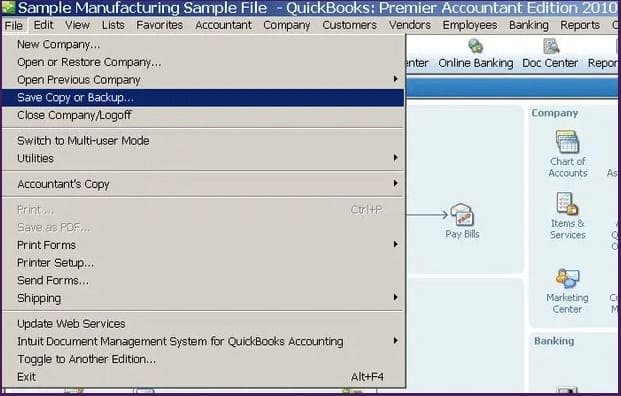
- Log in as an administrator
- Locate the current company file location
- Copy or move the file to the C: Drive
- Create a dedicated folder for QuickBooks files
- Open the file again from the new location
Method 3: Reset Sync Manager Settings
This step addresses synchronization conflicts that can block QuickBooks from reading or updating company data correctly. Resetting clears outdated sync configurations.
Listed below are the steps to reset sync settings:
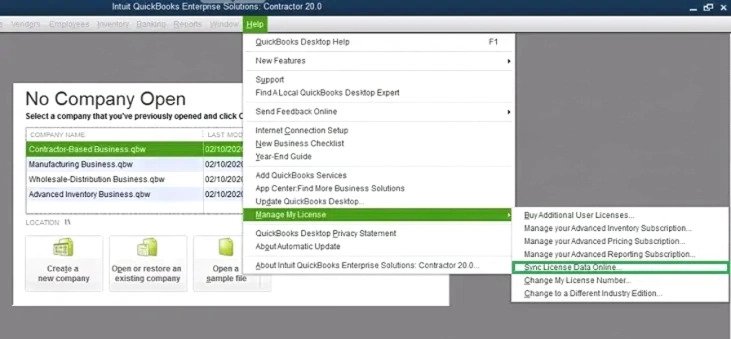
- Sign in as an administrator
- Backup and move existing company files to a safe folder
- Open QuickBooks and go to the Help menu
- Select the ” Manage Data Sync option
- Click Reset Sync Manager and enter login credentials
- Allow the sync process to complete.
Method 4: Sync Company File with QuickBooks
This method ensures that QuickBooks is properly aligned with the stored company data, especially when files are moved or updated externally. Listed below are the steps to synchronize data:
- Log in using admin privileges.
- Open the C: Drive and locate the QuickBooks folders.
- Enable the Sync Now option.
- Allow full synchronization to complete.
- Restart QuickBooks in administrator mode.
- Open the company file again.
Method 5: Use QuickBooks Tool Hub and File Doctor
This step repairs internal file issues using built-in diagnostic tools designed for file corruption and program errors.
Listed below are the steps to run repair utilities:
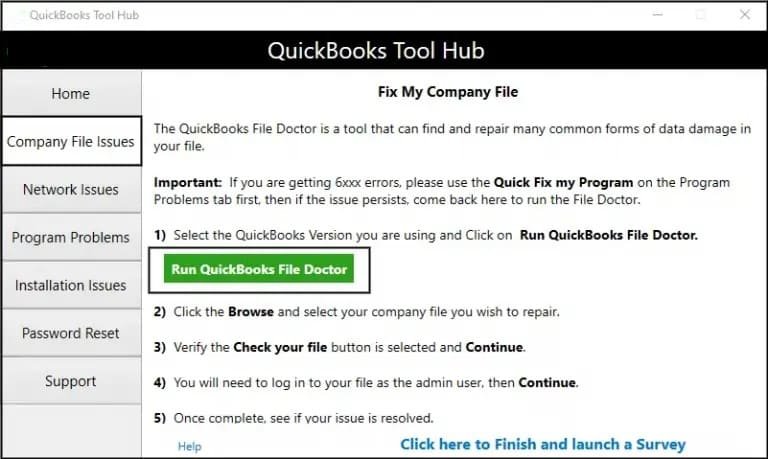
- Download and install QuickBooks Tool Hub from Intuit.
- Open Tool Hub and go to Company File Issues.
- Run QuickBooks File Doctor.
- Select the affected company file.
- Choose scan mode based on local or network file type.
- Let the tool detect and repair issues automatically.
Method 6: Remove File Compression or Encryption
This step ensures QuickBooks can access the file without security restrictions applied by Windows settings. Here are the steps to disable restrictions:
- Locate the company file folder
- Right-click the file and open Properties
- Go to Advanced settings
- Uncheck the Compress and Encrypt options
- Apply changes and reopen QuickBooks
Method 7: Verify and Rebuild Company Data
This method fixes internal data corruption that can prevent the file from opening correctly. Here are the steps to repair company data:
- Open QuickBooks Desktop
- Go to File > Utilities > Verify Data
- Allow the scan to complete
- If issues are found, go to File > Utilities > Rebuild Data
- Follow prompts and create a backup when asked
- Re-run Verify Data after repair
Method 8: Run QuickBooks in No Desktop Mode
This helps resolve conflicts caused by previously saved workspace settings or multiple open windows. Here are the steps to reset desktop view behavior:
- Open QuickBooks Desktop
- Select the company file while holding the Alt key
- Enter login credentials and continue holding Alt until the file opens
- Go to Preferences > Desktop View
- Select “Don’t save desktop settings”
- Restart QuickBooks
Method 9: Reinstall or Repair QuickBooks Desktop
This step resolves deeper software corruption or installation issues that cannot be fixed through standard troubleshooting. Here are the steps to repair or reinstall the application:
- Open Control Panel and go to Programs and Features
- Select QuickBooks Desktop
- Choose the Repair or Uninstall option
- If repairing, follow the on-screen instructions and restart the system
- In case reinstalling, download a fresh setup from the official Intuit source
- Reinstall and launch the software again.
Method 10: Update QuickBooks Desktop
An outdated QuickBooks version contains bugs or compatibility issues that can trigger Error 6154. Installing the latest updates ensures improved performance and resolves known file access problems.
Follow these steps to update QuickBooks Desktop:

- Open QuickBooks Desktop.
- Go to the Help menu and select Update QuickBooks Desktop.
- In the Update Now tab, check the Reset Update option.
- Click Get Updates to download the latest updates.
- Once the download completes, restart QuickBooks.
- Follow the on-screen prompts to install the updates.
- Reopen your company file and verify whether Error 6154 has been resolved.
You may also know about: How to Fix QuickBooks Desktop Error Code 6175?
What are the Prerequisites to Fix QuickBooks Desktop Error Code 6154?
Before you start troubleshooting Error 6154, make sure the system environment, permissions, and application setup are correctly configured. Here are the prerequisites to fix the Error Message 6154 in QuickBooks Desktop and ensure smoother repair and recovery.
| Requirement | What You Should Do |
| Windows Administrator Access | Log in to Windows using an account with full administrator rights to ensure unrestricted access to system settings and files. |
| Run QuickBooks as Admin | Right-click the QuickBooks Desktop icon and select Run as administrator to launch it with elevated permissions. |
| Close Active QuickBooks Processes | Open Task Manager (Ctrl + Shift + Esc) and end processes such as QBW32.exe, qbupdate.exe, and QBDBMgr.exe to clear any stuck sessions. |
| Verify Company File Location | Ensure the company file is stored on a local drive (preferably C:) or a properly mapped and stable network drive. |
| Set Folder Permissions | Assign Full Control permissions to the company file folder for users or the QBDataServiceUser group. |
| Update QuickBooks Desktop | Install the latest updates to ensure bug fixes, security patches, and compatibility improvements are applied. |
| Check Network Stability | In multi-user environments, confirm that LAN cables, routers, and internet connections are stable and uninterrupted. |
| Create Company File Backup | Take a secure backup of the company file before starting any troubleshooting steps to prevent data loss. |
| Install QuickBooks Tool Hub | Download and install the latest QuickBooks Tool Hub from Intuit to access repair utilities like File Doctor and Quick Fix My Program. |
You may also read: How to Fix QuickBooks Error 6129
How to Prevent QuickBooks Error Code 6154?
Preventing Error 6154 focuses on maintaining stable file access, clean data structures, and proactive repair practices so QuickBooks can consistently locate and open company files without disruption.
- Avoid deeply nested or overly restricted folders and keep company files in standard, easily accessible directories to prevent path recognition issues
- Minimize frequent relocation of company files across drives or systems, as repeated path changes can trigger access failures
- Keep file paths simple and consistent, especially when hosting files locally before moving them to a network environment
- Run the Verify Data utility regularly from File > Utilities to detect early signs of data inconsistency
- Use the Rebuild Data tool whenever Verify Data reports issues to fix minor corruption before it escalates
- Use the QuickBooks Tool Hub proactively and run File Doctor to identify and repair hidden company file problems early
- Maintain updated file structures by ensuring older or unused company file copies do not conflict with active working files
- Ensure system-level updates and patches for QuickBooks Desktop are installed promptly to reduce bugs related to file handling and directory access
- Open and close QuickBooks properly after each session to avoid incomplete writes or lingering background file locks
- Periodically audit the company file accessibility to ensure QuickBooks can consistently locate and open the data without delays or errors
Conclusion
Resolving QuickBooks Desktop Error Code 6154 is crucial for regaining access to your essential company files and financial data. Whether the issue stems from restricted sync paths, permission conflicts, or minor corruption, following troubleshooting methods like running QuickBooks as an administrator, utilizing the QuickBooks Tool Hub, or moving files to a local drive will fix QBDT Error Code 6154 and safely restore your accounting workflows.
Struggling With Accounting or Bookkeeping?
Talk to our experts in minutes — No wait time!
- Free Consultation
- Fast Response
- Trusted Experts

Frequently Asked Questions
How to avoid the future occurrence of error 6154 QuickBooks?
In order to avoid the future occurrence of QuickBooks error 6154, maintain and update QuickBooks on a mandatory basis. Also, make sure the company file can be used from a reliable network, and take the company file backup quite often to defend against data unavailability.
What can be done when the data file is damaged?
Access the Verify and Rebuild tool when the company file is corrupted. Then use the QuickBooks File Doctor tool.
Does shifting company files cause QuickBooks error 6154?
Yes, moving company files triggers QuickBooks error 6154, since it leads to service error codes such as 6000.
Can the QuickBooks company file error trigger data loss?
Error 6154 QuickBooks can lead to loss of information when the company file is corrupted or damaged. Quick actions are needed to prevent data loss.
Can data be retrieved from corrupted QuickBooks company files?
Restore data from the latest backup when the company file is corrupted.
What causes QuickBooks Error 6154 and how can I resolve it?
QuickBooks Error 6154 is usually caused by an incorrect company file location, damaged company files, or insufficient folder permissions. You can resolve it by verifying the file path, restoring the file to the correct location, updating folder permissions, or using the QuickBooks File Doctor tool.
Who can remotely troubleshoot persistent QuickBooks Error 6154?
If the error continues after basic troubleshooting, a certified QuickBooks professional can remotely diagnose the issue, repair the company file if needed, and restore access without risking your accounting data.
Is my data safe when QuickBooks Error 6154 appears?
Yes, in most cases your data remains safe. The error usually prevents QuickBooks from accessing the company file rather than deleting it. However, it’s recommended to create a backup before attempting any advanced repairs to avoid potential data loss.
How to Fix QuickBooks Error 6189, 816 Quickly
QuickBooks Error 6150: How to Fix Company File Issues


