



QuickBooks Errors 6189 and 816 occur when the application is unable to access the company file. This issue typically arises due to conflicts in multi-user mode, network problems, or incorrect file permissions. The error message often states: “An unexpected error has occurred.”
This issue can disrupt business operations, particularly when multiple users need to access and work on the same financial data simultaneously.
Struggling With Accounting or Bookkeeping?
Talk to our experts in minutes — No wait time!
- Free Consultation
- Fast Response
- Trusted Experts

Table of Contents
- 1 How to Fix QuickBooks Error 6189 and 816?
- 1.1 Solution 1: Run Quick Fix My Program from the Tool Hub
- 1.2 Solution 2: Restart all of your computers and servers
- 1.3 Solution 3: On your server, execute the QuickBooks Database Server Manager found in the Tool Hub.
- 1.4 Solution 4: Copy your company files to the local hard disk.
- 1.5 Solution 5: Data File Share Service
- 1.6 Solution 6: Rename ND and TLG files
- 1.7 Solution 7: Backup and Restore the File
- 1.8 Solution 8: Download and run the QuickBooks Refresher tool
- 2 What are the Causes of QuickBooks Error 6189 and 816?
- 3 Conclusion
- 4 Frequently Asked Questions
- 4.1 Q 1: Why am I getting an error when I go to open my company file?
- 4.2 Q 2: What is the easiest way to repair a corrupted company file?
- 4.3 Q 3: Can an Outdated Version of QuickBooks Cause Error 6189, 816?
- 4.4 Q 4: What is the role of the firewall in this error?
- 4.5 Q 5: What Can I Do When Everything Else Fails To Work?
How to Fix QuickBooks Error 6189 and 816?
The QuickBooks Error 6189, 816 can be resolved in a number of steps. One should consider these steps sequentially and in the order of the simplest to the most complex solutions.
Solution 1: Run Quick Fix My Program from the Tool Hub
QuickBooks Tool Hub is a potent tool developed by Intuit to fix frequent QuickBooks errors. This is what you should do first.
- Assuming you do not have the QuickBooks Tool Hub, get it on the Intuit site.
- Install the tool and open it.
- Select the Program Problems tab.
- Click on Quick Fix my Program.
- Wait until the tool finishes the scan and fixing processes. It can, at times, fix minor file and program problems.
- Reboot QuickBooks and attempt to open the company file.

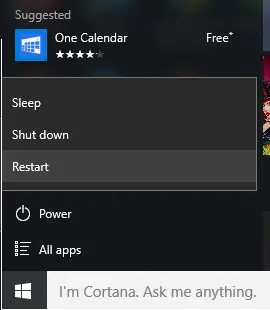
Solution 2: Restart all of your computers and servers
Temporary glitches are sometimes simply fixed by a simple restart. This action works especially on network-related problems.
- Ensure that nobody is logged in to QuickBooks.
- Close all the computers that are linked to the system that contains the company file.
- Restart the server first.
- When the server is completely running, restart the workstations one after another.
- Once more, attempt to open the company file in multi-user mode.
Solution 3: On your server, execute the QuickBooks Database Server Manager found in the Tool Hub.
QuickBooks Database Server Manager is of great importance in multi-user access. This utility can check, troubleshoot, and fix the problems in the network accessibility of the company file.
- Start the QuickBooks Tool Hub on the computer where the company file is located (the server).
- Go to the Network Issues tab.
- Click on QuickBooks Database Server Manager.
- Select the company file folder in the tool.
- Click Start Scan.
- The tool will index the folder, set up the firewall, and establish the required permissions.
- After the scan is done, attempt to open the company file in a workstation.

Solution 4: Copy your company files to the local hard disk.
In case the company file is on a server or a network drive, the company may move it to the local hard disk of one of the computers to establish whether it is a network problem.
- Move the company file (.qbw) and the transaction log file (.tlg) to the local C: drive on a workstation.
- On that workstation, open QuickBooks and attempt to access the company file on the local drive.
- In case the file opens without the error, it shows that there is a network or server permission error.
- Then you can make efforts to fix the network issue by examining permissions in folders and firewall settings.
QuickBooks Data File Share Service is a multi-user service. You would need to check whether this service is running properly.
- Use Windows + R on the keyboard to open the Run dialog.
- Type services.msc and press Enter.
- Within the Services window, scroll down until you find the QuickBooksDBXX service (XX is the version of QuickBooks, e.g., QuickBooksDB33, QuickBooks 2023).
- Check the Status column. It should be “Running.” Otherwise, right-click in the service and choose Start.
- In addition, check the Startup Type and make it Automatic.
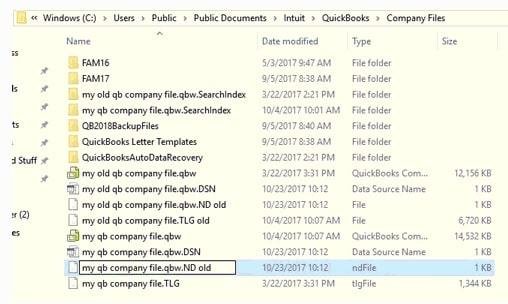
Solution 6: Rename ND and TLG files
The .nd and.tlg files are the configuration files which are used by QuickBooks to access multi-user. In case they are corrupted, their renaming will cause QuickBooks to generate new ones.
- Open the folder that contains the company file.
- Look for files with the same name as your company file but with an .nd and .tlg extension (e.g., MyCompanyFile.qbw.nd and MyCompanyFile.qbw.tlg).
- Right-click on each file and select Rename.
- Complete the file name with .old (for example, MyCompanyFile.qbw.nd.old).
- Click on the QuickBooks Database Server Manager in the Tool Hub and run a scan on the folder. This will produce new.nd and.tlg files.
- Attempt to reopen the company file.
Solution 7: Backup and Restore the File
In case of corruption of the company file itself, a recent backup can be used to restore the situation.
- In case you have a recent copy of your company file in a backup, recover it to a new folder on your computer or on your server.
- Open QuickBooks and open the company file restored.
- When the file that had been restored opens without the error, then the original file must have been corrupted.
- You may then proceed to work on the recovered file.
Note: Check that you use the latest backup so that you do not lose any new data.
Solution 8: Download and run the QuickBooks Refresher tool
QuickBooks Refresher Tool is a particular tool to overcome the difficulties in terms of installation and performance.
- Download the QuickBooks Refresher Tool from the official Intuit website.
- Launch the tool and enter the onscreen instructions. It will diagnose and automatically correct typical QuickBooks issues.
- When the tool is complete, restart the computer and attempt to open the company file once again.

What are the Causes of QuickBooks Error 6189 and 816?
The initial step in solving the QuickBooks 6189 816 error is to first find out the cause of the error. This error is not accidental; it is frequently caused by certain problems in the QuickBooks environment.
The following are the most typical causes:
- Another user is logged in with a different version of QuickBooks
- The company file is located on a server or network drive with insufficient permissions
- Corrupted QuickBooks installation files
- Network issues or problems with the server
- Incorrectly configured Database Server Manager
- Damaged or missing transaction log (.tlg) or network data (.nd) files
Conclusion
QuickBooks Errors 6189 and 816 occur due to issues related to company file access or network connectivity. You can resolve these errors by using the QuickBooks Tool Hub or by following a few simple manual troubleshooting steps. Regular backups and a proper network configuration help prevent this error. If you continue to experience difficulties, please visit smbaccountants.com for immediate assistance.
Frequently Asked Questions
Q 1: Why am I getting an error when I go to open my company file?
Ans: When opening your company file, you get an error as QuickBooks cannot create a stable and secure connection to the data file. This may be so because of various reasons, such as:
- File in Use: The file has been opened or locked by some other user of application.
- Corrupted File: The file corrupted is damaged and therefore is not readable.
- Permissions Problems: QuickBooks lacks the required access permissions to the file or the folder.
- Network Problems: The network is not stable, or a firewall or an antivirus software blocks the connection.
Q 2: What is the easiest way to repair a corrupted company file?
Ans: The simplest method that can correct the corrupted company file is by using the inbuilt QuickBooks File Doctor tool. It belongs to QuickBooks tool hub and is used to automatically identify and fix typical data and network problems. All you need to do is to run the tool, pick a company file and allow it to run its diagnosis and repair. In the case that the corruption is profound, you will require rebuilding a backup or higher-technology data recovery service.
Q 3: Can an Outdated Version of QuickBooks Cause Error 6189, 816?
Ans: Yes, the occurrence of Error 6189, 816 can undoubtedly be caused by an older version of QuickBooks. Intuit is an active company that issues updates to fix bugs, enhance the performance, and keep itself compatible with the current operating systems and network environments. Older version may not support new network protocols and may contain known bugs which have since been fixed. In order to avoid this, please ensure that you have updated your QuickBooks application to the latest release. You will be able to check updates via the Help menu in QuickBooks.
Q 4: What is the role of the firewall in this error?
Ans: The QuickBooks 6189 816 error can be caused by a firewall. A firewall can cut off the connection between the QuickBooks desktop application and the database server when not properly set up, preventing network computers from accessing the company file. In order to solve this, you should add firewall exceptions to QuickBooks and associated services. This contains executable software such as QBW32.EXE, QuickBooksDBXX.exe and ports which are used to communicate with QuickBooks (usually 8019, 56725, 55378-55382, etc.).
Q 5: What Can I Do When Everything Else Fails To Work?
Ans: When you have exhausted all the troubleshooting components and the QuickBooks Error 6189, 816 continues to exist, there are several advanced alternatives:
- Make a Portable Company File
This can be done to sometimes fix a corrupted file. Navigate to File > Create Copy > Portable business file after opening the file on the server. This makes a small file which can then be restored to say a different location.
- Restore a Recent Backup
You have a recent backup of your company file and restoring it is a method of having a clean copy of your data. Select File, Restore a copy of the backup in order to open or restore the business.
- Contact QuickBooks Support
In case the issue is complex, then it is better to use the assistance of QuickBooks technical support. They have the expertise and the special equipment to debug and resolve complex file and network issues.


