


QuickBooks Error 15276 is a typical payroll-related error that might disrupt your workflow, specifically during downloading a payroll update or submitting your tax forms. This mistake will not allow QuickBooks to communicate with the Intuit server appropriately, and thus, the process of updating will fail. It is a common problem with the program files being corrupted or improper system settings, or with your digital signature certificate. It is essential to address this mistake to make sure that your payroll information is correct and up-to-date, eliminating compliance problems and keeping your business running on track. The following guide will take you through the troubleshooting steps to correct this error and put your QuickBooks on track again.
Table of Contents
- 1 What is QuickBooks Error 15276?
- 2 What are the Causes of QuickBooks Error 15276?
- 3 What are the Signs of QuickBooks Payroll Error 15276?
- 4 How to Fix QuickBooks Error Code 15276?
- 4.1 Solution 1: Update QuickBooks and Tax Table
- 4.2 Solution 2: QuickBooks Tool Hub Quick Fix My Program Feature.
- 4.3 Solution 3: Cleanly install QuickBooks
- 4.4 Solution 4: Try to End the QBwebconnector.exe Service
- 4.5 Solution 5: Try to set up your Digital Signature Certificate
- 4.6 Solution 6: Verify Internet Explorer Settings
- 4.7 Solution 7: Using the Install Diagnostic Tool to Repair QuickBooks
- 4.8 Solution 8: Configuring Firewall Settings in Windows
- 4.9 Solution 9: Manually Resolve This Error
- 5 How to Avoid QuickBooks Error 15276 in the Future
- 6 Conclusion
- 7 Frequently Asked Questions
What is QuickBooks Error 15276?
QuickBooks Error 15276 is a particular error code that is presented when updating payroll. It frequently leaves a message such as the payroll update failed successfully. The files are no longer updated with payroll, or QuickBooks cannot connect with the server. Unlike a minor inconvenience, this QuickBooks update error 15276 can stop payroll processes, effectively preventing the calculation of employee wages, withholding, and tax liabilities properly. It is one of the most important signs of a problem with the installation of the program or contact with the Intuit servers.
What are the Causes of QuickBooks Error 15276?
The first stage in correcting the issue is to know the root cause. The following are the primary reasons for QuickBooks Payroll Error 15276:
- Damaged or Corrupt QuickBooks Installation: Critical files of a program may be damaged or corrupted over time, thus preventing the software from operating properly.
- Missing Digital Signature Certificate: QuickBooks supports a digital signature, which authenticates files downloaded from Intuit. Failure to install this certificate correctly or not having it will result in a failure of the update.
- Incorrect Internet Explorer Settings: QuickBooks is dependent on the security settings in Internet Explorer to access the Internet. When such settings are not configured properly, it can block the connection.
- Firewall or Antivirus Blocking: It may have a false alarm with your firewall or antivirus software, considering QuickBooks a threat that is preventing it from accessing the Internet and the Intuit servers.
- Outdated QuickBooks or Tax Table: When your QuickBooks software or tax table is highly obsolete, it might result in incompatibility with the new updates.
- Damaged Windows Registry: Several errors can also be caused by a corrupted Windows registry, such as QuickBooks Error 15276 in payroll.
What are the Signs of QuickBooks Payroll Error 15276?
The most noticeable symptom is the error message itself, though other symptoms can also hint at the issue:
- Inability to Download Payroll Updates: The inability to update a payroll or tax table is the main symptom.
- QuickBooks Performance Issues: You may be experiencing slowness in QuickBooks, or the software is frequently not responding.
- Sudden Program Crashes: There is a chance that it might crash or be abruptly discontinued when you are working.
- System Slowdown: All of your computer may slow down or not respond.
How to Fix QuickBooks Error Code 15276?
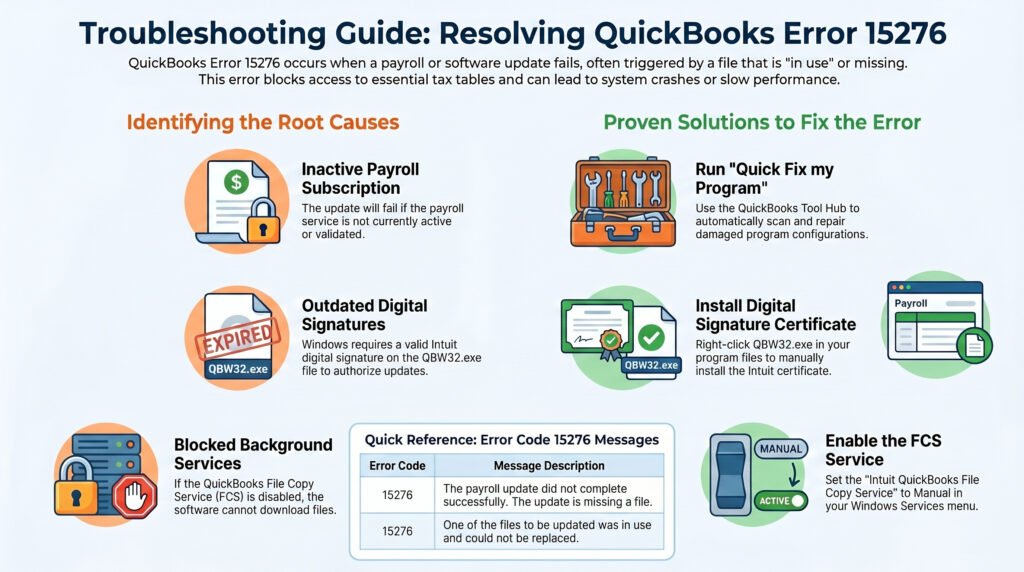
The following are the steps to troubleshooting and solving the error. Begin with the most basic solutions and go down the list.
Solution 1: Update QuickBooks and Tax Table
The right path of action is the simplest in most instances. The cause of the problem could be an outdated version of QuickBooks.
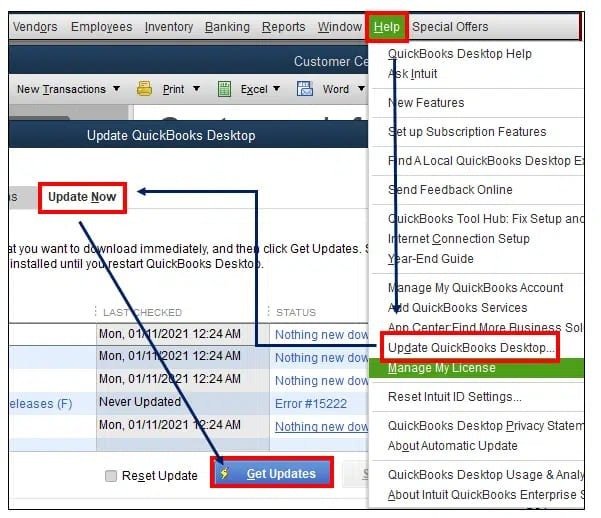
- Click on the Help menu and open QuickBooks.
- Select Update QuickBooks Desktop.
- Click the Update Now tab.
- Select the Reset Update box to remove all past settings of Updates.
- Click Get Updates. After the update is done, close and re-open QuickBooks.
- Attempt to re-download the payroll update.
Solution 2: QuickBooks Tool Hub Quick Fix My Program Feature.
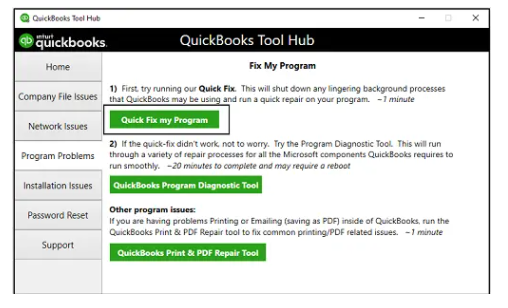
QuickBooks Tool Hub is an effective application that helps to correct frequent errors of QuickBooks. When you do not have it installed, download and install it on the Intuit site.
- Close QuickBooks.
- Open the QuickBooks Tool Hub.
- Choose the tab Program Problems.
- Click Quick Fix my Program. This tool will carry out a sequence of diagnostic and repair tasks.
- After the process is finished, start QuickBooks and attempt to restart the payroll update.
Solution 3: Cleanly install QuickBooks
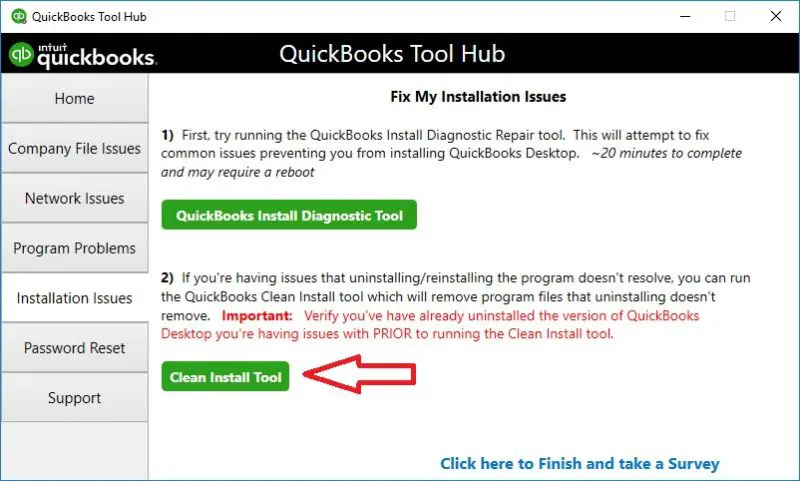
In case simple fixes do not work, it may be necessary to clean-install. This is achieved by deleting the program files more intensively and then reinstalling them.
- First, back up your company file.
- Go to Control Panel, Programs and Features.
- Find QuickBooks Desktop and select Uninstall/Change. Uninstall the program by doing the following.
- Upon uninstallation, empty folder and content of QuickBooks in the following directories: C: ProgramDataIntuitQuickBooks, C: Program Files (x86) IntuitQuickBooks, C: Program FilesIntuitQuickBooks.
- Restart your computer.
- Install QuickBooks with your license and product numbers.
Solution 4: Try to End the QBwebconnector.exe Service
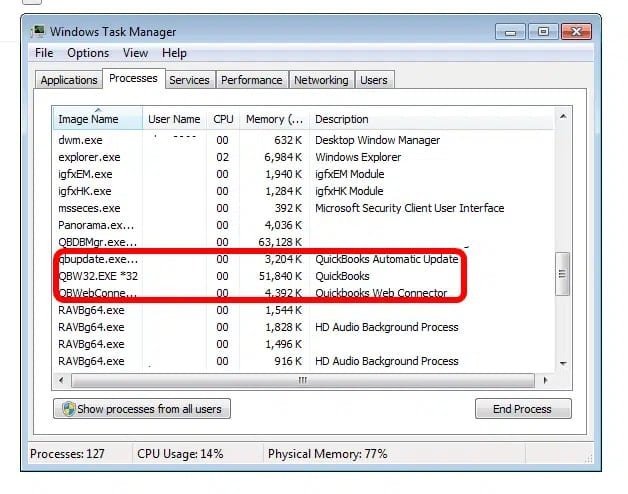
In some cases, the QBwebconnector.exe service can disrupt the connection of QuickBooks with the internet.
- Click Ctrl + Shift + Esc to bring out the Task Manager.
- Select the Processes tab or the Details tab.
- Find the qbwebconnector.exe process.
- Right-click on it and select End task.
- Attempt to restart the payroll update.
Solution 5: Try to set up your Digital Signature Certificate
One of the most frequent reasons for QuickBooks Error 15276 is a missing or corrupted digital signature.
- Open the disk directory of QuickBooks. This typically is C: Program files (x86) IntuitQuickBooks (Year).
- Right-click on the QBW32.exe file and select Properties.
- Click on the Digital Signatures tab.
- Select Intuit Inc. from the signature list.
- Click the Details button.
- Click View Certificate.
- Install Certificate is an option in the Certificate window. You have to choose it.
- The Certificate Import Wizard’s on-screen instructions should be followed. Choose Local Machine and place the certificate in the Trusted Root Certification Authorities store.
Solution 6: Verify Internet Explorer Settings
QuickBooks is based on the Internet Explorer settings to navigate the Internet. Make sure that they are set properly.
- Open Internet Explorer.
- Click the Tools menu (or the gear icon) and, in turn, Internet Options.
- Visit the Security tab. Click the Trusted Sites and then the Sites button.
- Add the following websites to the list: .quickbooks.com, .intuit.com, .payroll.com.
- Go to the advanced tab. Scroll down to the Security section.
- Make sure that UseSSL 2.0 and UseSSL 3.0 are enabled. In addition, make sure that Use TLS 1.0, Use TLS 1.1, and Use TLS 1.2 are turned on.
Solution 7: Using the Install Diagnostic Tool to Repair QuickBooks
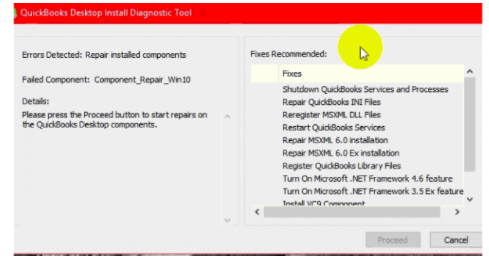
Another tool in the QuickBooks Tool Hub is the QuickBooks Install Diagnostic Tool, which is able to rectify underlying problems in installation.
- Open the QuickBooks Tool Hub.
- Choose the Tab of Installation Issues.
- Click QuickBooks Install Diagnostic Tool.
- The tool will have automatic execution. This is accomplished within several minutes.
- After it is done, power up your computer and attempt the payroll update once more.
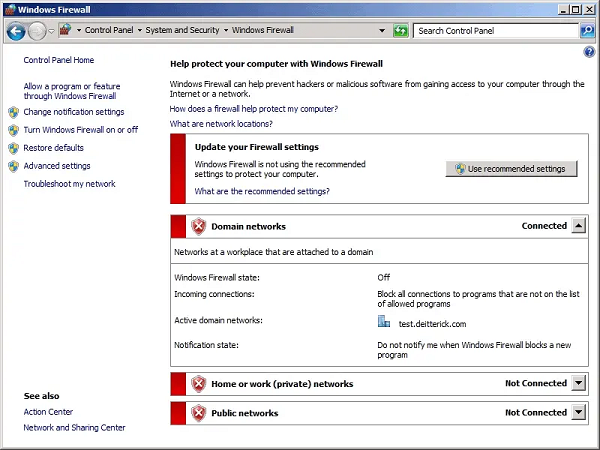
Solution 8: Configuring Firewall Settings in Windows
QuickBooks can be blocked by your firewall. You will have to make exceptions in QuickBooks to enable it to communicate freely.
- Open the Windows Firewall with advanced security complex.
- Select Inbound Rules and then New Rule…
- Select Program and navigate to the following executable files:
- C:\Program Files (x86)\Intuit\QuickBooks (Year)\QBW32.exe
- C:\Program Files (x86) Common Files Intuit QuickBooks QBserverUtilityMgr.exe.
- C/Program Files(x86)/Common file/Intuit/QuickBooks/QuickBooksMessaging.exe.
- Use the prompts to permit the connection of all three files.
- You can repeat this with Outbound Rules.
Solution 9: Manually Resolve This Error
In any case, you can be forced to manually download the payroll tax table.
- Visit the Intuit site and find an updated payroll tax table.
- Take the file and save it to your computer.
- Open QuickBooks, and begin Employees, select Get Payroll Updates.
- Select Download Entire Update.
How to Avoid QuickBooks Error 15276 in the Future
You can never avoid making mistakes, but you can go a long way to minimizing the risks of re-experiencing QuickBooks Error 15276.
- Keep QuickBooks and Your OS Updated: Regularly update both your QuickBooks software and your Windows operating system.
- Maintain Your Antivirus/Firewall: Make sure you have up-to-date security software installed and set to allow QuickBooks to operate.
- Perform periodic System Cleanup: Scan your disk with the disk cleanup and defragmentation utility to maintain a healthy hard drive and avoid file corruption.
- Backup Your Company file: You should always have a recent version of your company file as a backup so that you do not lose data.
- Keep the QuickBooks Tool Hub: Have the Tool Hub on hand and use its diagnostic tools as soon as there is a problem.
Conclusion
The error 15276 with QuickBooks can be irritating to encounter, yet there is a solution to it. The underlying issue can be determined and solved by systematically completing the troubleshooting steps specified in this guide. Be it a simple problem with an update or a more serious installation problem, the solutions here can get your payroll operations running again. Always save your data first before you start making serious repairs. Are you still unable to resolve the QuickBooks update issue 15276? Do not hesitate to contact a certified QuickBooks professional.
Struggling With Accounting or Bookkeeping?
Talk to our experts in minutes — No wait time!
- Free Consultation
- Fast Response
- Trusted Experts

Frequently Asked Questions
Can QuickBooks Error 15276 affect company files?
No, this QBDT Error Code 15276 usually does not damage your company files, but it can interrupt updates and payroll functions.
Do I need an internet connection to fix Error 15276?
Yes, a stable internet connection is required, especially for downloading updates and verifying services.
Can outdated Windows cause QuickBooks Error 15276?
Yes, an outdated Windows system can create compatibility issues and prevent updates from installing properly.
Is it necessary to update QuickBooks regularly?
Yes, regular updates help avoid errors like Error Code 15276 and ensure smooth performance.
Can multiple users face this error in multi-user mode?
Yes, if the issue is related to system settings or network configuration, multiple users may experience it.
How to Fix QuickBooks Error Code 15270?
QuickBooks Payroll Error 15271 — Stop the Failure & Fix It Now


