


QuickBooks Error 15240 is an update-related issue that typically occurs when you try to download payroll updates or install maintenance releases in QuickBooks Desktop. This error prevents the software from completing updates successfully, which can interrupt payroll processing and delay critical accounting tasks. Users often encounter this problem due to incorrect system settings, insufficient permissions, or conflicts with internet or security configurations.
Some of the most common error messages associated with QuickBooks error code 15240 include:
- “Error 15240: The payroll update did not complete successfully.”
- “Error 15240: QuickBooks Desktop update did not complete successfully.”
- “Error 15240: File exists.”
These messages indicate that QuickBooks cannot verify or install updates properly, which requires immediate attention to restore smooth functionality. In this guide, we’ll discuss the causes, signs, prerequisites, solutions to fix QuickBooks Error 15240, preventive tips, and more.
Table of Contents
- 1 What are the Causes of the Error Message 15240 in QuickBooks Desktop?
- 2 What are the Signs That Show QuickBooks Error Code 15240?
- 3 What are the Solutions to Fix the QuickBooks Desktop Error Code 15240?
- 3.1 Solution 1: Run QuickBooks as Administrator
- 3.2 Solution 2: Verify Internet Explorer Settings
- 3.3 Solution 3: Review and Verify the System Time and Date
- 3.4 Solution 4: Check Third-Party Firewall Settings
- 3.5 Solution 5: Run the Quick Fix My Program Tool
- 3.6 Solution 6: Use the QuickBooks Install Diagnostic Tool
- 3.7 Solution 7: Manually Update the QuickBooks Desktop Application
- 3.8 Solution 8: Add Windows Permissions to QuickBooks Installation Folders
- 3.9 Solution 9: Install a New Digital Signature Certificate
- 3.10 Solution 10: Reinstall QuickBooks Desktop on Your System
- 3.11 Solution 11: Clean System Junk Files
- 3.12 Solution 12: Use Selective Startup Mode
- 3.13 Solution 13: Review the Shared Mapped Drive
- 4 What are the Preventive Tips for the QuickBooks Error Code 15240 Issue?
- 5 Conclusion
- 6 Frequently Asked Questions
- 6.1 Does QuickBooks Error 15240 affect company data?
- 6.2 Can I fix QuickBooks Error Code 15240 without reinstalling the software?
- 6.3 Is QuickBooks Error 15240 related to payroll only?
- 6.4 How long does it take to fix Update Error 15240?
- 6.5 Can network issues trigger QuickBooks Desktop Error Code 15240?
What are the Causes of the Error Message 15240 in QuickBooks Desktop?
Several factors can trigger QuickBooks Error Code 15240, especially during payroll or software updates. Here are the most common causes of the QuickBooks Error 15240:
- Using an outdated version of QuickBooks Desktop.
- Not running QuickBooks with administrative privileges.
- Logging into Windows without admin rights.
- Invalid or incorrect download link during updates.
- Corrupted or damaged QuickBooks update files.
- Damaged or corrupted Windows registry files.
- Poor or unstable internet connection.
- Incorrect SSL (Secure Sockets Layer) configuration.
- Firewall or antivirus blocking update access.
- Using multi-user mode in a terminal service environment.
- Inactive or expired payroll subscription.
- Interference from third-party applications or add-ons.
What are the Signs That Show QuickBooks Error Code 15240?
You can recognize QuickBooks Error Code 15240 through several noticeable symptoms that typically appear during updates or payroll processing. Here are the key signs of the error code 15240:
- QuickBooks fails to install the latest software updates.
- Payroll updates do not complete or show a failure message.
- Unable to run or process payroll tasks.
- Error code 15240 appears on the screen with a warning message.
- Difficulty downloading or installing maintenance releases.
- System performance slows down during update attempts.
- QuickBooks becomes unresponsive or takes longer to execute commands.
- Frequent crashes while updating QuickBooks.
- Unable to edit or adjust employee paychecks after the error.
What are the Prerequisites to Consider Before you fix the QBDT Error Code 15240?
Before troubleshooting QuickBooks Error Code 15240, make sure you complete the following essential checks to avoid interruptions during the fix:
- Confirm your QuickBooks Desktop version is updated to the latest release.
- Verify that your payroll subscription status is active.
- Ensure you have a stable and reliable internet connection.
- Check that your system date and time are accurate.
- Log in with Windows administrator rights.
- Run QuickBooks with admin privileges.
- Close all background applications to prevent conflicts.
- Create a secure backup of your company file.
- Identify installed antivirus and firewall programs.
- Ensure security software is not blocking QuickBooks processes.
- Verify SSL settings and enable TLS 1.2 in Internet settings.
- Make sure required network ports (80 and 443) are open.
- Check for any third-party applications that may interfere with updates.
What are the Solutions to Fix the QuickBooks Desktop Error Code 15240?
You can fix QuickBooks Desktop Error Code 15240 by applying a series of troubleshooting methods that address permission issues, system settings, and update conflicts. Follow the step-by-step solutions below to resolve the error and restore smooth payroll and update functionality.
Solution 1: Run QuickBooks as Administrator
Running QuickBooks without admin rights can restrict update permissions and trigger QuickBooks Error 15240, so make sure to launch it with proper privileges.
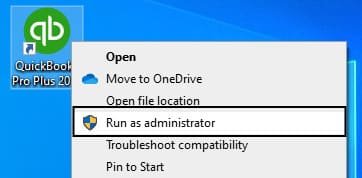
- In the first step, go to the QuickBooks icon on your desktop and right-click on it.
- Then, select the Run as Administrator option.
- After that, open Properties and check the Compatibility settings for all users.
Solution 2: Verify Internet Explorer Settings
Incorrect internet settings can interrupt QuickBooks updates and lead to Error Code 15240, so verifying Internet Explorer configuration is essential.
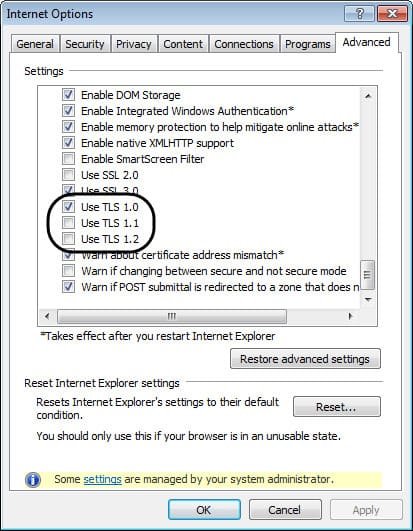
- In the first step, go to Internet Explorer and click on the Gear icon.
- Then, select Internet Options from the drop-down menu.
- After that, navigate to the Advanced tab.
- In the next step, under the Security section, check Use SSL 2.0 and Use SSL 3.0.
- Finally, click Apply and then hit OK.
Solution 3: Review and Verify the System Time and Date
Incorrect system date and time settings can disrupt secure connections and trigger QuickBooks Error 15240, so it’s important to verify them.

- In the first step, go to the time display on your system and click on it
- Then, select the Change Date and Time Settings option
- After that, choose the correct date and time as per your region
- Finally, click Apply and then hit OK
Solution 4: Check Third-Party Firewall Settings
Firewall restrictions can block QuickBooks from accessing update servers, which may lead to QuickBooks Error 15240, so reviewing these settings is essential.
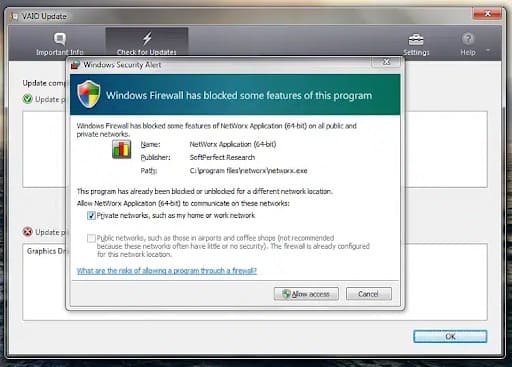
- In the first step, go to the settings of your third-party firewall program
- Then, open the list of restricted or blocked programs
- After that, ensure that qbw32.exe and qbupdate.exe are allowed and not blocked
- In the next step, verify that the firewall is not blocking Port 80 and Port 443
Solution 5: Run the Quick Fix My Program Tool
Using the QuickBooks Tool Hub can help resolve program-related issues that trigger QuickBooks Error Code 15240 by repairing damaged components.
- In the first step, go to QuickBooks and close the application completely
- Then, open your browser and download the QuickBooks Tool Hub from a trusted source
- After that, save the downloaded file in an easily accessible location like the Desktop or Downloads
- In the next step, double-click the QuickBooksToolHub.exe file to begin installation
- Then, follow the on-screen instructions to install the Tool Hub
- Once you are done with it, you have to open the Tool Hub by double-clicking its icon
- After that, select the Program Problems option
- Then, click on Quick Fix My Program to start the repair process
- Finally, once the process completes, restart your system and reopen QuickBooks
Solution 6: Use the QuickBooks Install Diagnostic Tool
The QuickBooks Install Diagnostic Tool helps fix installation-related issues that may be causing QuickBooks Error Code 15240, especially during updates.
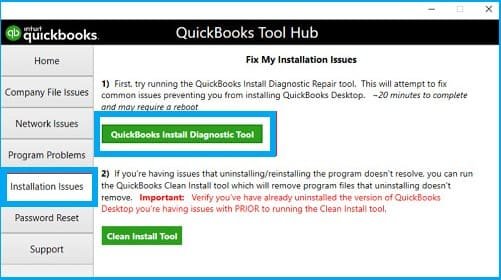
- In the first step, go to the QuickBooks Tool Hub and open it
- Then, select the Installation Issues option
- After that, click on the QuickBooks Install Diagnostic Tool to start the repair process
- In the next step, allow the tool to scan and fix installation problems
- Once you are done with it, you have to restart your computer
- Then, open QuickBooks Desktop and access your company file
- Finally, try updating QuickBooks again to check if the issue is resolved
Solution 7: Manually Update the QuickBooks Desktop Application
Manually updating QuickBooks can help resolve the update error 15240 when automatic updates fail or get interrupted.
For Windows Users:
- In the first step, go to QuickBooks and select the Help tab from the toolbar
- Then, choose Update QuickBooks Desktop and click on Update Now
- After that, select Get Updates to start the download process
- Once you are done with it, you have to close and reopen QuickBooks
- Then, when prompted, click Yes to install the updates
- Finally, follow the on-screen instructions to complete the update
For Mac Users:
- In the first step, go to the Menu tab in QuickBooks
- Then, select Check for QuickBooks Updates
- After that, click on Install and Relaunch
Solution 8: Add Windows Permissions to QuickBooks Installation Folders
Insufficient folder permissions can prevent QuickBooks from accessing update files, which may lead to QBDT Error Code 15240, so granting proper permissions is crucial.
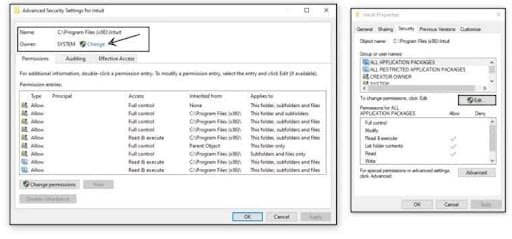
- In the first step, go to QuickBooks and close the application completely
- Then, navigate to C:\Program Files (or C:\Program Files (x86) for 64-bit systems)
- After that, right-click the QuickBooks folder, select Properties, and open the Security tab
- In the next step, click on Advanced and check if your user group is set as the owner
- If not, then click Change, enter your username, and select Check Names, then click OK
- Once you are done with it, you have to enable Replace owner on subcontainers and objects, then click Apply and OK
- Then, return to the permissions window, select Users, and allow Full Control
- After that, click Apply and then OK to save changes
- Finally, try updating QuickBooks again; if the issue persists, repeat the same steps for other Intuit-related folders
Solution 9: Install a New Digital Signature Certificate
An expired or missing digital signature certificate can interrupt update verification and trigger QuickBooks Error 15240, so installing a valid certificate can resolve the issue.
- In the first step, go to the path C:\Program Files\Intuit\QuickBooks
- Then, locate QBW32.exe, right-click on it, and select Properties
- After that, move to the Digital Signatures tab and ensure Intuit is selected
- In the next step, click on Details and then choose View Certificate
- Once you are done with it, you have to click on Install Certificate
- Then, keep clicking Next until you see the Finish option and select it
- Finally, restart your system and try downloading the updates again
Solution 10: Reinstall QuickBooks Desktop on Your System
If none of the previous methods work, reinstalling QuickBooks using the Clean Install Tool can help eliminate deep-rooted issues causing QuickBooks Error 15240.
- In the first step, go to your keyboard and press Windows + R to open the Run window
- Then, type appwiz.cpl and click OK
- After that, locate QuickBooks under Programs and Features and select Uninstall
- In the next step, click Yes, then Next, and finally choose Remove to uninstall the application
- Once you are done with it, you have to wait until QuickBooks is completely removed from your system
- Then, download and install the QuickBooks Tool Hub
- After that, open the Tool Hub and go to the Installation Issues tab
- Then, click on the Clean Install Tool
- Finally, select your QuickBooks version and click Continue to proceed with a clean installation
Solution 11: Clean System Junk Files
Accumulated junk files can slow down your system and interfere with updates, which may contribute to QuickBooks Desktop Error 15240, so clearing them can improve performance.
- In the first step, go to This PC from your desktop
- Then, right-click on the C drive under My Computer
- After that, select the Disk Cleanup option
- In the next step, review and select the unnecessary or junk files
- Finally, delete the selected files to free up space
Solution 12: Use Selective Startup Mode
If third-party applications interfere with QuickBooks processes, switching to selective startup mode can help fix QBDT Error Code 15240 by minimizing background conflicts.
Step I: Switch to Selective Startup Mode
- In the first step, go to your keyboard and press Windows + R to open the Run window
- Then, type msconfig and press Enter
- After that, under the General tab, select Selective Startup and check Load System Services
- In the next step, move to the Services tab and check Hide all Microsoft Services
- Then, click on Disable All
- After that, uncheck Hide all Microsoft Services and select Windows Installer from the list
- Finally, click OK and choose Restart to boot your system in selective startup mode
Step II: Install or Update QuickBooks Desktop
- In the next step, install or open QuickBooks Desktop on your system
- Then, go to the Help menu and select Update QuickBooks Desktop
- After that, click on Get Updates and then Update Now
Step III: Return to Normal Startup Mode
- Once you are done with it, you have to press Windows + R again to open Run
- Then, type msconfig and hit Enter
- After that, under the General tab, select Normal Startup
- Finally, click OK and restart your system
An incorrectly mapped network drive can prevent QuickBooks from accessing update files, which may lead to QuickBooks Error 15240, so verifying the shared download location is important.
- In the first step, go to QuickBooks and press Ctrl + 1 to open the Product Information window and note the file location
- Then, navigate to the Help menu and select Update QuickBooks Desktop
- After that, click on the Options tab to review shared download settings
- In the next step, check the shared download option:
- If set to Yes, ensure the mapped drive matches the product information location
- If set to No, confirm the download location matches the QuickBooks installation folder
- Once you are done with it, you have to correct the download setting if needed by toggling Yes/No and saving changes
- Then, if the mapped drive is incorrect, go to This PC, select Map a Network Drive, and choose the correct network path
- After that, click Finish and relaunch QuickBooks
- Finally, return to the update section, toggle shared download settings again, save changes, and run the update
You may also read this: Fix QuickBooks Update Error 15225 in Simple Steps
What are the Preventive Tips for the QuickBooks Error Code 15240 Issue?
Preventing QuickBooks Error Code 15240 is easier than fixing it, especially when you follow the right practices to keep your system and software properly configured.
- Manually add QBW32.exe and QBUpdate.exe to your firewall’s exclusion list rather than relying on automatic detection.
- Use a dedicated Windows Admin profile for all updates to avoid permission conflicts.
- Regularly validate Intuit’s digital signatures in your folder properties.
- Finally, ensure all workstations use a consistent UNC network path for shared downloads to prevent file-path mismatches that disrupt the update verification process.
Read this: How to Fix QuickBooks Error 15215 Payroll Update Issue
Conclusion
QuickBooks Error 15240 can disrupt payroll updates and system performance if not addressed promptly. By identifying causes and applying the right fixes, you can resolve QuickBooks Desktop Error Code 15240 efficiently. Follow preventive steps to avoid this update error 15240 and ensure smooth payroll processing in QuickBooks Desktop.
Struggling With Accounting or Bookkeeping?
Talk to our experts in minutes — No wait time!
- Free Consultation
- Fast Response
- Trusted Experts

Frequently Asked Questions
-
Does QuickBooks Error 15240 affect company data?
No, QuickBooks Error 15240 does not directly damage your company file, but it can delay payroll processing and updates, which may impact your workflow.
-
Can I fix QuickBooks Error Code 15240 without reinstalling the software?
Yes, in most cases, you can resolve Error Code 15240 by adjusting settings like admin permissions, internet configuration, or firewall rules without reinstalling QuickBooks.
-
Primarily, this error appears during payroll updates, but it can also occur while installing general QuickBooks Desktop updates.
-
How long does it take to fix Update Error 15240?
The resolution time depends on the cause, but most fixes for update error 15240 can be completed within a few minutes to an hour.
-
Can network issues trigger QuickBooks Desktop Error Code 15240?
Yes, unstable or restricted network connections can prevent QuickBooks from downloading updates, leading to this error.


