



QuickBooks Error 1402 disrupts the installation process of your QuickBooks Desktop. It usually occurs when you are updating, installing, and reinstalling the software, which prevents the setup from completing. During the installation of QuickBooks, the installer asks Windows for permission to write some settings into a system settings area called the Windows Registry.
Windows only grants permission to certain programs. You can make changes to these registry keys only when you use your administrator login credentials. When the software runs the installer, Windows shows a permission request in the background (or uses your admin login).
This guide helps you with the methods required to resolve the error 1402 in QuickBooks, explains why this happens, and shows you the ways by which you can prevent it from recurring.
Table of Contents
- 1 Why QuickBooks Error 1402 Appears During Installation
- 2 How to Fix QuickBooks Error 1402 While Installing or Updating
- 2.1 Solution 1: Update Windows and Restart
- 2.2 Solution 2: Run the QuickBooks Install Diagnostic Tool
- 2.3 Solution 3: Install QuickBooks Using Administrator Access
- 2.4 Solution 4: Repair Microsoft Components
- 2.5 Solution 4: Reinstall QuickBooks Cleanly
- 2.6 Solution 5: Correct Registry Permissions
- 2.7 Basic Checks Before Fixing QuickBooks Error Code 1402
- 3 How QuickBooks Desktop Error 1402 Interrupts Your Workflow
- 4 Prevent Future QuickBooks Error 1402 Issues
- 5 Final Thoughts
- 6 Frequently Asked Questions
- 6.1 What does Installation Error 1402 mean in QuickBooks Desktop?
- 6.2 What commonly triggers this registry-related installation issue?
- 6.3 How can I fix QuickBooks Error 1402?
- 6.4 Do Windows Registry permissions cause this error?
- 6.5 How can the QuickBooks Install Diagnostic Tool be used effectively?
- 6.6 Can updating Windows fix this error?
- 6.7 When should I reinstall QuickBooks Desktop?
Why QuickBooks Error 1402 Appears During Installation
Here are a few trigger why you are facing Error Code 1402 in QuickBooks Desktop:
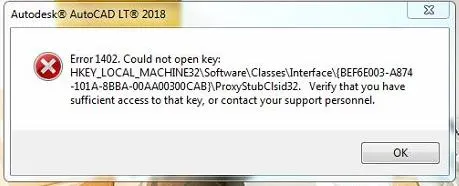
- Registry permission restrictions block access. Windows denies QuickBooks the read/write rights it needs on keys like HKEY_LOCAL_MACHINE\SOFTWARE\Classes. Grant full control to fix this issue.
- Damaged installation files corrupt the process. Download files get incomplete or corrupted during transfer. Replace them with fresh downloads from Intuit’s official site.
- Outdated Windows components trigger failures. Missing updates leave gaps in the .NET Framework or Visual C++. Install the latest patches through Windows Update.
- Antivirus interference halts registry changes. Security software like Bitdefender flags QuickBooks actions as threats. Add QB folders and executables to exclusion lists.
- Missing admin rights limit installer power. Standard user accounts lack elevation. Right-click setup files and select “Run as administrator” every time.
Struggling With Accounting or Bookkeeping?
Talk to our experts in minutes — No wait time!
- Free Consultation
- Fast Response
- Trusted Experts

How to Fix QuickBooks Error 1402 While Installing or Updating
Below are the step-by-step solutions to fix QuickBooks error 1402:
Solution 1: Update Windows and Restart
Install all pending patches via Update & Security to refresh the operating system environment and fix damaged system files that QuickBooks relies on for a stable installation.
- Open Settings. Click Update & Security now, Windows Update.
- Click Check for updates. Install all available updates, including optional ones.
- Restart immediately. Windows applies patches during reboot.
- Verify updates. Return to Windows Update to confirm installation success.
Solution 2: Run the QuickBooks Install Diagnostic Tool
Launch the QuickBooks Install Diagnostic Tool from the Tool Hub to automatically detect and repair core components like .NET Framework and MSXML, which are frequent triggers behind 1402 errors.
- Download QuickBooks Tool Hub from Intuit’s official site. Save the latest version, such as 1.6.0.8.
- Install Tool Hub. Double-click the .exe file, follow prompts, and accept terms.
- Launch Tool Hub. Select the Installation Issues tab on the left.
- Click QuickBooks Install Diagnostic Tool. The scan runs automatically for 15-20 minutes, fixing .NET Framework, MSXML, and registry problems.
- Restart your computer. Test the QuickBooks installation afterwards.
Solution 3: Install QuickBooks Using Administrator Access
Right-click the installer and select Run as administrator to bypass local permission restrictions that often trigger the “Permission Denied” errors during registry writing.
- Right-click the QuickBooks installer file. Select Run as administrator.
- Follow setup prompts. Enter license and product numbers when asked.
- Choose installation type. Opt for Custom and Network if a multi-user setup applies.
- Complete installation. Decline extras like trial offers unless needed.
- Launch QuickBooks. Verify it opens without errors.
Solution 4: Repair Microsoft Components
Use the Microsoft Program Install and Uninstall Troubleshooter to ensure the specific Microsoft-based foundations are fully functional.
- Download Microsoft Program Install and Uninstall Troubleshooter. Run it from Microsoft’s site.
- Select the Repair option. Choose affected programs if listed.
- Enable .NET Framework. Go to Control Panel, then Programs. Turn Windows features on or off. Check .NET 4.8+.
- Install Visual C++ Redistributables. Download both x86 and x64 versions from Microsoft.
- Restart after repairs. Run QuickBooks Diagnostic Tool again.
Solution 4: Reinstall QuickBooks Cleanly
Use msconfig to switch to Selective Startup before reinstalling to ensure no third-party applications like antivirus or firewalls interfere with the critical file-writing phase.
- Press Windows + R. Type msconfig and press Enter.
- Select a selective startup. Uncheck Load startup items under the General tab.
- Go to the Services tab. Check Hide all Microsoft services, then Disable all.
- Apply changes. Restart in Selective Startup mode.
- Uninstall QuickBooks via Control Panel > Programs and Features.
- Download a fresh installer from Intuit. Install in Selective mode, then return to Normal startup via msconfig.
Solution 5: Correct Registry Permissions
Manually change the Classes key owner to Administrators in regedit to force the Windows Registry to grant QuickBooks the specific access levels it requires to complete setup.
- Press Windows + R. Type regedit and press Enter.
- Navigate to HKEY_LOCAL_MACHINE\SOFTWARE\Classes. Right-click Classes in the left pane.
- Select Permissions Advanced. Click Change next to Owner.
- Enter Administrators or SYSTEM. Check Replace owner on subcontainers and objects, then Apply.
- Add the Everyone group. Grant Full Control permissions. Click OK and close Registry Editor.
- Reboot your PC. Retry QuickBooks setup.
Important: Editing the Windows registry incorrectly can cause system issues. Back up the registry before making changes: Open Registry Editor, click on File, then Export, and lastly select Save full backup.
Basic Checks Before Fixing QuickBooks Error Code 1402
Here are a few steps you must follow before fixing Error Code 1402 in QBD:
- Restart Your System: Perform a full shutdown and wait 30 seconds before booting to clear temporary glitches.
- Log in as Administrator: Switch to an account with full privileges to ensure the installer can modify registry keys.
- Update Windows Fully: Install all pending patches via Windows Update to ensure compatible system components.
- Close Background Apps: Use Task Manager to end non-essential processes that might interfere with the installation.
- Download Fresh Installer: Get the latest executable directly from Intuit to avoid using corrupted or outdated files.
How QuickBooks Desktop Error 1402 Interrupts Your Workflow
Here are a few impacts you will face if error 1402 occurs:
- Installation fails mid-process: QuickBooks setup freezes on the error screen, forcing you to start over from scratch each time.
- Updates stop abruptly: Patches and new versions refuse to apply, leaving your software outdated and vulnerable.
- QuickBooks won’t open: The app crashes on launch or stays stuck, blocking access to your files entirely.
- Work delays increase: Deadlines slip as you troubleshoot instead of handling daily operations.
- Accounting tasks pause: Invoicing, payroll, and reports stop until you regain control.
Prevent Future QuickBooks Error 1402 Issues
Follow these tops to avoid facing this error in future:
- Keep Windows updated by running Windows Update weekly to fix compatibility gaps that cause registry errors.
- Use administrator privileges during installation by right-clicking the installer and selecting Run as administrator to prevent permission issues.
- Download installers only from Intuit’s official website to avoid corrupted or unsafe installation files.
- Review antivirus settings and add QuickBooks folders to the exclusion list to prevent blocked registry access.
- Maintain system health by scanning for malware monthly and running Disk Cleanup and disk defragmentation regularly.
Final Thoughts
QuickBooks Error 1402 arises from registry permission blocks that halt installations. Apply the QuickBooks Install Diagnostic Tool, Windows updates, and registry fixes to eliminate the QuickBooks install error 1402 completely. Adopt prevention measures like admin installs and antivirus exclusions to stop Error 1402 in QuickBooks from recurring. Apply these solutions to ensure that your QuickBooks runs smoothly, and to make sure uninterrupted accounting tasks ahead.
Frequently Asked Questions
What does Installation Error 1402 mean in QuickBooks Desktop?
This error indicates that QuickBooks Desktop cannot access the required Windows Registry keys, preventing the installation or update process from completing successfully.
This error usually happens due to restricted registry permissions, damaged QuickBooks files, outdated Windows updates, antivirus blocking the setup, or missing administrator rights.
How can I fix QuickBooks Error 1402?
You can fix it by running the QuickBooks Install Diagnostic Tool, updating Windows, repairing Microsoft components, or reinstalling QuickBooks Desktop.
Do Windows Registry permissions cause this error?
Yes. When QuickBooks does not have permission to access or edit registry files, the installation may fail with Error 1402.
How can the QuickBooks Install Diagnostic Tool be used effectively?
Open QuickBooks Tool Hub, select Installation Issues, run the Install Diagnostic Tool, allow the scan to complete, and then restart your computer.
Can updating Windows fix this error?
Yes. Installing the latest Windows updates fixes damaged system files and helps QuickBooks install properly.
When should I reinstall QuickBooks Desktop?
Reinstall QuickBooks Desktop when other troubleshooting steps do not solve the problem. A clean reinstall removes damaged files completely.


