



When the QBCFMonitorService Not Running error appears in QuickBooks Desktop, it breaks the link between your workstations and the company file. Instead of a smooth multi‑user session, users run into connection messages, delays, and repeated retries that interrupt daily work.
It mostly happens for two reasons: when the QuickBooks database service encounters problems starting in the background, or QBCFMonitorService keeps stopping after you launch the program. If not fixed soon, this error starts to slow down processes over time, by delaying closing the books, holding up approvals, and creating confusion about who has access to the company file.
This guide shares the complete information about the causes of this error, the preventive measures to avoid it recurring, and the troubleshooting steps to fix the QuickBooks database service error.
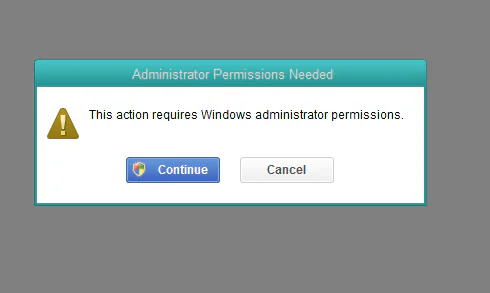
Table of Contents
- 1 Common Causes of the QBCFMonitorService Not Running Error
- 2 Expert Methods to Resolve QBCFMonitorService Not Running Error
- 2.1 Method 1: Restart QuickBooks Database Server Service (Most Important Fix)
- 2.2 Method 2: Restart QuickBooks Database Server Manager
- 2.3 Method 3: Run QuickBooks as Administrator
- 2.4 Method 4: Repair QuickBooks Installation
- 2.5 Method 5: Check Firewall Settings
- 2.6 Method 6: Reconfigure Hosting Settings
- 2.7 Things to Check Before You Resolve
- 3 How the “QBCFMonitorService Keeps Stopping” Issue Disrupts Your Workflow
- 4 Preventive Tips to Avoid Facing ‘QBCFMonitorService Not Starting’ Error
- 5 Final Thoughts
- 6 Frequently Asked Questions
Common Causes of the QBCFMonitorService Not Running Error
The following are the triggers behind the occurrence of QuickBooks database service error, in which QBCFMonitorService keeps stopping:
- Damaged installation: A recent Windows or QuickBooks update changes permissions or network settings, and QBCFMonitorService starts crashing or failing to start afterwards.
- QuickBooks Database Server Manager is not running: QuickBooks Database Server Manager stops running on the server, so workstations can’t talk to the company file in multi‑user mode.
- Windows service disabled: Windows starts without QBCFMonitorService because you set it to Manual or Disabled in the Services console.
- Firewall blocking service: Your firewall or security/antivirus program blocks QuickBooks services or ports, so the service can’t communicate over the network.
- Corrupted company file: QuickBooks runs with damaged or incomplete installation files, which prevents the service from running reliably.
- Incorrect hosting settings: You configure hosting incorrectly (for example, you let both a workstation and the server host the company file), and this creates conflicts with the database service.
Struggling With Accounting or Bookkeeping?
Talk to our experts in minutes — No wait time!
- Free Consultation
- Fast Response
- Trusted Experts

Expert Methods to Resolve QBCFMonitorService Not Running Error
Explore these expert-curated methods to resolve Database Service Errors in QuickBooks Online, compiled by our team of experienced error specialists.
Method 1: Restart QuickBooks Database Server Service (Most Important Fix)
In many cases, the QBCFMonitorService error happens because the main database service stops running. Restarting it restores multi-user communication.
- Press Windows + R
- Type services.msc and press Enter
- Find QuickBooksDBXX (XX = your QuickBooks year, like 30, 31, etc.)
- Right-click it, then choose Restart
- Now find QBCFMonitorService
- Restart this service too
- Right-click both services, then Properties
- Set Startup type = Automatic
- Click Apply, then OK
- Reopen QuickBooks and test multi-user mode
This step alone resolves the issue in many environments.
Method 2: Restart QuickBooks Database Server Manager
Restarting the database service also resolves the issue of QBCFMonitorService stopping.
- Open the Run dialogue box and type services.msc
- Find QBCFMonitorService in the list of services
- Right-click on the service and choose Restart
- Verify that the startup type is set to Automatic
- Close the dialogue box and reopen QuickBooks
This will update the connection between QuickBooks and the server.
Method 3: Run QuickBooks as Administrator
Running QuickBooks as an administrator will give the application access to system services.
- Close QuickBooks Desktop
- Right-click on the QuickBooks icon
- Choose Run as administrator
- Open the company file and switch to multi-user mode
Running QuickBooks as an administrator will allow the application to initiate background services freely.
Method 4: Repair QuickBooks Installation
A corrupted installation will result in a QuickBooks database service error. Repairing the installation will fix missing and damaged files.
- Open Control Panel
- Click on Programs and Features
- Find QuickBooks Desktop in the list of installed programs
- Click Uninstall or Change
- Select Repair and follow the prompts
- Restart the computer after the repair process
After the repair process, reopen QuickBooks and check if the service has started correctly.
Method 5: Check Firewall Settings
Firewall settings may be blocking QuickBooks services. Adding QuickBooks to the firewall settings will resolve service conflicts.
- Open Control Panel
- Click on Windows Defender Firewall
- Select Allow an app through the Firewall
- Make sure QuickBooks and its services are allowed
- Add QuickBooks ports if necessary
- Restart QuickBooks
QuickBooks requires specific firewall ports to allow database communication.
Make sure these ports are open on the server and workstations:
- QuickBooks 2024: 8019, dynamic port range
- QuickBooks 2023: 8019, 56727–56729
- QuickBooks 2022: 8019, 56726–56728
You can also open ports automatically using QuickBooks Tool Hub, then Firewall Tool.
Adding QuickBooks to the firewall settings will ensure smooth communication between services.
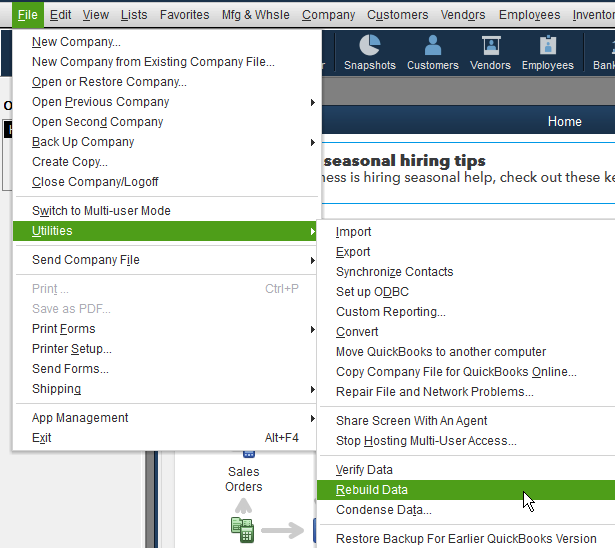
Method 6: Reconfigure Hosting Settings
On the server (the main computer with the company file):
- Open QuickBooks Desktop and load any company file
- Click File in the top menu, then hover over Utilities
- You’ll see Host Multi-User Access. Click it to turn hosting ON.
(If it says “Stop Hosting Multi-User Access” instead, you’re already good, skip to workstations.)
On every workstation (other team computers):
- Open QuickBooks Desktop on the workstation
- Click File, then Utilities again
- If you see Stop Hosting Multi-User Access, turn it OFF. Workstations should not host the company file. Only the server should host it.
Finally: Close QuickBooks on all machines, wait 30 seconds, then reopen everywhere. Switch to multi-user mode and check if the error is gone.
Things to Check Before You Resolve
Before you fix the QBCFMonitorService Not Starting Error, do these quick checks to ensure a smooth troubleshooting:
- Confirm that QuickBooksDBXX and QBCFMonitorService are running in Services (services.msc) and set to Automatic.
- Start by clearing temporary glitches. Restart the server and all affected workstations.
- Before changing any settings, make sure you log in with a Windows administrator account.
- To ensure that all services run properly. Make sure you have updated QuickBooks Desktop to the latest release.
- Verify the hosting setup so that only the server hosts the company file, and workstations only connect.
- Always create a fresh backup of the company file to protect your data during troubleshooting.
How the “QBCFMonitorService Keeps Stopping” Issue Disrupts Your Workflow
Here are a few impacts of facing QBCFMonitorService Not Starting Error:
- Multi-user mode fails and restricts access to a single user at a time.
- Constant connection breaks force staff to restart the software repeatedly to save work.
- Delays in posting invoices and bills slow down essential daily accounting tasks.
- Broken monitor services prevent managers from pulling real-time profit and loss reports.
- Payroll and month-end deadlines become high-stress due to sudden multi-user mode ejections.
- Team productivity drops while everyone waits for server connection fixes.
Preventive Tips to Avoid Facing ‘QBCFMonitorService Not Starting’ Error
Follow these tips to avoid facing Database Service Error in QuickBooks Desktop:
- Update QuickBooks Desktop regularly for service and network fixes.
- Check Services weekly, confirm QBCFMonitorService and Database Server Manager run on Automatic.
- Review antivirus/firewall settings after every update or new install.
- Double-check hosting monthly: server hosts, workstations connect only.
- Run weekly backups and restart the server every couple of weeks.
Final Thoughts
The QBCFMonitorService Not Starting Error breaks QuickBooks multi-user mode when the database service fails to run or keeps stopping in the background. Restarting the service through Windows, running QuickBooks as admin, repairing the installation, fixing firewall rules, and correcting hosting settings usually solves it fast. Most teams see normal access restored after just 1-2 of these steps.
Once fixed, simple habits like regular QuickBooks updates, weekly service checks, and clean hosting keep the problem away. Your accounting team gets back to smooth workflows without constant connection headaches. Data stays safe, deadlines stay on track, and everyone focuses on the numbers instead of fighting QuickBooks to open the file.
Frequently Asked Questions
What if QBCFMonitorService still won’t start after trying all methods?
Run QuickBooks Tool Hub’s “QuickBooks Database Server Manager” repair tool, then reinstall the Database Server Manager from Intuit’s website. If issues persist, contact QuickBooks support; it could be a Windows registry conflict.
Does this error delete or corrupt my company file?
No, the QBCFMonitorService error only blocks multi-user access; your data stays intact. Still, always back up your company file before troubleshooting to avoid any risk during repairs.
Why does this happen right after a Windows update?
Windows updates often reset service permissions or firewall rules, disabling QBCFMonitorService. After updates, immediately check Services.msc and re-allow QuickBooks through your firewall to prevent downtime.


