



QuickBooks Database Server Manager configures QuickBooks for multi-user access. It generates network data files (.ND) for company files on the host system. This tool, known as Intuit’s Personal Database Manager Tool, simplifies the creation of network data files for company files.
Users must install this tool while running multiple desktop versions of QuickBooks. Without it, multi-user mode becomes unusable. Each installed version of QuickBooks Database Server Manager includes a new user to the desktop version, allowing smooth collaboration among numerous users.
Here are the two key important functions that QuickBooks Database Server Manager performs:
- It scans QuickBooks company files to allow multi-user access.
- It monitors the local storage to detect new company files automatically.
Note: Install and set up the tool on the system where the company files are saved. This setup ensures the best file performance on the network.
QuickBooks Database Server Manager manages network data and saves company files on the host system. Here are some easy and quick tips to follow to maximize the performance:
- Install every version of the database server manager while using different versions of the QuickBooks Desktop.
- Multiple database processes will run, but only one software version will be available.
- Install the database server manager versions in chronological order, from old to new.
- Database services for every year run in the background and can be used via the Windows Control Panel. The service names use the format QuickBooksDBXX, where “XX” represents the version number.
- Each version includes a unique user, such as QBDataServiceUser28 for 2018 and QBDataServiceUser27 for 2017.
Struggling With Accounting or Bookkeeping?
Talk to our experts in minutes — No wait time!
- Free Consultation
- Fast Response
- Trusted Experts

Table of Contents
- 1 How to Download the QuickBooks Database Server Manager?
- 2 How to Install QuickBooks Database Server Manager?
- 3 How to Set up and Use the QuickBooks Database Server Manager?
- 4 Steps to Update QuickBooks Database Server Manager
- 5 Permit QuickBooks Database Server Manager to Run on the Server Computer
- 6 Why Do You Need the Quickbooks Database Server Manager?
- 7 What Are the Benefits of Using the Quickbooks Database Server Manager?
- 8 System Requirements for QuickBooks Database Server Manager
- 9 Final Words
- 10 Frequently Asked Questions
- 10.1 Q 1: How to resolve the common QuickBooks Database Server Manager Error?
- 10.2 Q 2: Can QuickBooks Database Server Manager be downloaded individually?
- 10.3 Q 3: Can the QuickBooks Database Server Manager be used for multiple versions?
- 10.4 Q 4: Is QuickBooks Database Server Manager required for single-user mode?
- 10.5 Q 5: What is the latest version of the QuickBooks Database Server Manager?
- 10.6 Q 6: Can QuickBooks files be opened without a Database Server Manager?
- 10.7 Q 7: What are the system requirements for the QuickBooks Database Server Manager?
How to Download the QuickBooks Database Server Manager?
QuickBooks Database Server Manager is typically included with QuickBooks. In case it is not available, download it from the official Intuit website without any problem.
Here are the steps to download the QuickBooks Database Server Manager:
- Download the QuickBooks Tool Hub from the official website of Intuit.
- Click the “Ctrl + J” keys to access the Downloads folder.
- Click on the “QuickBooksToolshub.exe” option.
- Click the “Yes” button to enable changes to the system.
- Select the “Next” button to begin the installation.
- Accept the license agreement by clicking the “Yes” button.
- Choose the “Next” button, then choose the installation options.
- Wait for the installation to finish.
- Click the “Finish” button once the process is complete.
- Open the “QuickBooks Tool Hub” icon.
- Go to the “Network Issues” tab in Tool Hub.
- Choose the “QuickBooks Database Server Manager” option.
- Provide access to company folders to all users.
The tool will generate a unique user for each installation. This process completes the download and setup of the QuickBooks Database Server Manager.
You may read this: How to Use Clean install tool
How to Install QuickBooks Database Server Manager?
Install QuickBooks Database Server Manager on the server system that hosts the company files with these steps:
Note: For hosting multiple versions of QuickBooks Desktop, install them in order. Start with the oldest version and finish with the most recent.
To install QuickBooks Desktop Database Server Manager, follow these steps in order:
- Double-click the installer file to start the installation wizard.
- Click Start to begin the setup process.
- If your computer has an internet connection, click Next to download updates.
- If the computer does not have internet access, select No, then click Next.
- Close all open programs and click Next.
- Read the software license agreement carefully.
- Select I accept the terms of the license agreement, then click Next.
- Choose Custom or Network Options.
- Select the required installation type:
- Choose I’ll be using QuickBooks on this computer and I’ll be storing company files here if you plan to run QuickBooks on this system.
- Choose I will not be using QuickBooks on this computer if the system will store QuickBooks data only.
- Click Yes to allow access when prompted.
- Enter your License Number and Product Number.
- Follow the on-screen instructions to complete the installation.
- After installation, complete the required steps to set up QuickBooks Database Server Manager.
How to Set up and Use the QuickBooks Database Server Manager?
After installing Database Server Manager, scan the company files. Once the scan is complete, you can access them from other systems on your network. This enables multiple users to work together in QuickBooks Desktop.
Here are the steps to use the QuickBooks Database Server Manager:
Step 1: Open QuickBooks Database Server Manager
- Open the Start menu.
- Type “QuickBooks” in the search bar and press Enter.
- Open the QuickBooks Tool Hub.
- Select QuickBooks Database Server Manager.
Step 2: Scan Company Files
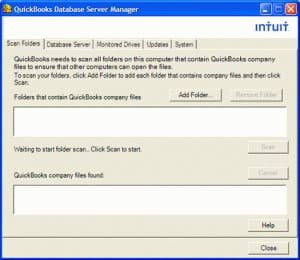
Scanning folders grants other users access to files on the server.
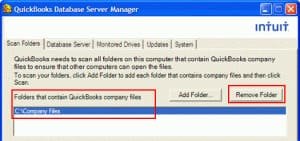
- Select the Scan Folders tab.
- Click Browse to find the folder containing your company files.
- Select the entire disk if you do not know the folder location.
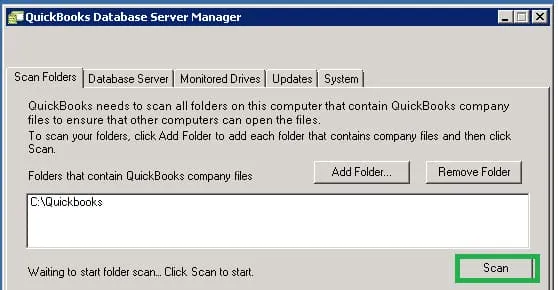
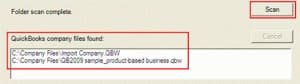
- Click Scan. The tool displays the files during this process.
- The files are ready for multi-user mode once the scan finishes.
Step 3: Add a Folder
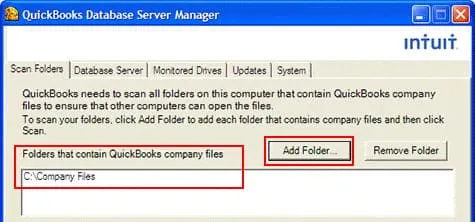
- Click the Add Folder button.
- Select the specific folder that holds your QuickBooks company files.
Step 4: Remove a Folder
- Select the folder you want to delete from the list.
- Click the Remove Folder button.
- Click Scan to refresh the folders.
- Review the list of company files found in those locations.
Step 6: Monitored Drive Features
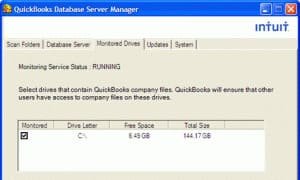
The Monitored Drive feature keeps the Database Server Manager current as you add new files.
- Open the QuickBooks Database Server Manager.
- Click the Monitored Drive tab.
- Select all local drives you want the software to track.
- These settings apply to actions such as adding, removing, or renaming files.
Steps to Update QuickBooks Database Server Manager
Updating QuickBooks Database Server Manager is required when a critical update is released or when a new version of QuickBooks Desktop is installed.
Here are the steps to download the update:
- Download the QuickBooks Database Server Manager update.
- Install the patch and reboot the server.
- Once the server is updated, workstations will show the message: The Company File needs to be updated to work with this version of QuickBooks Desktop.
- The update may change the database structure. You will be prompted to Create a backup.
- Complete the backup to enable users to open the file. Follow the prompts once the backup is complete.
Permit QuickBooks Database Server Manager to Run on the Server Computer
Allow QuickBooks Database Server Manager (QBDBSM) to operate on the server computer using these steps:
- Manually configure your firewall to enable QBDBSM on your server.
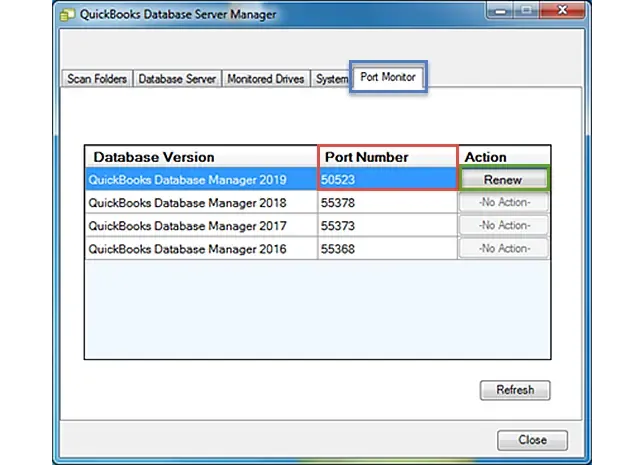
- Open QuickBooks Database Server Manager and go to the Port Monitor tab.
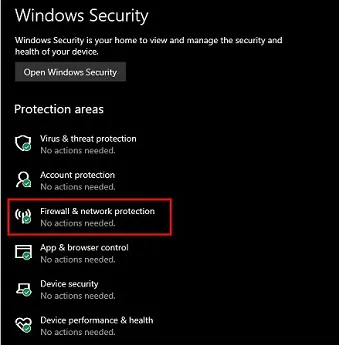
- Open the Windows Start Menu, search for Windows Firewall, and open it.
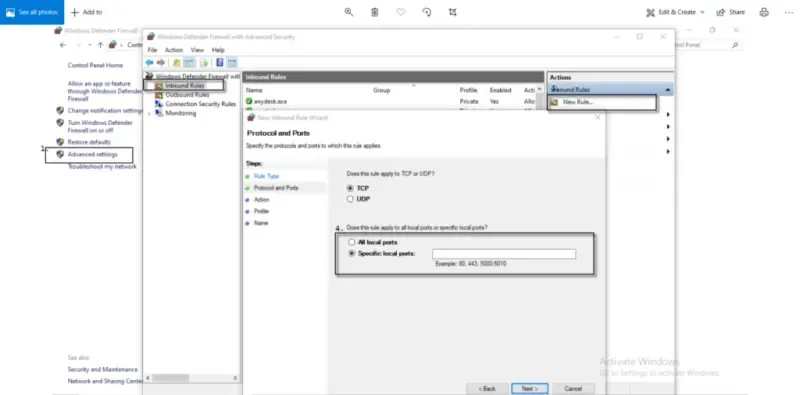
- In Advanced Settings, right-click Inbound Rules and select New Rule.
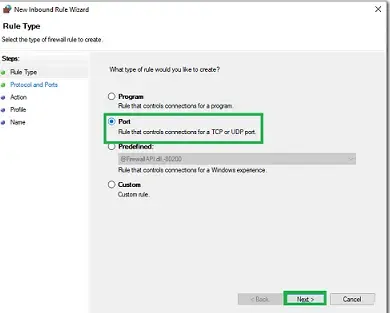
- Select Port, then click Next.
- Choose TCP.
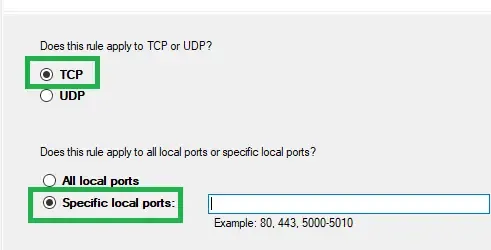
- In the Specific Local Ports field, enter the port numbers for your version:
- QuickBooks Desktop 2020: 8019, and your QuickBooks-specific port.
- QuickBooks Desktop 2019: 8019, and your QuickBooks-specific port.
- QuickBooks Desktop 2018: 8019, 56728, 55378-55382.
- QuickBooks Desktop 2017: 8019, 56727, 55373-55377.
- Click Next, then choose Allow the connection.
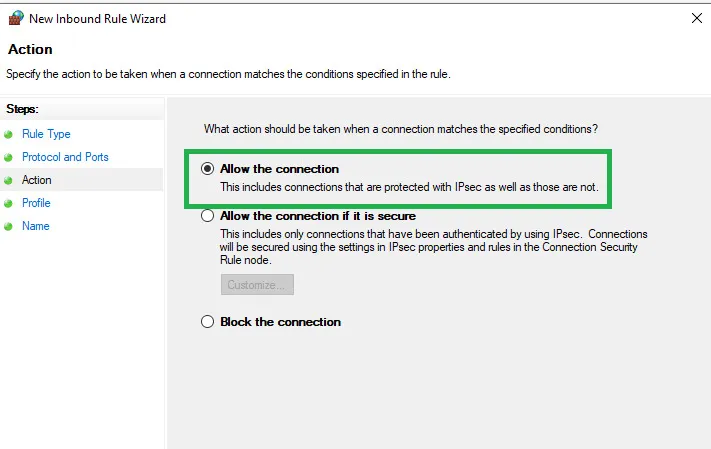
- Click Next again and check all profile boxes.
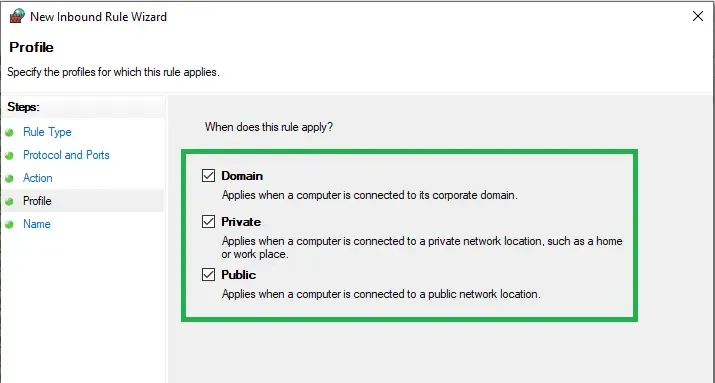
- Continue to Next, name your new rule, and click Finish.
- Repeat these steps for Outbound Rules.
Why Do You Need the Quickbooks Database Server Manager?
Before beginning the installation, let us understand why the QuickBooks Database Server Manager is crucial:
- Central Access: It allows several users to access QuickBooks files from different systems. This is useful when multiple people need to work on the same financial records.
- Data Management: It assists in managing the data files more competently, ensuring everything is structured and easy to find.
- Better Performance: Handling the database well empowers QuickBooks to run better on your network.
What Are the Benefits of Using the Quickbooks Database Server Manager?
The QuickBooks Database Server Manager offers crucial benefits for businesses using QuickBooks Desktop in a multi-user environment. Here is the list of the benefits:
- Allows Multi-User Mode
QuickBooks Database Server Manager enables multiple users to access and work on the same company file. This boosts collaboration and removes delays in handling financial data. - File Integrity and Security
This tool guarantees secure network connections, reducing the risk of file corruption and unauthorized access. It defends business information. - Efficient File Management
QuickBooks Database Server Manager automates the creation of network data files and tracks them for issues. It keeps the file management systematized and efficient. - Seamless Version Support
The tool supports multiple QuickBooks Desktop versions. It guarantees compatibility and smooth operations for various versions on one server.
System Requirements for QuickBooks Database Server Manager
Use any of the following Windows versions for QuickBooks Database Server Manager with a native installation:
- Windows 11 and Windows 10 (64-bit)
- Windows Server 2022 (Standard and Essentials)
- Windows Server 2019 (Standard and Essentials)
- Windows Server 2016 (Standard and Essentials)
- Windows Server 2012 R2 (Standard and Essentials)
- Windows Server 2012 (Standard and Essentials)
Note: Windows 10 S mode and Linux are not supported.
Final Words
QuickBooks Database Server Manager is a powerful tool for users who require multi-user access to company files. However, it can be difficult for those who are unfamiliar with the tool. This article talks about the QuickBooks Database Server Manager tool in detail, highlighting every key aspect. Still, if there are certain doubts or you require professional assistance, feel free to reach out at Smbaccountants.com.
Frequently Asked Questions
Q 1: How to resolve the common QuickBooks Database Server Manager Error?
Ans: To resolve errors in QBDSM, follow these steps:
- Update QuickBooks Desktop or QuickBooks Database Server Manager to its current release.
- Ensure the network and computer meet the minimum system requirements for QuickBooks Database Server Manager.
- Configure the firewall settings manually.
- Run the QuickBooks File Doctor tool to analyze company file-related issues.
- Validate and rebuild the company file data.
Q 2: Can QuickBooks Database Server Manager be downloaded individually?
Ans: No, the QuickBooks Database Server Manager cannot be downloaded separately. It is included with the QuickBooks Desktop installation package.
Q 3: Can the QuickBooks Database Server Manager be used for multiple versions?
Ans: Yes, QuickBooks Database Server Manager supports various QuickBooks Desktop versions on the same server, guaranteeing compatibility and smooth operation.
Q 4: Is QuickBooks Database Server Manager required for single-user mode?
Ans: No, the QuickBooks Database Server Manager is only required for multi-user setups. It is not needed for single-user QuickBooks Desktop use.
Q 5: What is the latest version of the QuickBooks Database Server Manager?
Ans: The latest version is QuickBooksDB23 for QuickBooks Desktop 23.
Q 6: Can QuickBooks files be opened without a Database Server Manager?
Ans: QuickBooks files cannot be opened in multi-user mode without the Database Server Manager. It is needed for multi-user access.
Q 7: What are the system requirements for the QuickBooks Database Server Manager?
Ans: The system requirements for the QuickBooks Database Server Manager are:
- Windows: US version of Windows
- RAM: 4GB minimum, 8GB advised for 1-5 users
- Processor: 2.4 GHz minimum
- Disk Space: 2.5GB of disk space


