


QuickBooks is a comprehensive accounting software that helps businesses manage their finances, including bookkeeping, invoicing, payroll, expense tracking, tax management, and financial reporting. To simplify data analysis and reporting, QuickBooks allows users to export reports, transactions, customer lists, and other financial records directly to Microsoft Excel.
However, users sometimes encounter the QuickBooks Won’t Export to Excel Error, which prevents data from being transferred successfully. Since exporting data is essential for generating customized reports and analyzing financial information, addressing the error promptly is crucial to maintaining smooth accounting operations.
In this guide, we’ll discuss the causes of the export Excel Error in QuickBooks, its signs and symptoms, the prerequisites, step-by-step solutions to fix the QuickBooks Won’t Export to Excel Error, preventive measures, and more.
What Are the Causes of the QuickBooks Won’t Export to Excel Error?
The QuickBooks Won’t Export to Excel Error can arise due to software incompatibilities, damaged program components, or incorrect system configurations. Some of the most common causes include:
- Using an incompatible version of Microsoft Office.
- Using the web-based or Microsoft Store version of Office instead of the desktop version.
- Running an outdated version of QuickBooks Desktop or Microsoft Excel.
- Corrupted or damaged Microsoft Office installation.
- Damaged Excel registry entries.
- Corrupted or missing QuickBooks program files.
- Incorrect Microsoft Excel configuration settings.
- Restrictive Windows User Account Control (UAC) settings.
- Insufficient administrative permissions.
- In rare cases, data issues within a QuickBooks company file can affect report generation and export functionality.
- Disabled Microsoft Office components required for Excel integration.
- Pending Windows updates are causing compatibility issues.
- Interference from antivirus, firewall, or other third-party applications.
What Are the Signs and Symptoms Of The Export Excel Error In QuickBooks?
When the QuickBooks Won’t Export to Excel Error occurs, users can experience one or more of the following symptoms:
- QuickBooks fails to export reports, transactions, or lists to Excel.
- Error messages appear, such as “QuickBooks is unable to export to Excel,” “Excel could not be opened,” or similar export-related warnings.
- Microsoft Excel does not open after selecting the export option.
- Clicking Export to Excel produces no response.
- The Excel button in QuickBooks reports appears greyed out or unavailable.
- A blank Excel workbook opens instead of the exported data.
- Exported files contain incomplete, missing, or incorrectly formatted data.
- QuickBooks freezes, becomes unresponsive, or crashes during the export process.
- The export process terminates unexpectedly before creating the Excel file.
- QuickBooks repeatedly prompts users to repair, reinstall, or update Microsoft Excel.
What Are the Prerequisites To Fix The QuickBooks Won’t Export To Excel Error?
Before troubleshooting the QuickBooks Won’t Export to Excel Error, make sure your system meets the following requirements. These checks can help eliminate compatibility and configuration issues that commonly prevent successful data exports.
- Create a backup of your QuickBooks company file.
- Sign in to Windows with administrator privileges.
- Verify that a compatible desktop version of Microsoft Excel is installed and functioning correctly.
- Update QuickBooks Desktop, Microsoft Office, and Windows to their latest releases.
- Configure both QuickBooks and Microsoft Excel to run with the same permission level, preferably as an administrator.
- Check that Windows User Account Control (UAC) settings are not restricting communication between QuickBooks and Excel.
- Ensure Microsoft Excel is set as the default application for .xls and .xlsx file formats.
- Ensure Microsoft Excel is properly installed and functioning correctly before attempting to export data from QuickBooks.
- Verify that you have access to the reports and data you are attempting to export, particularly in restricted multi-user environments.
- Close unnecessary background applications before starting the troubleshooting process.
- Temporarily disable antivirus or firewall software if it is interfering with QuickBooks or Excel.
- Ensure sufficient free storage space is available on your computer.
What Are The Solutions To Fix The QuickBooks Won’t Export To Excel Error?
In case QuickBooks fails to export reports or transactions to Microsoft Excel, several troubleshooting methods can help restore the connection between the two applications. Follow the solutions below in the order presented to identify and resolve the underlying cause of the issue.
Solution 1: Use the Correct Method to Export Reports to Excel
Sometimes the issue occurs because the report is not being exported using the standard QuickBooks workflow. Follow these steps:
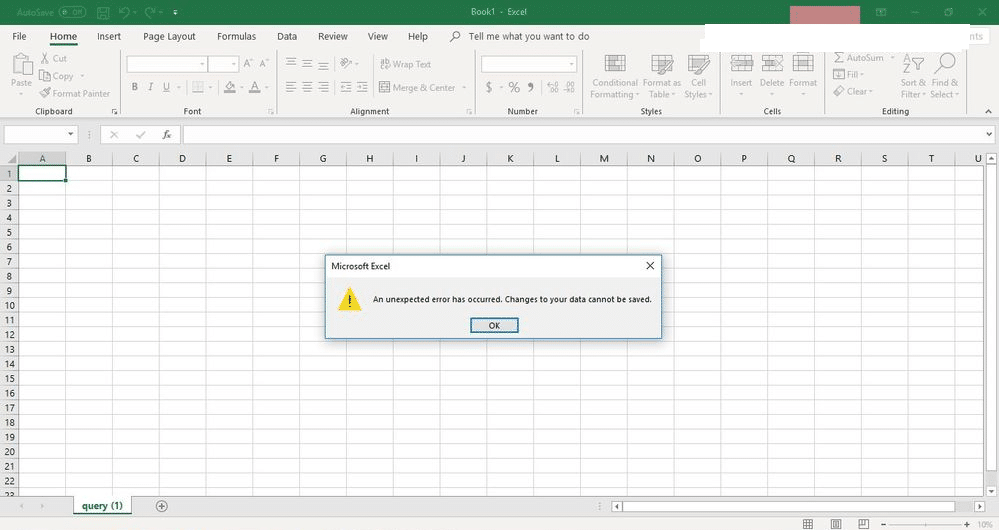
- Open QuickBooks Desktop.
- Navigate to the Reports menu and open the report you want to export.
- Click the Excel button located on the report toolbar.
- Select Create New Worksheet.
- Configure any export settings if prompted.
- Click Export.
- Verify that Microsoft Excel opens and displays the exported report correctly.
Solution 2: Test the Export from a Sample Company File
Testing exports in a sample company file helps determine whether the issue is related to your company file or the QuickBooks installation.
- Close your current company file.
- Open a QuickBooks sample company file.
- Open any report.
- Click Excel and export the report.
- Review the results.
If the export works successfully in the sample file, the issue may be related to your company file. If the export fails in the sample company file as well, the issue is likely related to QuickBooks, Microsoft Excel, or Windows components.
Solution 3: Update QuickBooks Desktop
An outdated QuickBooks version contains bugs or compatibility issues that interfere with Excel exports. Installing the latest updates can often resolve these problems. Perform the following steps to update QuickBooks Desktop:
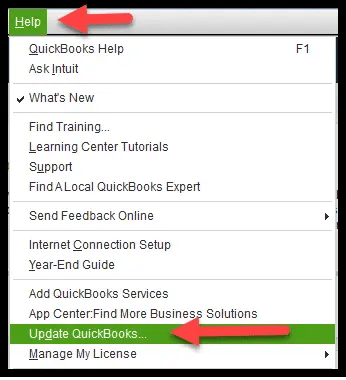
- Verify whether your QuickBooks version is up to date.
- Open QuickBooks and attempt to export a report.
- Click Help and select Update QuickBooks Desktop.
- Choose Update Now and click Get Updates.
- Close and reopen QuickBooks to install the downloaded updates.
- Navigate to the Reports menu and open a report.
- Click the Excel button and try exporting the report again.
Solution 4: Repair Microsoft Office
QuickBooks relies on Microsoft Office components to export reports and financial data to Excel. If Office files are damaged or improperly configured, export failures can occur.
Follow these steps to repair Microsoft Office:
- Close QuickBooks and Microsoft Excel.
- Open Control Panel.
- Select Programs and Features.
- Locate Microsoft Office or Microsoft 365.
- Click Change.
- Select Quick Repair and complete the repair process.
- If the issue persists, repeat the process and select Online Repair.
- Restart your computer.
- Open QuickBooks and test the export function again.
Solution 5: End Background Excel Processes
Sometimes Excel continues running in the background after being closed, which can interfere with QuickBooks exports.
Follow these steps:
- Close QuickBooks Desktop.
- Press Ctrl + Shift + Esc to open Task Manager.
- Locate any running Excel.exe processes.
- Select each Excel process and click End Task.
- Close Task Manager.
- Reopen QuickBooks and attempt the export again.
Solution 6: Re-register Microsoft Excel
Damaged Excel registry entries can prevent QuickBooks from communicating properly with Microsoft Excel.
To re-register Excel:
- Close QuickBooks and Microsoft Excel.
- Press Windows + R to open the Run dialog box.
- Type:
- excel.exe /regserver
- Press Enter.
- Wait for Excel to launch and rebuild its registry configuration.
- Close Excel.
- Open QuickBooks and test the export feature.
Solution 7: Check QuickBooks System Requirements
QuickBooks and Microsoft Excel must operate in a compatible system environment. In case your computer does not meet the recommended specifications, export-related issues can occur. Review the following QuickBooks system requirements:
| Requirement | Minimum / Recommended Specification |
| QuickBooks & Office Compatibility | Ensure your QuickBooks version is compatible with your Microsoft Office version. |
| Processor | 2.4 GHz minimum |
| Workstation RAM | 8 GB minimum, 16 GB recommended |
| Server RAM (1-5 Users) | 8 GB |
| Server RAM (10 Users) | 12 GB |
| Server RAM (15 Users) | 16 GB |
| Server RAM (20+ Users) | 20 GB or more |
| Disk Space | 2.5 GB minimum (additional space required for company files) |
| Microsoft .NET Framework | .NET Framework 4.8 Runtime (approximately 60 MB) |
| DVD Drive | 4X DVD-ROM drive required for CD-based installations |
| Display Resolution | 1280 × 1024 or higher |
| Intuit Data Protect | 4 GB RAM plus additional storage space for backups |
| Storage Type | Solid-State Drive (SSD) recommended |
| Operating System Settings | North American version of Windows with English regional settings |
Solution 8: Toggle Windows User Account Control (UAC)
Strict User Account Control settings can restrict QuickBooks from interacting with Excel and other Windows components. Use these steps to modify Windows UAC settings:
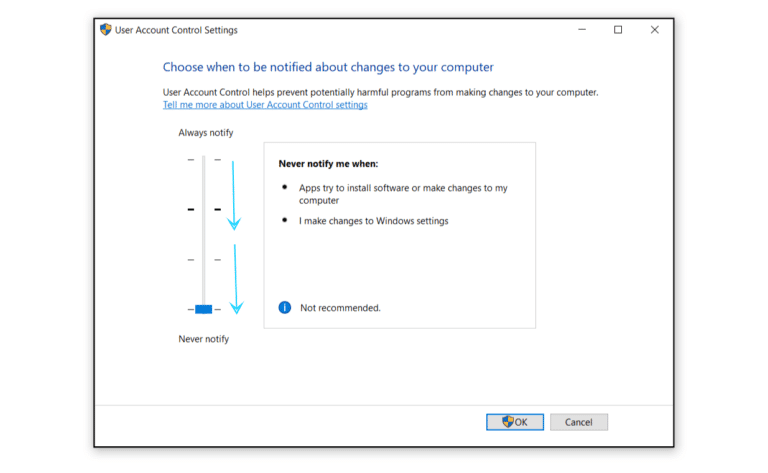
- Open the Start menu.
- Type User Account Control Settings in the search field.
- Select User Account Control Settings from the results.
- Temporarily lower the User Account Control (UAC) setting for testing purposes.
- Click OK and restart your computer.
- Test the export process again.
- After troubleshooting is complete, restore your preferred UAC security settings to maintain system protection.
Solution 9: Run QuickBooks Tool Hub
QuickBooks Tool Hub contains built-in utilities that can resolve common program and export-related issues.
Follow these steps:
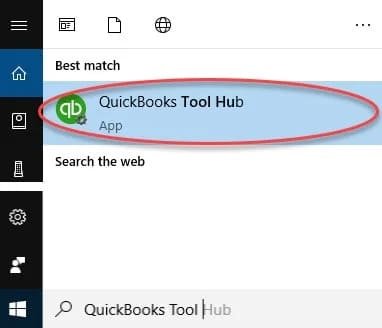
- Close QuickBooks Desktop.
- Download and install QuickBooks Tool Hub.
- Open Tool Hub.
- Select Program Problems.
- Run Quick Fix my Program.
- If the issue persists, run the QuickBooks Program Diagnostic Tool.
- Restart your computer.
- Open QuickBooks and test the export again.
Solution 10: Perform a Clean Installation of QuickBooks Desktop
If the QuickBooks program files are damaged, performing a clean installation can help resolve export-related issues.
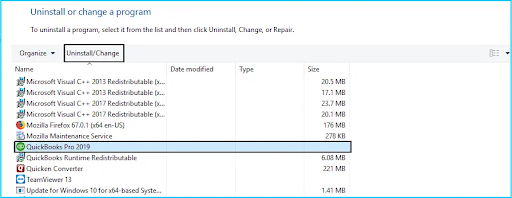
- Uninstall QuickBooks Desktop.
- Open QuickBooks Tool Hub.
- Select Installation Issues.
- Run the Clean Install Tool.
- Allow the tool to rename existing installation folders automatically.
- Reinstall QuickBooks Desktop.
- Install the latest QuickBooks updates.
- Test the Excel export feature again.
What are the Preventive Tips for the QuickBooks Won’t Export to Excel Error?
To minimize the risk of encountering the QuickBooks Won’t Export to Excel Error in the future, consider following these preventive measures:
- Keep QuickBooks Desktop and Microsoft Office updated with the latest releases and patches.
- Export large reports in smaller batches instead of processing extensive datasets at once.
- Regularly verify and maintain your QuickBooks company file to identify potential data issues.
- Create routine backups of your QuickBooks company data.
- Clear temporary files and perform periodic disk cleanup to improve system performance.
- Disable unnecessary or conflicting Excel add-ins that can interfere with the export process.
- Configure antivirus and security software to avoid blocking QuickBooks-to-Excel communication.
- Maintain adequate free disk space on your computer.
- Avoid interrupting the export process by force-closing QuickBooks or shutting down the system.
- Periodically repair QuickBooks and Microsoft Office installations in case you notice performance or integration issues.
- Review third-party applications that can conflict with QuickBooks or Microsoft Excel.
Conclusion
The QuickBooks won’t export to Excel Error typically stems from compatibility issues, damaged Office components, incorrect settings, or permission restrictions. By identifying the cause and applying the appropriate troubleshooting methods, you can restore export functionality efficiently. Regular software maintenance, updates, and system optimization can also help prevent similar export issues in the future.
Struggling With Accounting or Bookkeeping?
Talk to our experts in minutes — No wait time!
- Free Consultation
- Fast Response
- Trusted Experts

Frequently Asked Questions
Can I export QuickBooks data to Excel in multi-user mode?
Yes, reports can generally be exported in multi-user mode. However, users must have access to the reports and company data being exported.
Does QuickBooks require Microsoft Excel to be installed for exports?
Most QuickBooks Desktop export functions require a locally installed desktop version of Microsoft Excel. Web-based or Microsoft Store versions can sometimes cause compatibility issues.
Can damaged Excel add-ins affect QuickBooks exports?
Yes, conflicting or corrupted Excel add-ins can interfere with communication between QuickBooks and Excel, causing export failures or formatting issues.
Is it safe to disable User Account Control (UAC) permanently?
While lowering UAC settings can help during troubleshooting, it is generally recommended to restore your preferred security settings after resolving the export issue.
Can the company file size impact Excel exports in QuickBooks?
Yes, large company files and extensive reports can increase processing time and can occasionally cause export delays, freezes, or incomplete exports.


