


QuickBooks Payroll Error 30159 is a common issue that can interrupt payroll processing and prevent updates from installing properly. This error occurs due to misconfigured system files, incorrect payroll settings, or issues with Windows components. When it appears, users may experience failed payroll updates, system slowdowns, or verification problems with their payroll subscription.
In this guide, we will walk you through simple and effective troubleshooting methods to fix Payroll Error 30159 in QuickBooks. With this step-by-step solutions guide, you can restore smooth payroll functionality and ensure uninterrupted accounting operations.
Table of Contents
- 1 What is QuickBooks Payroll Error 30159?
- 2 Common Causes of QuickBooks Payroll Error 30159
- 3 Common Indicators of Error 30159
- 4 Proven Solutions to Resolve QuickBooks Error 30159
- 4.1 Method 1: Use the Windows System Restore Tool
- 4.2 Method 2: Run the QuickBooks Install Diagnostic Tool
- 4.3 Method 3: Verify Your Payroll Subscription Status
- 4.4 Method 4: Add Your EIN to the Payroll Service
- 4.5 Method 5: Update the Payroll Tax Table
- 4.6 Method 6: Run Verify and Rebuild Data Utility
- 4.7 Method 7: Perform a Disk Cleanup (Clean System Files)
- 5 Pro Tips for Preventing Future Payroll Update Errors
- 6 Frequently Asked Questions
- 7 Adams Williams
What is QuickBooks Payroll Error 30159?
QuickBooks Payroll Error 30159 usually occurs due to incorrectly configured system files on Windows. It can also appear if your username is not properly verified. In such cases, you may see an error message like: “Can’t verify payroll subscription error 30159.”
This error occurs when QuickBooks is unable to complete payroll updates due to incorrect system settings, an inactive payroll subscription, or damaged configuration files.
Common Causes of QuickBooks Payroll Error 30159
QuickBooks Error 30159 usually occurs due to system, installation, or payroll configuration issues.
Below are the most common causes:
- Misconfigured Windows System Files: Incorrect or damaged Windows system files can interrupt QuickBooks processes and trigger this error.
- Inactive or Misaligned Payroll Service Key: If the payroll service key is inactive or not properly synced with your QuickBooks account, this error may appear.
- Corrupted QuickBooks Installation Files: Damaged or missing QuickBooks installation files can prevent the software from running correctly.
- Windows Setup File Errors (Registry Discrepancies): Errors in Windows registry entries or system setup files can also lead to QuickBooks Error 30159.
- Mandatory Pre-Troubleshooting Checklist: Before you proceed with the solution to fix QuickBooks Error 30159, complete these basic checks to avoid data loss and ensure a smooth troubleshooting process.
- Creating a Backup of the QuickBooks Company File: Create a backup of your company file to protect your data before making any changes.
- Updating Windows to the Latest Version: Make sure your Windows is updated to the latest version to avoid compatibility issues.
- Logging in as a Windows Administrator: Use a Windows administrator account to ensure QuickBooks has full system access.
Common Indicators of Error 30159
You may notice the following signs when this subscription error in QuickBooks occurs:
- The error can cause the active program to crash or stop working suddenly.
- The system may start running slowly or become unresponsive.
- Frequent system shutdowns or crashes can also indicate Error 30159.
- You may experience repeated crashes while running the same application.
- An error message may appear on your computer screen.
Proven Solutions to Resolve QuickBooks Error 30159
There are many ways to fix QuickBooks Payroll Error 30159, but here we will introduce you to some of the most effective and reliable solutions.
Proceed with the given solutions to fix the Subscription error in QuickBooks:
Method 1: Use the Windows System Restore Tool
This method helps you take your system back to an earlier working state. It can fix problems caused by recent changes or errors.
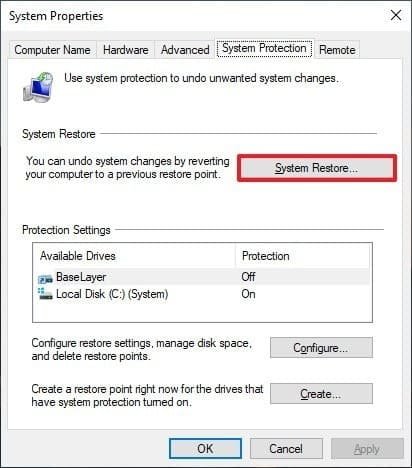
- Click on the Windows Start icon and type System Restore in the search bar, then press Enter.
- From the results, select the System Restore option.
- Enter the administrator credentials when prompted.
- Carefully follow the instructions shown on the screen.
- Once the process is complete, allow the system to restore and restart normally.
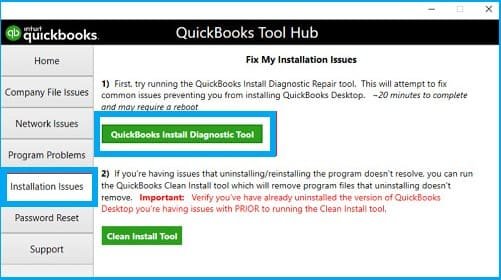
Method 2: Run the QuickBooks Install Diagnostic Tool
Fix Error 30159 by using a repair tool that detects and resolves system and payroll-related issues.
- Close QuickBooks Desktop and all running programs.
- Download the latest version of the QuickBooks Tool Hub from the official Intuit website.
- Open the downloaded setup file and follow the on-screen instructions to install the Tool Hub.
- Once installed, double-click the QuickBooks Tool Hub icon to open it.
- From the left panel, select Installation Issues.
- Click on QuickBooks Install Diagnostic Tool.
- Allow the tool to scan and repair installation-related issues.
- After the scan is complete, restart your computer.
- Open QuickBooks again and try updating payroll to check if Error 30159 has been resolved.
Method 3: Verify Your Payroll Subscription Status
An inactive or expired payroll subscription can trigger QuickBooks Payroll Error 30159 and prevent payroll updates from downloading properly.
- Open QuickBooks Desktop and sign in to your company file.
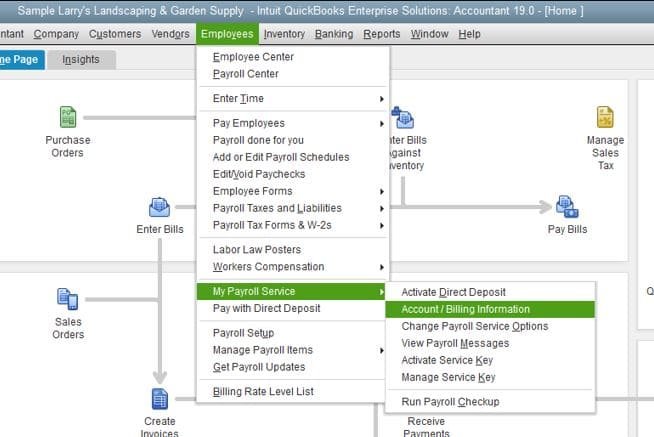
- Go to the Employees menu.
- Select My Payroll Service and then click Account/Billing Information.
- Sign in using your Intuit account credentials if prompted.
- Check whether your payroll subscription is active.
- If the subscription shows inactive, renew or reactivate it from the account management window.
- After verification, return to QuickBooks.
- Go to Employees > Get Payroll Updates.
- Click Download Latest Update to refresh payroll services.
- Restart QuickBooks and check whether Error 30159 has been resolved.
Method 4: Add Your EIN to the Payroll Service
Resolve payroll-related issues by making sure your Employer Identification Number (EIN) is correctly added and linked to your QuickBooks payroll service.
- Open and sign in to your QuickBooks Desktop.
- Go to the Payroll section.
- Click on Use my existing payroll service.
- The Account Maintenance window will open.
- Select the Add File option.
- Choose the option to add your EIN (Employer Identification Number).
- If the EIN option is unavailable, verify that your payroll subscription is active and properly linked to your company file.
- Click Next and carefully review all the details before confirming.
Method 5: Update the Payroll Tax Table
An outdated payroll tax table can cause QuickBooks Payroll Error 30159 and prevent payroll updates from installing correctly.
- Open QuickBooks Desktop and sign in to your company file.
- Go to the Employees menu.
- Select Get Payroll Updates.
- In the Payroll Update window, check the box for Download Entire Update.
- Click on Download Latest Update.
- Wait for the update process to complete successfully.
- Once you see the message “A new tax table and/or updates to your payroll tax forms have been installed”, click OK.
- Restart QuickBooks Desktop.
- Run payroll again to verify whether Error 30159 has been resolved.
You may also read: How to Fix QuickBooks Payroll Error PS034 – Easy Solutions
Method 6: Run Verify and Rebuild Data Utility
QuickBooks company file damage can sometimes trigger payroll-related errors, including Error 30159. Running the Verify and Rebuild Data utility helps identify and repair data integrity issues.
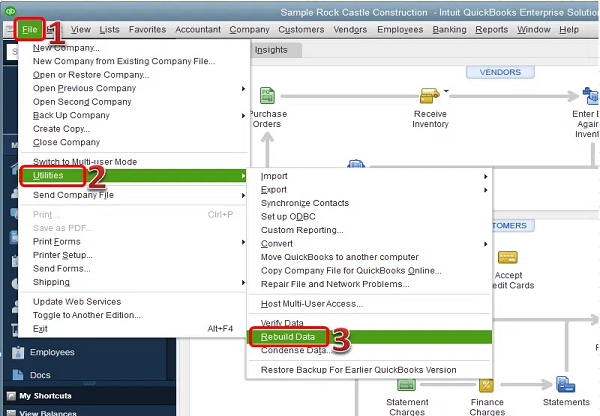
- Open QuickBooks Desktop.
- Go to the File menu.
- Select Utilities > Verify Data.
- Allow QuickBooks to scan the company file for errors.
- If QuickBooks detects issues, go back to File > Utilities.
- Select Rebuild Data.
- Follow the on-screen instructions to create a backup if prompted.
- Let the rebuild process complete.
- Restart QuickBooks and check whether Error 30159 has been resolved.
Method 7: Perform a Disk Cleanup (Clean System Files)
Remove temporary and unnecessary files from your system, which can improve performance and reduce system conflicts.
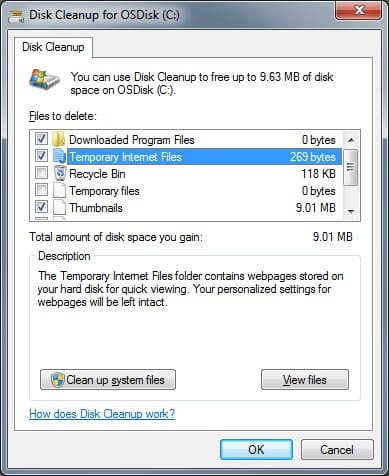
- Start by removing all temporary files from your computer.
- Click on the Windows Start button.
- In the search bar, type Disk Cleanup and open it
- Select the drive you want to clean (usually the C: drive).
- Choose the unnecessary files you want to delete.
- Click on Clean up system files.
- Press OK to confirm the cleanup process.
- Finally, delete all selected unwanted files from your system.
Also read this: Simple Solutions to Fix QuickBooks Payroll Error PS060
Pro Tips for Preventing Future Payroll Update Errors
To avoid QuickBooks Payroll Error 30159 in the future, follow these simple preventive practices. They help maintain system stability and ensure smooth payroll updates.
Regular Maintenance of Windows Registry
Keeping Windows and QuickBooks updated helps prevent compatibility issues, payroll update failures, and system conflicts.
Verifying EIN and Payroll Subscription Alignment
Always ensure your Employer Identification Number (EIN) is correctly linked with your active payroll subscription to avoid update or verification issues.
Using the “Clean Install” Method During Yearly Upgrades
When upgrading QuickBooks annually, perform a clean installation to remove old or corrupted files and ensure a fresh, error-free setup.
Struggling With Accounting or Bookkeeping?
Talk to our experts in minutes — No wait time!
- Free Consultation
- Fast Response
- Trusted Experts

Frequently Asked Questions
Does Error 30159 mean my EIN is incorrect?
Not always. Error 30159 is usually related to payroll configuration or system file issues. However, in some cases, an incorrect or unverified EIN setup can also trigger this error.
Can I resolve this error without technical support?
Yes, in most cases, you can fix Error 30159 by following basic troubleshooting steps like updating payroll settings, running system tools, or verifying your subscription details. Technical support is only needed if the issue persists.
Will restoring my system delete my recent accounting data?
System Restore does not directly delete your QuickBooks company file or accounting data. However, it may remove recently installed programs or system changes, so it is always recommended to create a backup before proceeding.

Adams Williams
Adams Williams is a seasoned accounting professional with over 4 years of experience in bookkeeping, financial reporting, and business accounting solutions. Specializing in QuickBooks software, Adams combines technical expertise with clear, accessible content writing to help businesses streamline their financial processes. His insightful guides and how-to articles are crafted to assist both beginners and seasoned users in navigating accounting software with confidence.
How to Resolve Common QuickBooks Payroll Errors?
Resolve QuickBooks Payroll Error PS107 Instantly Guide


