


QuickBooks Desktop Error Code 1334 is an installation error that occurs when QuickBooks Desktop fails to install, update, or repair because it cannot find, access, or write a required program file. This QuickBooks Error Code 1334 usually points to missing, damaged, or blocked installation components that prevent the setup process from completing successfully.
When this error appears, users may encounter messages such as:
“Error 1334. The file could not be installed.”
“Error 1334. The file QuickBooks requires cannot be found.”
“Error writing to file. Verify that you have access to that directory.”
“Error 1334. The installation source is corrupted or missing.”
These messages indicate that the installer cannot properly read or place essential files during the setup process, which leads to an incomplete or failed installation. In this guide, we’ll know the common solutions, causes, and symptoms to fix QuickBooks Error Code 1334.
Prerequisites Before Troubleshooting QBDT Error Code 1334
Before you begin troubleshooting QuickBooks Desktop Error Code 1334, ensure your system meets a few basic requirements. Preparing your environment helps prevent interruptions and improves the chances of a successful fix.
- Log in as an Administrator.
- Create a Backup of Important Data.
- Ensure a Stable Internet Connection.
- Check Disk Space.
- Close Background Applications.
- Temporarily Disable Antivirus or Firewall.
- Check for Latest Windows Updates.
- Download a Fresh QuickBooks Installer.
- Verify System Requirements.
Table of Contents
- 1 What are the Solutions to Fix QuickBooks Error Code 1334 in Desktop?
- 1.1 Solution 1: Perform a Clean Installation of Windows
- 1.2 Solution 2: Reinstall QuickBooks Desktop
- 1.3 Solution 3: Repair Microsoft .NET Framework
- 1.4 Solution 4: Start Windows in Safe Mode and Update QuickBooks
- 1.5 Solution 5: Manually Uninstall QuickBooks and Rename Folders
- 1.6 Solution 6: Use System Restore
- 1.7 Solution 7: Run Quick Fix My Program Tool
- 2 What are the Causes of QuickBooks Error Code 1334?
- 3 What are the Symptoms of Error Message 1344 in QuickBooks Desktop?
- 4 Conclusion
- 5 Frequently Asked Questions
What are the Solutions to Fix QuickBooks Error Code 1334 in Desktop?
If you encounter QuickBooks Error Code 1334 while installing or updating QuickBooks Desktop, you need to follow the right troubleshooting methods to resolve it effectively. Below are proven solutions that address the root causes and help you complete the installation process without interruptions.
Solution 1: Perform a Clean Installation of Windows
This solution is ideal when system-level corruption or deep-rooted issues are causing installation errors that cannot be resolved through basic troubleshooting.

- In the first step, go to your system settings and back up all important data.
- Then, proceed with a clean installation of Windows.
- After that, allow the system to install a fresh copy without old or corrupted files.
- Once you are done with it, you have to reinstall QuickBooks Desktop.
Solution 2: Reinstall QuickBooks Desktop
This method helps resolve errors caused by incomplete, damaged, or improperly configured QuickBooks installation files.
- In the first step, go to the Control Panel from the Start menu.
- Then, select Programs and Features or Uninstall a Program.
- After that, choose your QuickBooks version and click Uninstall/Change.
- Then, click Remove and follow the prompts.
- Once you are done with it, you have to restart your computer.
- In the next step, run the QuickBooks installer file.
- After that, follow the installation instructions to complete the setup.
Note: Reinstalling will not affect your company data.
You may read this: How to Fix QuickBooks Error 1603?
Solution 3: Repair Microsoft .NET Framework
This solution is useful when Microsoft components required by QuickBooks are damaged or not functioning properly.
- In the first step, go to the Start menu and open Control Panel.
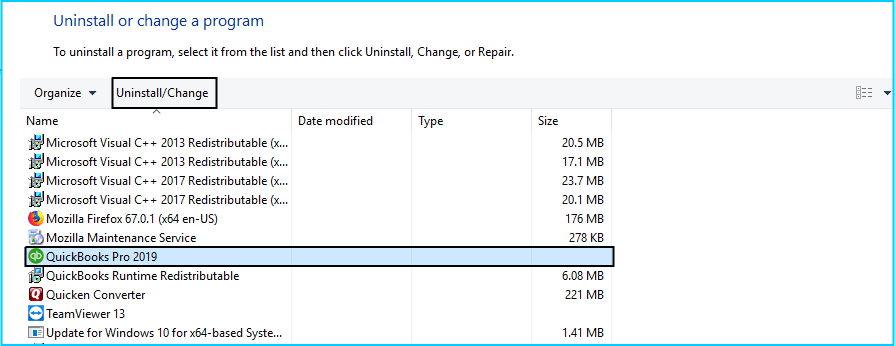
- Then, click Uninstall a Program.
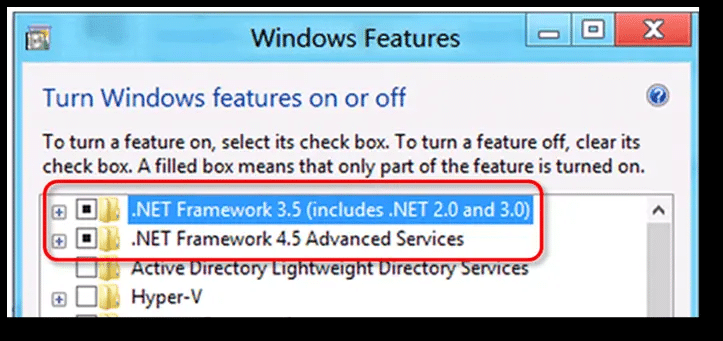
- After that, select Turn Windows features on or off.
- In the next step, locate .NET Framework in the list.
- Then, check .NET Framework 4.5 or later if it is not enabled.
- Once you are done with it, you have to click OK and restart your system.
- If already enabled, then uncheck it, restart, and enable it again.
- After that, repeat the same process for .NET Framework 3.5 SP1.
Solution 4: Start Windows in Safe Mode and Update QuickBooks
This method helps eliminate interference from background applications and ensures QuickBooks updates install without conflicts.
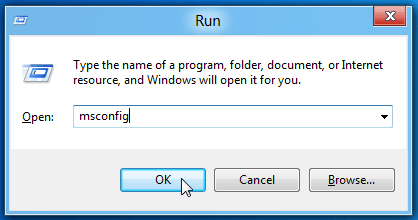
- In the first step, go to the search bar and type MSConfig.
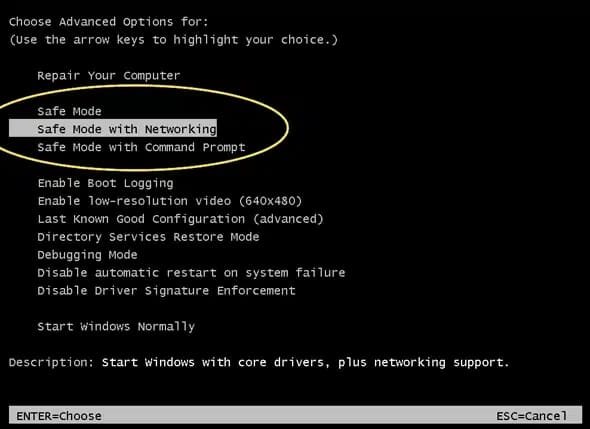
- Then, open it and select the Boot tab.
- After that, check Safe Boot and select Network.
- Then, click OK and restart your system.
- Once your system starts in Safe Mode, open QuickBooks Desktop.
- In the next step, go to Help > Update QuickBooks.
- After that, install all available updates.
- Once you are done with it, you have to reopen MSConfig and uncheck Safe Mode.
- Then, restart your system normally and open QuickBooks again.
Also, read this article: How to Fix QuickBooks Error 1722
Solution 5: Manually Uninstall QuickBooks and Rename Folders
This solution ensures complete removal of corrupted QuickBooks files that may interfere with reinstallation.
- In the first step, go to the Control Panel and uninstall QuickBooks.
- Then, press Windows + E to open File Explorer.
- After that, enable hidden files and folders.
- In the next step, locate the following folders:
- C:\ProgramData\Intuit\QuickBooks (year)
- C:\Users[User]\AppData\Local\Intuit\QuickBooks (year)
- C:\Program Files\Intuit\QuickBooks (year)
- C:\Program Files (x86)\Intuit\QuickBooks (year)
- Then, right-click each folder and rename it by adding “OLD”.
- Once you are done with it, you have to open Task Manager.
- After that, go to the Processes tab and end these processes:
- QBDBMgrN.exe
- QBDBMgr.exe
- QBCFMonitorService.exe
- QBW32.exe
- Then, restart your system and reinstall QuickBooks Desktop.
Solution 6: Use System Restore
This method helps revert your system to a previous stable state before the QuickBooks Error Code 1334 started occurring.
- In the first step, go to Start Menu > Accessories > System Tools > System Restore.
- Then, select Restore my PC to an earlier date and click Next.
- After that, choose the latest restore point.
- Then, click Next and confirm your selection.
- Once you are done with it, you have to restart your system after completion.
Solution 7: Run Quick Fix My Program Tool
This solution uses an automated tool to quickly resolve common program-related issues within QuickBooks.
- In the first step, open QuickBooks Tool Hub.
- Then, click on Program Problems.
- After that, select Quick Fix My Program.
- Once you are done with it, you have to reopen QuickBooks Desktop and check if the error is resolved.
Struggling With Accounting or Bookkeeping?
Talk to our experts in minutes — No wait time!
- Free Consultation
- Fast Response
- Trusted Experts

What are the Causes of QuickBooks Error Code 1334?
QuickBooks Desktop Error Code 1334 occurs when QuickBooks Desktop cannot access or install required files during setup, update, or repair. This QuickBooks Error 1334 usually arises due to problems with installation files, system components, or software conflicts. Below are the most common causes of this error:
- Corrupted or Missing Installation Files
- Damaged Microsoft Windows Components
- Improper or Incomplete Installation
- Antivirus or Firewall Interference
- Damaged .NET Framework or MSXML Components
- Malware or Virus Infection
- Insufficient User Permissions
- Windows System Issues
User also read this: How to Fix QuickBooks Error 1904: Installation File Issue?
What are the Symptoms of Error Message 1344 in QuickBooks Desktop?
When Error Code 1334 occurs in QuickBooks Desktop, it disrupts the installation, update, or repair process and shows several noticeable signs. These symptoms help users identify the issue early and take corrective action.
- The QuickBooks installation halts in the middle and does not complete successfully.
- Users repeatedly see error messages such as “Error 1334” or file-related installation warnings during setup.
- The computer may become slow or unresponsive while QuickBooks is being installed or updated.
- After installation, QuickBooks may not install all required components, causing the software to malfunction or fail to open.
- In some cases, the application does not launch after installation due to missing or corrupted files.
- Users may experience system lag, crashes, or temporary unresponsiveness while the setup is running.
- The installer may automatically undo changes and revert the system to its previous state after encountering the error.
Conclusion
QuickBooks Desktop Error Code 1334 or QBDT Error Code 1334 disrupts installation due to file or system issues. By identifying causes, recognizing symptoms, and applying the right fixes, you can resolve Error 1334 efficiently and restore smooth installation of QuickBooks Desktop without complications.
Frequently Asked Questions
Does QuickBooks Error Code 1334 occur only during installation?
No, QuickBooks Error Code 1334 can also appear during updates, repairs, or when modifying an existing installation of QuickBooks Desktop.
Can a damaged CD or download file cause Error 1334?
Yes, if you are installing QuickBooks from a corrupted CD or an incomplete download file, it can trigger this error.
Is it safe to ignore Error Code 1334 temporarily?
No, ignoring Error Message 1344 in QuickBooks Desktop may lead to incomplete installation, which can cause further errors or prevent QuickBooks from functioning properly.
Does Error 1334 affect company files?
No, this error mainly affects the installation process and does not directly damage your company files. However, you should always keep a backup as a precaution.


