


QuickBooks Error 3371 occurs when QuickBooks Desktop cannot load or validate the license information required to start the application. Users commonly encounter this error after reinstalling QuickBooks, transferring the software to a new computer, updating Windows, or restoring system files.
When this error appears, QuickBooks displays messages such as
Error 3371: Could not initialize license properties. (The most frequent core message)
[Error 3371, Status Code -11118] QuickBooks could not load the license data.
[Error: 3371, Status Code -1] QuickBooks cannot validate license information
If you ignore Error 3371, it can interrupt your accounting tasks, prevent access to important QuickBooks company files, delay invoicing and financial reporting, and disrupt daily bookkeeping operations. Resolving the error early helps restore QuickBooks access, prevent repeated activation failures, and ensure the application runs without licensing-related interruptions.
In this guide, we’ll discuss what QuickBooks Error 3371 means, why it occurs, common symptoms and error messages, troubleshooting steps to fix QuickBooks Error 3371 Status Codes 11104, 11118, and -1, and preventive measures.
Table of Contents
- 1 What Is QuickBooks Error 3371?
- 2 What Causes QuickBooks Error 3371?
- 3 Symptoms of QuickBooks Error 3371 (Status Codes 11104, 11118, and -1)
- 4 How to Fix QuickBooks Error 3371 (Status Codes 11104, 11118, and -1)
- 4.1 Solution 1: Run the QuickBooks 3371 Error Fix Tool
- 4.2 Solution 2: Rename the EntitlementDataStore.ecml File
- 4.3 Solution 3: Delete the EntitlementDataStore.ecml File
- 4.4 Solution 4: Repair Microsoft .NET Framework and MSXML Components
- 4.5 Solution 5: Run QuickBooks Install Diagnostic Tool
- 4.6 Solution 6: Update Windows and Check Security Settings
- 4.7 Solution 7: Perform a Clean Installation of QuickBooks Desktop
- 4.8 Solution 8: Clean Temporary Files and System Junk Data
- 4.9 Solution 9: Close Background Applications Before Running QuickBooks
- 5 How to Prevent QuickBooks Error 3371?
- 6 Conclusion
- 7 Frequently Asked Questions
- 7.1 What is the entitlement file in QuickBooks?
- 7.2 What causes QuickBooks Error 3371 status codes 11104, 11118, and -1?
- 7.3 How do I delete the EntitlementDataStore.ecml file?
- 7.4 Can network issues cause QuickBooks license errors?
- 7.5 Does updating QuickBooks resolve Error 3371?
- 7.6 Can I open QuickBooks without fixing Error 3371?
- 7.7 Will uninstalling QuickBooks remove my company files?
- 7.8 How long does it take to fix QuickBooks Error 3371?
- 7.9 Can I transfer QuickBooks Desktop to another computer without causing Error 3371?
- 7.10 Can a corrupted Windows user profile trigger QuickBooks Error 3371?
- 8 Adams Williams
What Is QuickBooks Error 3371?
QuickBooks Error 3371 is a QuickBooks Desktop licensing error that appears when the application cannot initialize or verify its license information. This error prevents QuickBooks from completing the registration process and can display status codes such as 11104, 11118, or -1. The error message commonly appears as “Could not initialize license properties” or “QuickBooks cannot validate license information” and indicates that QuickBooks cannot access the required license data to open the program.
When QuickBooks Error 3371 occurs, users cannot launch QuickBooks Desktop or access their accounting environment until the licensing issue is resolved. This error affects the application startup process but does not directly indicate damage to the company file or financial data.
What Causes QuickBooks Error 3371?
QuickBooks Error 3371 arises from issues with QuickBooks licensing components, registration files, or required Windows components. Here are the common causes of QuickBooks Error 3371.
- Corrupted EntitlementDataStore.ecml File
- Damaged QuickBooks Registration Data
- Missing or Damaged MSXML Components
- Outdated Windows Operating System
- Recent Hardware or System Changes
- Corrupted QuickBooks Installation Files
- Antivirus or Firewall Restrictions
- Incorrect File Permissions
Symptoms of QuickBooks Error 3371 (Status Codes 11104, 11118, and -1)
QuickBooks Error 3371 occurs when the application cannot validate its license information, causing startup failures, activation issues, and restricted access to QuickBooks Desktop features. The following symptoms can help you identify Status Codes 11104, 11118, and -1 before troubleshooting the issue.
- QuickBooks Error 3371 Pop-Up Messages
- QuickBooks Desktop Fails to Start
- Company File Access Problems
- Repeated Activation or Registration Prompts
- QuickBooks Features Become Unavailable
- QuickBooks Freezes or Closes Unexpectedly
Before You Begin: Prerequisites to Fix QuickBooks Error Code 3371
Before fixing QuickBooks Error Code 3371, complete a few essential checks to ensure the troubleshooting process works correctly and does not affect your QuickBooks Desktop setup or company data. Here are the prerequisites to fix Error Code 3371 in QuickBooks Desktop.
| Parameter | Details |
|---|---|
| Close QuickBooks and background processes | Exit QuickBooks Desktop and end related background processes to prevent conflicts during troubleshooting |
| Administrator access | Sign in to Windows using an account with administrator permissions to access required files and system settings. |
| Windows updates | Install pending Windows updates to ensure required system components work properly. |
| QuickBooks license details | Keep your QuickBooks license number and product information available for license verification. |
| QuickBooks Tool Hub | Download and keep the official QuickBooks Tool Hub ready to use diagnostic tools. |
| Hidden files visibility | Enable hidden files and folders in Windows File Explorer to access the ProgramData directory. |
| Entitlement Client folder location | Note the QuickBooks licensing folder location, such as C:\ProgramData\Intuit\Entitlement Client\v8 (folder version may vary). |
| Antivirus settings | Temporarily pause third-party antivirus software if it blocks QuickBooks from accessing system files. |
| Company file backup | Create a backup of your QuickBooks company file to protect accounting data before troubleshooting. |
How to Fix QuickBooks Error 3371 (Status Codes 11104, 11118, and -1)
You can fix QuickBooks Error 3371 by repairing damaged license files, using QuickBooks Tool Hub, updating required Windows components, and reinstalling QuickBooks Desktop if needed. Follow the troubleshooting methods below to resolve status codes 11104, 11118, and -1 and restore QuickBooks license validation.
Solution 1: Run the QuickBooks 3371 Error Fix Tool
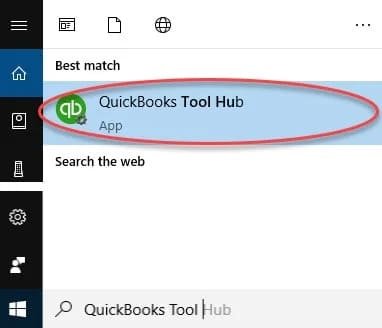
QuickBooks Tool Hub includes a dedicated 3371 Error Fix tool that automatically repairs common licensing and registration issues in QuickBooks Desktop. The following are the steps to run the QuickBooks 3371 Error Fix tool:
- Close QuickBooks Desktop.
- Download and install the latest version of QuickBooks Tool Hub.
- Open QuickBooks Tool Hub from the Windows Start menu.
- Select Installation Issues.
- Click 3371 Error Fix.
- Allow the tool to complete the repair process.
- Restart QuickBooks Desktop and open your company file. If the error continues, proceed to the next troubleshooting method.
Solution 2: Rename the EntitlementDataStore.ecml File
If deleting the entitlement file does not resolve the issue, rename it to allow QuickBooks Desktop to generate a new license file. Steps to rename the entitlement file:
- Close QuickBooks Desktop.
- Open File Explorer.
- Enable Hidden items from the View settings.
- Navigate to the appropriate Entitlement Client folder (for example, C:\ProgramData\Intuit\Entitlement Client\v8). The folder version may vary by QuickBooks release.
- Locate EntitlementDataStore.ecml.
- Right-click the file and select Rename.
- Add a new name, such as EntitlementDataStore.old.
- Restart QuickBooks Desktop and check whether the error is resolved.
Solution 3: Delete the EntitlementDataStore.ecml File
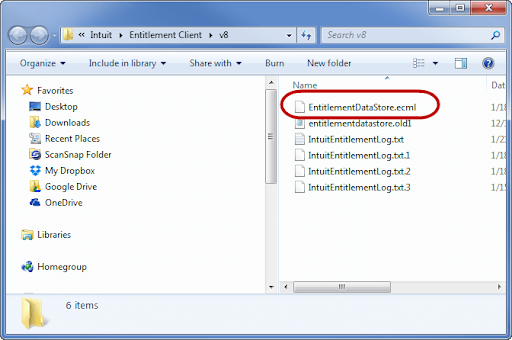
QuickBooks stores encrypted license information in the EntitlementDataStore.ecml file. If this file becomes damaged, QuickBooks can fail to verify your license. Listed below are the steps to delete the entitlement file:
- Close QuickBooks Desktop.
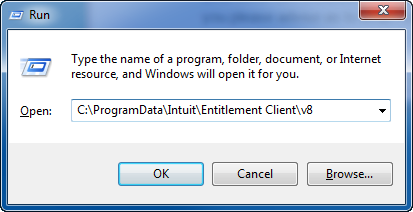
- Press Windows + R to open the Run window.
- Enter:
- C:\ProgramData\Intuit\Entitlement Client\v8
- Click OK.
- Locate the EntitlementDataStore.ecml file.
- Right-click the file and select Delete.
- Open QuickBooks Desktop.
- Follow the on-screen instructions to register the product again.
Note: If you cannot find the folder, enable Hidden items in Windows File Explorer.
Solution 4: Repair Microsoft .NET Framework and MSXML Components
QuickBooks Desktop depends on Microsoft components such as .NET Framework and MSXML to run properly and validate license information. Listed below are the steps to repair Microsoft .NET Framework:
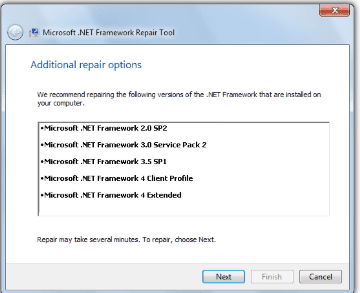
- Close QuickBooks Desktop and other running applications.
- Download the Microsoft .NET Framework Repair Tool.
- Run the repair tool.
- Follow the instructions displayed on the screen.
- Restart your computer.
Open QuickBooks Desktop again and verify whether the licensing error has been resolved
If required, register the MSXML component:
- Press Windows + R.
- Type cmd.
- Right-click Command Prompt and select Run as administrator.
- Navigate to the appropriate Windows system folder for your installation.
- Register MSXML6.dll if required.
- Restart your computer after the command completes.
Solution 5: Run QuickBooks Install Diagnostic Tool
The QuickBooks Install Diagnostic Tool repairs damaged installation files and missing Windows components that can prevent QuickBooks Desktop from starting correctly.
Listed below are the steps to run the QuickBooks Install Diagnostic Tool:
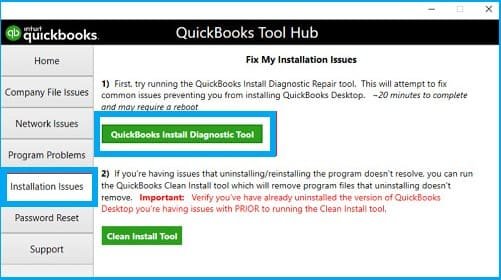
- Open QuickBooks Tool Hub.
- Select Installation Issues.
- Click QuickBooks Install Diagnostic Tool.
- Allow the tool to scan and repair QuickBooks-related issues.
- Restart your computer after the process completes.
- Open QuickBooks Desktop and verify the status of Error 3371.
Solution 6: Update Windows and Check Security Settings
QuickBooks requires updated Windows components to run licensing and registration processes correctly. Listed below are the steps to update Windows:
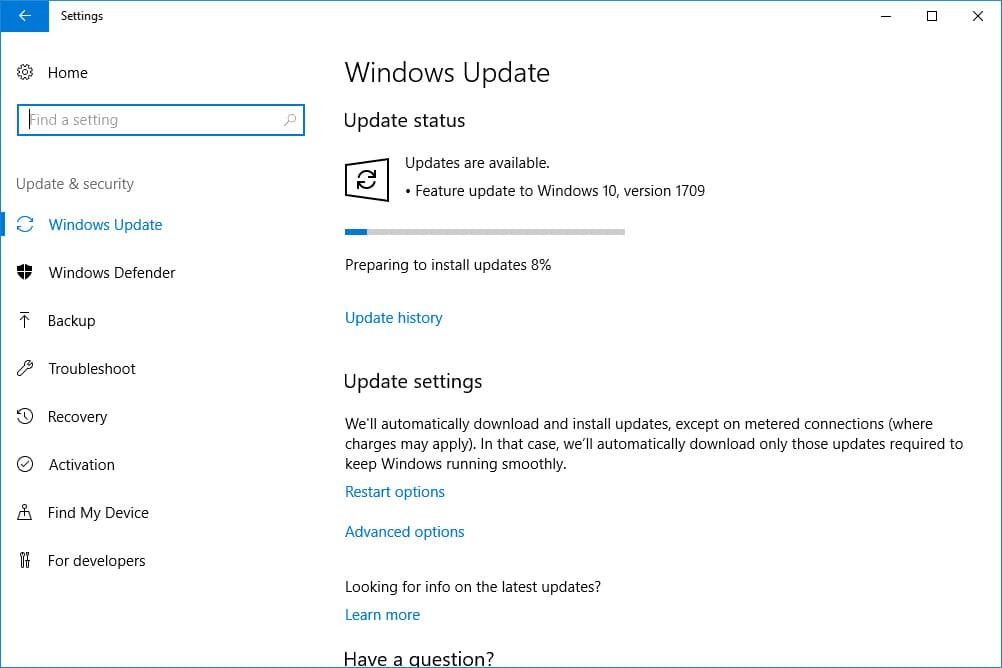
- Open Windows Settings.
- Select Windows Update.
- Click Check for updates.
- Install all available updates.
- After Windows finishes updating, restart your computer before opening QuickBooks Desktop.
Check antivirus and firewall settings:
- Open your antivirus or Windows Security settings.
- Update the security definitions.
- Add QuickBooks Desktop as an exception if your security software blocks QuickBooks processes.
- Restart QuickBooks.
Solution 7: Perform a Clean Installation of QuickBooks Desktop
A clean installation removes damaged QuickBooks program files and reinstalls the application with fresh configuration files.
Here are the steps to perform a clean QuickBooks Desktop installation:
- Create a backup of your QuickBooks company file.
- Open Control Panel.
- Select Programs and Features.
- Choose QuickBooks Desktop and click Uninstall/Change.
- Remove QuickBooks from your computer.
- Download the latest QuickBooks Desktop installer.
- Install QuickBooks again.
- Activate QuickBooks using your license information.
- Open your company file and check whether Error 3371 is resolved.
Solution 8: Clean Temporary Files and System Junk Data
Temporary files rarely cause QuickBooks Error 3371, but removing them may improve overall system performance.
Here are the steps to clean temporary files:
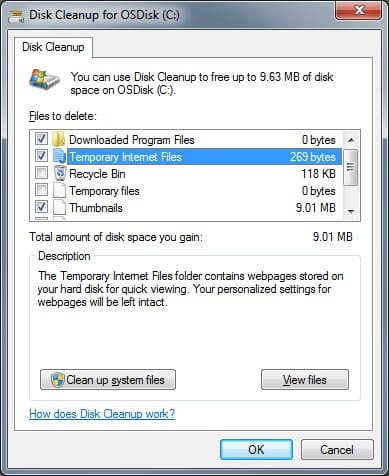
- Open File Explorer.
- Select This PC.
- Right-click your system drive and select Properties.
- Click Disk Cleanup.
- Select Clean up system files.
- Choose unnecessary files and click OK.
- Press Windows + R.
- Enter:
- %TEMP%
- Delete unnecessary temporary files.
- Restart your computer and open QuickBooks Desktop.
Solution 9: Close Background Applications Before Running QuickBooks
Running QuickBooks processes or other applications in the background can interfere with troubleshooting and file access.
Steps to close background processes:
- Close QuickBooks Desktop.
- Press Ctrl + Shift + Esc to open Task Manager.
- Open the Processes tab.
- Locate QuickBooks-related processes such as QBW32.exe.
- Select the process and click End Task.
- Restart QuickBooks Desktop.
How to Prevent QuickBooks Error 3371?
You can prevent QuickBooks Error 3371 by keeping QuickBooks Desktop and Windows updated, protecting license-related files, maintaining regular backups, and following proper shutdown practices.
Here are the preventive tips for QuickBooks Error 3371 to reduce the risk of license validation failures.
- Install the latest QuickBooks patches and Windows updates to maintain compatibility and prevent known issues.
- Close QuickBooks Desktop properly using the File menu to avoid data or license file corruption.
- Protect QuickBooks system files by preventing sudden shutdowns and unexpected power interruptions.
- Maintain regular backups of your QuickBooks company files to protect accounting data.
- Configure antivirus and firewall settings to allow QuickBooks processes and file access.
- Avoid unnecessary hardware changes, system modifications, or migrations that can affect license verification.
- Keep Microsoft components such as .NET Framework and MSXML updated for smooth QuickBooks operations.
- Use official QuickBooks repair tools, such as QuickBooks Tool Hub, to resolve installation and activation issues.
Conclusion
You can fix QuickBooks Error 3371 by running the QuickBooks 3371 Error Fix Tool, repairing or recreating the EntitlementDataStore.ecml file, resolving damaged Microsoft components, updating Windows, and performing a clean installation of QuickBooks Desktop when necessary.
This QuickBooks license error occurs when QuickBooks Desktop cannot validate required registration information or access essential licensing files. Start with the built-in QuickBooks Tool Hub solutions, then continue with advanced troubleshooting methods such as repairing .NET Framework and MSXML components or reinstalling QuickBooks. Keeping QuickBooks Desktop updated, maintaining QuickBooks company file backups, and protecting system files can help prevent QuickBooks Error 3371 status codes 11104, 11118, and -1 from recurring.
Struggling With Accounting or Bookkeeping?
Talk to our experts in minutes — No wait time!
- Free Consultation
- Fast Response
- Trusted Experts

Frequently Asked Questions
What is the entitlement file in QuickBooks?
The entitlement file in QuickBooks stores encrypted license and product registration information that QuickBooks Desktop uses to verify your subscription and activation status.
What causes QuickBooks Error 3371 status codes 11104, 11118, and -1?
QuickBooks Error 3371 status codes 11104, 11118, and -1 occur when QuickBooks cannot access or validate the required license and registration information.
How do I delete the EntitlementDataStore.ecml file?
You can delete the EntitlementDataStore.ecml file by opening the Entitlement Client folder, locating the file, and removing it so QuickBooks can recreate the license data.
Can network issues cause QuickBooks license errors?
Yes, unstable network connections or restricted access to required online services can interfere with QuickBooks license verification.
Does updating QuickBooks resolve Error 3371?
Yes, updating QuickBooks Desktop can resolve compatibility issues and install fixes, but it cannot repair damaged license files by itself.
Can I open QuickBooks without fixing Error 3371?
No, QuickBooks can fail to launch or restrict access to company files until the license validation issue is resolved.
Will uninstalling QuickBooks remove my company files?
No, uninstalling QuickBooks Desktop does not remove your company files, but creating a backup before reinstalling is recommended.
How long does it take to fix QuickBooks Error 3371?
Most users can fix QuickBooks Error 3371 within a few minutes by using QuickBooks Tool Hub or repairing the license files.
Can I transfer QuickBooks Desktop to another computer without causing Error 3371?
Yes, you can move QuickBooks Desktop to another computer, but you must install it correctly and reactivate the license after migration.
Can a corrupted Windows user profile trigger QuickBooks Error 3371?
Yes, a damaged Windows user profile can restrict QuickBooks from accessing required files and can contribute to license validation problems.

Adams Williams
Adams Williams is a seasoned accounting professional with over 4 years of experience in bookkeeping, financial reporting, and business accounting solutions. Specializing in QuickBooks software, Adams combines technical expertise with clear, accessible content writing to help businesses streamline their financial processes. His insightful guides and how-to articles are crafted to assist both beginners and seasoned users in navigating accounting software with confidence.
How to Fix Quickbooks Error 3371 Status Code 11104?
Ultimate Fix Guide for QuickBooks Error 3371 Status Code 11118


