


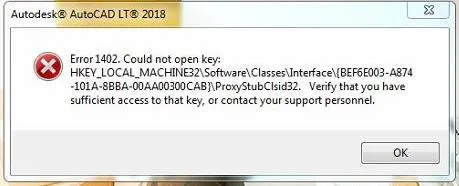
QuickBooks Error 1402 is a Windows Registry issue that occurs during the installation or operation of QuickBooks Desktop or company files when essential components are missing, damaged, or inaccessible. It is triggered by damaged Windows files, issues with QuickBooks payroll software, or improper registry permissions, often displaying the error message, “Couldn’t open key.”
Before fixing Error 1402, update QuickBooks and Windows OS to the latest versions, back up your company files and registry, and configure antivirus or firewall settings. To fix this error, you can run the QuickBooks Install Diagnostic Tool, manually grant “Full Control” permissions in the Windows Registry, or repair Microsoft .NET Framework and MSXML components. Read this article for a complete guide to fix this error, covering automated repair tools, manual registry configurations, selective startup modes, antivirus exclusions, preventive tips, and diagnostic steps.
Table of Contents
- 1 Quick Overview of QuickBooks Error 1402
- 2 What Causes QuickBooks Error 1402?
- 3 Symptoms of QuickBooks Desktop Error 1402
- 4 How to Fix QuickBooks Error 1402?
- 5 Prevent Future QuickBooks Error 1402 Issues
- 6 Final Thoughts
- 7 Frequently Asked Questions
- 7.1 Can corrupted registry permissions trigger QuickBooks Error 1402?
- 7.2 Does reinstalling QuickBooks remove company files?
- 7.3 Is QuickBooks Tool Hub safe to use?
- 7.4 Why does Error 1402 appear during installation?
- 7.5 Can antivirus software cause QuickBooks Error 1402?
- 7.6 Which Windows versions are commonly affected?
- 8 Adams Williams
Quick Overview of QuickBooks Error 1402
| Issue | Details |
| Error Code | QuickBooks Error 1402 |
| Common Cause | Corrupted Windows registry permissions |
| Usually Appears During | QuickBooks installation or update |
| Affected Platforms | Windows 10 & Windows 11 |
| Main Fix | Run QuickBooks Install Diagnostic Tool |
| Severity | Moderate to High |
What Causes QuickBooks Error 1402?
Here are a few triggers why you are facing Error Code 1402 in QuickBooks Desktop:
- Registry permission restrictions block access. Windows denies QuickBooks the read/write rights it needs on keys like HKEY_LOCAL_MACHINE\SOFTWARE\Classes. Grant full control to fix this issue.
- Damaged installation files corrupt the process. Downloaded files get incomplete or corrupted during transfer. Replace them with fresh downloads from Intuit’s official site.
- Outdated Windows components trigger failures. Missing updates leave gaps in the .NET Framework or Visual C++. Install the latest patches through Windows Update.
- Antivirus interference halts registry changes. Security software like Bitdefender flags QuickBooks actions as threats. Add QB folders and executables to exclusion lists.
- Missing admin rights limit installer power. Standard user accounts lack elevation. Right-click setup files and select “Run as administrator” every time.
Symptoms of QuickBooks Desktop Error 1402
Not sure if the issue you are facing in QuickBooks is Error 1402? Here are some key symptoms:
- A “Couldn’t open key” error message appears, usually during installation or when attempting to launch QuickBooks.
- There is difficulty accessing specific files or registry entries required for QuickBooks to function correctly.
- The installation halts or is interrupted, and system performance often slows down significantly.
If you notice any of these symptoms, you may be encountering Error 1402—which is typically caused by permission-related issues or corrupted registry keys.
Basic Checks Before Fixing QuickBooks Error Code 1402
Here are a few steps you must follow before fixing Error Code 1402 in QBD:
- Restart Your System: Perform a full shutdown and wait 30 seconds before booting to clear temporary glitches.
- Log in as Administrator: Switch to an account with full privileges to ensure the installer can modify registry keys.
- Update Windows Fully: Install all pending patches via Windows Update to ensure compatible system components.
- Close Background Apps: Use Task Manager to end non-essential processes that might interfere with the installation.
- Download Fresh Installer: Get the latest executable directly from Intuit to avoid using corrupted or outdated files.
How to Fix QuickBooks Error 1402?
Below are the step-by-step solutions to fix QuickBooks error 1402:
Solution 1: Update Windows and Restart
Install all pending patches via Update & Security to refresh the operating system environment and fix damaged system files that QuickBooks relies on for a stable installation.
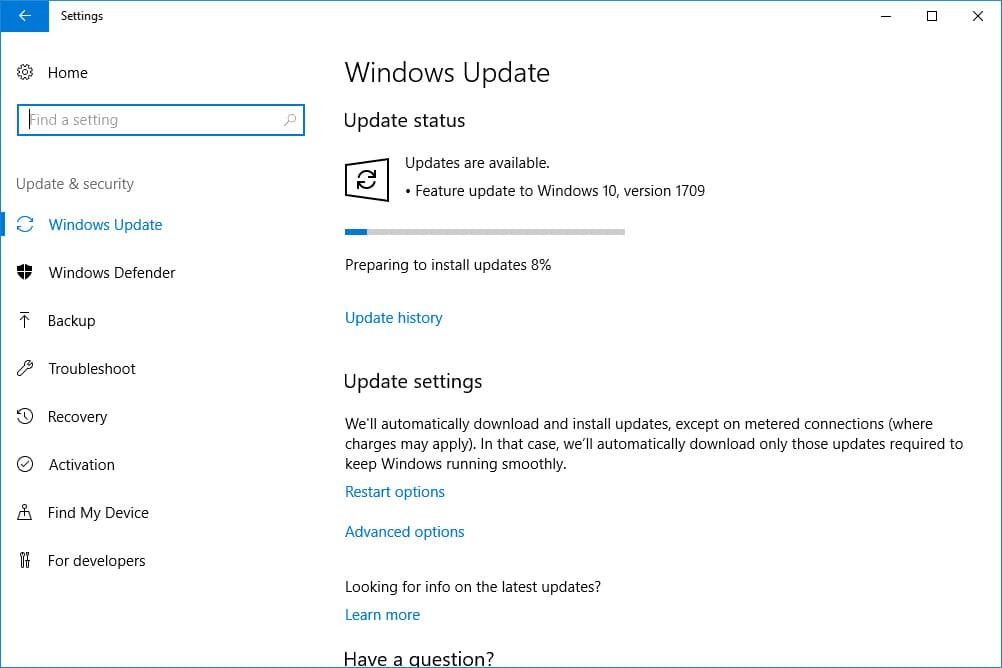
- Open Settings. Click Update & Security now, then Windows Update.
- Click Check for updates. Install all available updates, including optional ones.
- Restart immediately. Windows applies patches during reboot.
- Verify updates. Return to Windows Update to confirm installation success.
Solution 2: Run the QuickBooks Install Diagnostic Tool
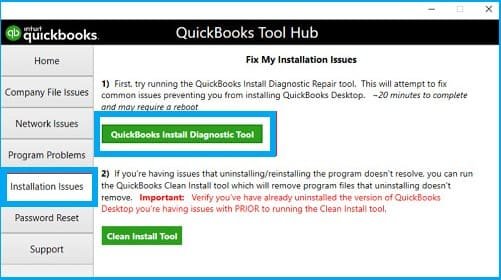
Launch the QuickBooks Install Diagnostic Tool from the Tool Hub to automatically detect and repair core components like .NET Framework and MSXML, which are frequent triggers behind 1402 errors.
- Download QuickBooks Tool Hub from Intuit’s official site. Save the latest version, such as 1.6.0.8.
- Install Tool Hub. Double-click the .exe file, follow prompts, and accept terms.
- Launch Tool Hub. Select the Installation Issues tab on the left.
- Click QuickBooks Install Diagnostic Tool. The scan runs automatically for 15-20 minutes, fixing .NET Framework, MSXML, and registry problems.
- Restart your computer. Test the QuickBooks installation afterwards.
Solution 3: Install QuickBooks Using Administrator Access
Right-click the installer and select Run as administrator to bypass local permission restrictions that often trigger the “Permission Denied” errors during registry writing.
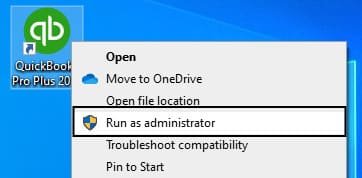
- Right-click the QuickBooks installer file. Select Run as administrator.
- Follow setup prompts. Enter license and product numbers when asked.
- Choose installation type. Opt for Custom and Network if a multi-user setup applies.
- Complete installation. Decline extras like trial offers unless needed.
- Launch QuickBooks. Verify it opens without errors.
Solution 4: Repair Microsoft Components
Use the Microsoft Program Install and Uninstall Troubleshooter to ensure the specific Microsoft-based foundations are fully functional.
- Download Microsoft Program Install and Uninstall Troubleshooter. Run it from Microsoft’s site.
- Select the Repair option. Choose affected programs if listed.
- Enable .NET Framework. Go to Control Panel, then Programs. Turn Windows features on or off. Check .NET 4.8+.
- Install Visual C++ Redistributables. Download both x86 and x64 versions from Microsoft.
- Restart after repairs. Run QuickBooks Diagnostic Tool again.
Solution 5: Reinstall QuickBooks Cleanly
Use msconfig to switch to Selective Startup before reinstalling to ensure no third-party applications like antivirus or firewalls interfere with the critical file-writing phase.
- Press Windows + R. Type msconfig and press Enter.
- Select Selective Startup. Uncheck Load startup items under the General tab.
- Go to the Services tab. Check Hide all Microsoft services, then Disable all.
- Apply changes. Restart in Selective Startup mode.
- Uninstall QuickBooks via Control Panel > Programs and Features.
- Download a fresh installer from Intuit. Install in Selective mode, then return to Normal startup via msconfig.
Solution 6: Correct Registry Permissions
Manually change the Classes key owner to Administrators in regedit to force the Windows Registry to grant QuickBooks the specific access levels it requires to complete setup.
- Press Windows + R. Type regedit and press Enter.
- Navigate to HKEY_LOCAL_MACHINE\SOFTWARE\Classes. Right-click Classes in the left pane.
- Select Permissions Advanced. Click Change next to Owner.
- Enter Administrators or SYSTEM. Check Replace owner on subcontainers and objects, then Apply.
- Add the Everyone group. Grant Full Control permissions. Click OK and close Registry Editor.
- Reboot your PC. Retry QuickBooks setup.
Important: Editing the Windows registry incorrectly can cause system issues. Back up the registry before making changes: Open Registry Editor, click on File, then Export, and lastly select Save full backup.
Prevent Future QuickBooks Error 1402 Issues
Follow these tips to avoid facing this error in the future:
- Keep Windows updated by running Windows Update weekly to fix compatibility gaps that cause registry errors.
- Use administrator privileges during installation by right-clicking the installer and selecting Run as administrator to prevent permission issues.
- Download installers only from Intuit’s official website to avoid corrupted or unsafe installation files.
- Review antivirus settings and add QuickBooks folders to the exclusion list to prevent blocked registry access.
- Maintain system health by scanning for malware monthly and running Disk Cleanup and disk defragmentation regularly.
Final Thoughts
QuickBooks Error 1402 arises from registry permission blocks that halt installations. Apply the QuickBooks Install Diagnostic Tool, Windows updates, and registry fixes to eliminate the QuickBooks install error 1402 completely. Adopt prevention measures like admin installs and antivirus exclusions to stop Error 1402 in QuickBooks from recurring. Apply these solutions to ensure that your QuickBooks runs smoothly, and to make sure uninterrupted accounting tasks ahead.
Struggling With Accounting or Bookkeeping?
Talk to our experts in minutes — No wait time!
- Free Consultation
- Fast Response
- Trusted Experts

Frequently Asked Questions
Can corrupted registry permissions trigger QuickBooks Error 1402?
Yes. Damaged or restricted registry permissions are one of the most common causes of this error.
Does reinstalling QuickBooks remove company files?
No. Reinstalling QuickBooks typically removes only application files, not company data files. However, creating a backup before reinstalling is strongly recommended.
Is QuickBooks Tool Hub safe to use?
Yes. QuickBooks Tool Hub is an official utility designed to diagnose and repair common QuickBooks installation and performance issues.
Why does Error 1402 appear during installation?
The error usually appears when QuickBooks cannot access specific Windows registry keys or installation components.
Can antivirus software cause QuickBooks Error 1402?
Yes. Some antivirus or firewall applications may block QuickBooks installation files or registry access permissions.
Which Windows versions are commonly affected?
The issue is commonly reported on Windows 10 and Windows 11 systems.

Adams Williams
Adams Williams is a seasoned accounting professional with over 4 years of experience in bookkeeping, financial reporting, and business accounting solutions. Specializing in QuickBooks software, Adams combines technical expertise with clear, accessible content writing to help businesses streamline their financial processes. His insightful guides and how-to articles are crafted to help both beginners and seasoned users navigate accounting software with confidence.
QuickBooks Error 6150: How to Fix Company File Issues
QuickBooks File Corruption – Identify, Prevent and Repair


