


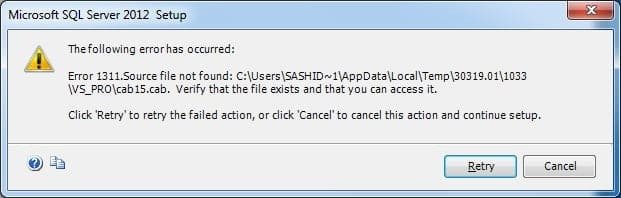
QuickBooks Error 1311 is an installation-related issue that occurs when the software is unable to locate a required file during the setup or update process. This error interrupts the installation and prevents it from completing.
- Error Code: 1311
- Error Message: Source file not found
Also, it may affect certain functions, such as exporting reports, especially if the program files are damaged or incomplete. If the error is not resolved on time, it may lead to further complications, including potential data issues.
Quick Overview of QuickBooks Error 1311
| Issue | Details |
| Error Code | QuickBooks Error 1311 |
| Common Cause | Missing or corrupted installation source files during QuickBooks setup |
| Usually Appears During | QuickBooks installation, update, or repair processes |
| Affected Platforms | Windows 10 and Windows 11 |
| Primary Solution | Copy installation files locally and run the QuickBooks Install Diagnostic Tool |
| Severity | High |
Reason Behind QuickBooks Error 1311
QuickBooks Error Code 1311 usually occurs when the system is unable to access or read the required installation files properly. The issue can arise due to several system or software-related problems, such as:
- Corrupted or missing QuickBooks installation files.
- Damaged or dirty CD/DVD or installation media.
- Issues with Microsoft components like .NET Framework or Windows Installer.
- Outdated or incompatible Microsoft Office version.
- Restricted system or CD-ROM permissions.
- Corrupted or damaged Windows system files.
Signs and Symptoms of Error 1311
- Error Message Appears: Indicates missing or unreadable files.
- Installation Stops: Setup fails or gets interrupted.
- System Slowdown: Performance may decrease during installation.
- Freezing or Crashing: QuickBooks or the installer may stop responding.
- File Access Issues: The system cannot read installation files properly.
Preparations Before Troubleshooting
Ensure your system is ready to prevent any interruptions or unexpected install media errors during the process.
- Log in with administrator rights to perform all steps without restrictions.
- Shut down all running applications to prevent conflicts.
- Save important QuickBooks and system data to avoid any loss.
- Ensure the CD or setup file is clean, complete, and not damaged.
- Make sure your system has enough storage for installation.
- Turn off security software to avoid installation blocks.
- Install the latest updates for better compatibility.
How to Fix QuickBooks Error 1311 (Source File Not Found)
To resolve this issue effectively, you need to follow a series of verified troubleshooting methods. Each solution below is explained in detail to help you fix the error without confusion.
Solution 1: Check Microsoft Office Compatibility
QuickBooks requires compatible system components to function properly. If your Microsoft Office version is outdated or incompatible, it may trigger Error 1311 during installation.
- Open the Control Panel from the Start menu.
- Click on Programs and Features (or Add/Remove Programs).
- Locate and select Microsoft Office from the list.
- Check the current version installed on your system.
- If the version is older than Microsoft Office 2000, update it to a newer version.
- Follow the on-screen instructions to complete the update process.
If you ensure compatibility between Microsoft Office and QuickBooks can prevent installation conflicts.
Solution 2: Re-register Windows Installer (CS4 Software Fix)
Issues with the Windows Installer service can also lead to Error 1311. Re-registering it may fix the problem.
For Windows XP:
- Press Windows + R to open the Run dialog box.
- Type msiexec /unregister and press Enter.
For Windows Vista and later:
- Click on Start Menu and go to All Programs.
- Open Accessories and select Run.
- Type msiexec /regserver and press Enter.
After completing these steps, try reinstalling the software again.
Solution 3: Run System File Checker Using Command Prompt
The Command Prompt allows you to access system repair tools that can fix corrupted or missing files responsible for this error.
- Log in to your system with administrator privileges.
- Open the Command Prompt as an administrator.
- Type the command: sfc /scannow and press Enter.
- Wait for the system scan to complete and repair any damaged files.
- After that, type: msiexec /unregister and press Enter.
- Once done, proceed with installing the required application again.
Also, read this: How to Fix Error Codes: (-1, 0) in QuickBooks
Solution 4: Install Using Photoshop Elements Disc
If the error persists, you can try installing the required files using a different installation disc method.
- Insert the Photoshop Elements installation disc into your CD/DVD drive.
- Open This PC (My Computer) and locate the disc drive.
- Right-click on the disc and select Explore.
- Create a new folder on your Desktop.
- Copy all files from the disc into this newly created folder.
- Eject the disc once copying is complete.
- Open the folder and double-click the setup.exe file.
- Follow the on-screen instructions to complete the installation.
Solution 5: Perform System Scan and Reinstall
Running a system scan and reinstalling the required components can resolve deeper system-level issues to fix QuickBooks Error 1311:
- Click on the Start button and go to All Programs.
- Open the Command Prompt.
- Press Shift + F10 and select Run as Administrator.
- Type sfc /scannow and press Enter to start the scan.
- After the scan completes, type msiexec /regserver and press Enter.
- Once done, proceed with reinstalling the application.
Solution 6: Copy Installation Files to Hard Drive
Running the installation directly from a CD may cause errors. Copying files to your hard drive ensures a smoother installation process.
- Insert the QuickBooks CD into your system.
- Right-click on the Start menu and select Explore.
- Navigate to the Desktop and create a new folder.
- Name the folder like QuickBooks Setup.
- Open the CD drive and copy all installation files, including Setup.exe.
- Paste these files into the new folder on your Desktop.
- Open the folder and run the Setup.exe file.
- Follow the installation instructions displayed on your screen.
You may read this: How to Resolve QuickBooks Unrecoverable Errors
Solution 7: Clean the Installation Media
Dust, scratches, or fingerprints on the installation disc can prevent the system from reading files correctly.
- Remove the CD/DVD from the drive.
- Gently clean it using a soft, lint-free cloth.
- Avoid using harsh chemicals or rough materials.
- Reinsert the disc into the drive.
- Try installing QuickBooks again.
Solution 8: Modify CD-ROM Access Settings
Incorrect security settings may restrict access to the CD/DVD drive, causing installation failures.
Open the Start Menu and go to Control Panel.
- Select Administrative Tools.
- Click on Local Security Policy.
- Expand the Local Policies section.
- Choose Security Options.
- Locate CD-ROM access settings and adjust them to restrict unauthorized access.
- Save the changes and restart your system.
Updating these settings ensures proper access permissions during installation.
Conclusion
With the above-mentioned solutions in this guide, you can fix QuickBooks Error 1311 by identifying its causes and applying the right troubleshooting steps. Issues such as damaged installation files, system errors, or permission restrictions are common causes of this problem. To avoid such issues in the future, always use a reliable installation source, keep your system updated, and maintain proper system settings.
Struggling With Accounting or Bookkeeping?
Talk to our experts in minutes — No wait time!
- Free Consultation
- Fast Response
- Trusted Experts

Frequently Asked Questions
Can I fix QuickBooks Error 1311 without reinstalling QuickBooks?
Yes, you can try solutions like running the System File Checker, repairing Microsoft components, or copying installation files to your hard drive before reinstalling.
Why does QuickBooks show Error 1311 during installation?
This error appears when the system cannot find or read the required installation files, often due to corrupted files or damaged media.
Does a damaged CD cause QuickBooks Error 1311?
Yes, a scratched or dirty CD/DVD can prevent the system from reading files properly, which may trigger this error.
Yes, problems with Windows Installer or system components like .NET Framework can lead to this error.
What should I do if the error still appears after trying all solutions?
If the issue continues, you should download a fresh copy of QuickBooks or contact QuickBooks support for further assistance.


