


QuickBooks Error 12007 is a network timeout error that occurs when QuickBooks is unable to connect to the internet or reach its update servers within the required time. This issue commonly appears during payroll updates or when downloading the latest QuickBooks Desktop updates, often disrupting essential accounting tasks.
Users may encounter several variations of the error message, such as “Error 12007: Network timeout”, “QuickBooks cannot connect to the server”, or “Failed to update payroll due to Error 12007”. In some cases, QuickBooks may also freeze briefly or display a prompt indicating a failed connection attempt. These interruptions usually point to unstable internet settings, firewall restrictions, or incorrect system configurations.
In this guide, we’ll discuss the causes of QuickBooks Error Code 12007, key signs and symptoms, prerequisites before troubleshooting, step-by-step solutions to fix the issue, and preventive tips to avoid this payroll error 12007 in the future.
Table of Contents
- 1 What Causes Error 12007 in QuickBooks Desktop (QBDT)?
- 2 What are the Signs That Show QuickBooks Error Code 12007?
- 3 What are the Solutions to Fix the QuickBooks Desktop Error Code 12007?
- 3.1 Method 1: Check Internet Connection
- 3.2 Method 2: Set Internet Explorer as the Default Browser
- 3.3 Method 3: Customize Internet Settings
- 3.4 Method 4: Update QuickBooks Desktop
- 3.5 Method 5: Run System File Checker
- 3.6 Method 6: Reinstall QuickBooks Using Tool Hub
- 3.7 Method 7. Repair the QuickBooks Program
- 3.8 Method 8: Use Selective Startup Mode
- 3.9 Method 9: Open Windows in Safe Mode
- 3.10 Method 10: Use QuickBooks Tool Hub
- 3.11 Method 11: Use TLS 1.2 Tool
- 3.12 Method 12: Perform QuickBooks Clean Install
- 3.13 Method 13: Install a Fresh Security Certificate
- 3.14 Method 14: Configure Windows Firewall
- 3.15 Method 15: Check Date & Time Settings
- 3.16 Method 16. Check Anti-Virus Settings & Permissions
- 3.17 Method 17: Update Windows OS
- 3.18 Method 18. Restart Your System
- 4 What are the Preventive Tips for the QuickBooks Error Code 12007 Issue?
- 5 Conclusion
- 6 Frequently Asked Questions
What Causes Error 12007 in QuickBooks Desktop (QBDT)?
QuickBooks Error Code 12007 usually occurs due to internet or system configuration issues that prevent the software from connecting to its servers. The main causes include:
- Unstable internet connection.
- Network timeout while accessing QuickBooks servers.
- Difficulty connecting QuickBooks to the internet.
- The firewall or antivirus is blocking access.
- Incorrect Internet Explorer settings.
- Internet Explorer is not set as the default browser.
- The SSL checkbox is disabled in Internet Explorer options.
- Firewall restrictions on QuickBooks services.
What are the Signs That Show QuickBooks Error Code 12007?
QuickBooks Error Code 12007 typically appears when the software cannot connect to the internet or its update servers. The common signs of such a payroll error 12007 include:
- Error message “12007” appears on the screen.
- QuickBooks fails to download updates or payroll data.
- Update process gets interrupted or stuck.
- Slow or frozen QuickBooks Desktop performance.
- The Internet works in the browser but not inside QuickBooks.
- Payroll updates repeatedly fail.
- QuickBooks shows network or connection timeout errors.
What are the Prerequisites to Consider Before you fix the QBDT Error Code 12007?
Before troubleshooting QuickBooks Desktop Error Code 12007, make sure the following prerequisites are met to ensure a smooth resolution process:
- Verify internet stability and confirm you can access secure websites outside QuickBooks.
- Ensure QuickBooks Desktop is updated to the latest release.
- Check browser security settings in Internet Explorer and enable SSL 2.0, SSL 3.0, and TLS 1.2.
- Set Internet Explorer security level to Medium-High.
- Confirm that the firewall or antivirus is not blocking QuickBooks (QBW32.EXE) internet access.
- Temporarily disable security software if it interferes during troubleshooting.
- Verify system date and time are correct.
- Run QuickBooks with administrator rights to avoid permission issues.
- Ensure Internet Explorer is properly configured, as QuickBooks relies on it for updates.
What are the Solutions to Fix the QuickBooks Desktop Error Code 12007?
QuickBooks Desktop Error Code 12007 can disrupt updates and payroll processing due to connectivity or configuration issues. However, here are the troubleshooting methods to restore stable internet access and proper system settings.
Method 1: Check Internet Connection
In the first step, you need to ensure that your internet connection is stable and working properly, as QuickBooks requires uninterrupted connectivity to update.
- Open Internet Explorer and visit a secure website like Google.
- Then, verify that you can browse without interruptions.
- After that, download and run the TLS 1.2 utility to enable secure communication.
- Once you are done with it, check if your default browser is properly configured.
Method 2: Set Internet Explorer as the Default Browser
QuickBooks relies on Internet Explorer settings, so you must ensure it is set as the default browser.
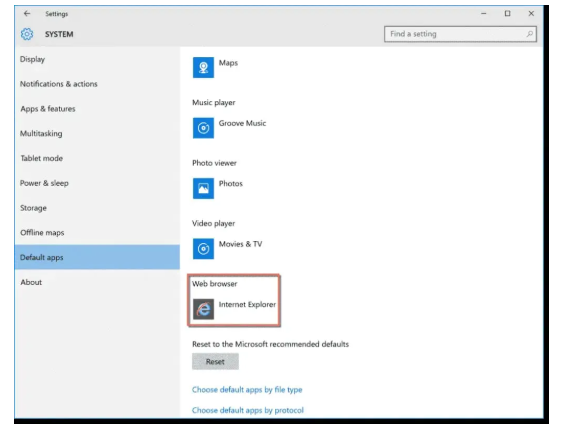
- In the first step, open Internet Explorer and click the Gear icon.
- Then, go to Internet Options > Programs tab.
- After that, click Make Default and confirm the selection.
- Once you are done with it, click Apply and then OK.
Method 3: Customize Internet Settings
In this step, you will adjust the internet settings to ensure smooth connectivity for QuickBooks.
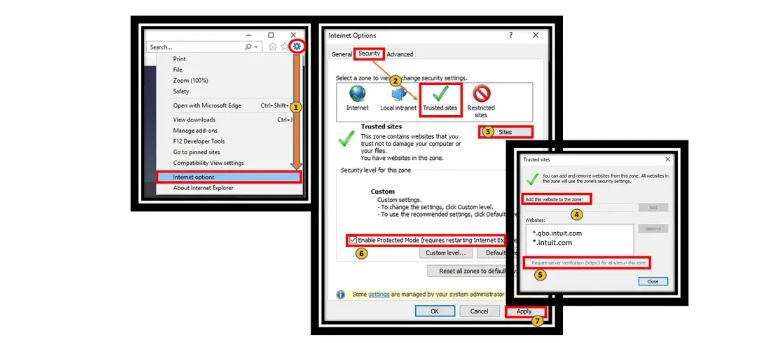
- First, close QuickBooks and open Internet Explorer.
- Then, go to Tools > Internet Options.
- After that, under Security, ensure settings are not too restrictive.
- Next, go to Connections and select Never Dial a Connection.
- Then, open LAN Settings and uncheck Proxy Server while enabling Auto Detect Settings.
- After that, go to the Advanced tab and restore advanced settings.
- Once you are done with it, enable TLS 1.2 and click OK.
- Finally, restart your PC and retry updating QuickBooks.
Method 4: Update QuickBooks Desktop
In the next step, make sure QuickBooks is updated to eliminate bugs causing Error 12007.
- Open QuickBooks Desktop and go to Help > Update QuickBooks.
- Then, navigate to the Update Now tab.
- After that, select Reset Update and click Get Updates.
- Once you are done with it, close QuickBooks completely.
- Then, reopen it and check if the error is resolved.
Method 5: Run System File Checker
In this step, you will repair corrupted system files that may be affecting QuickBooks.
- In the first step, press Windows + R and type sfc /scannow.
- Then, press Enter and allow the scan to run.
- After that, wait for the process to complete.
- Once you are done with it, restart your system and check QuickBooks again.
Method 6: Reinstall QuickBooks Using Tool Hub
In the next step, reinstall QuickBooks to fix installation-related issues.
Uninstall QuickBooks
- First, open Control Panel > Programs and Features.
- Then, select QuickBooks Desktop and click Uninstall.
- After that, wait for the process to complete.
Reinstall QuickBooks
- Then, download QuickBooks from the official Intuit website.
- Next, run the setup file (.exe).
- After that, enter the license and product details.
- Once you are done with it, choose the installation type and click Install.
- Finally, restart and activate QuickBooks.
Method 7. Repair the QuickBooks Program
In this step, you will repair QuickBooks installation files to fix any damaged or missing program components.
- First, close QuickBooks Desktop completely.
- Then, open the Control Panel on your system.
- After that, go to Programs and Features.
- Next, locate QuickBooks Desktop in the list of installed programs.
- Then, click on QuickBooks and select Uninstall/Change.
- After that, choose the Repair option (if available).
- Allow the repair process to complete without interruption.
- Once finished, restart your computer.
- Finally, open QuickBooks and check if Error 12007 is resolved.
Method 8: Use Selective Startup Mode
In this step, you will prevent third-party applications from interfering with QuickBooks.
- First, press Windows + R, type msconfig, and press OK.
- Then, select Selective Startup and Load System Services.
- After that, disable all non-Microsoft services.
- Once you are done with it, restart your system.
- Then, reinstall QuickBooks if required and restore Normal Startup later.
Method 9: Open Windows in Safe Mode
In the next step, start Windows in Safe Mode to minimize interference.
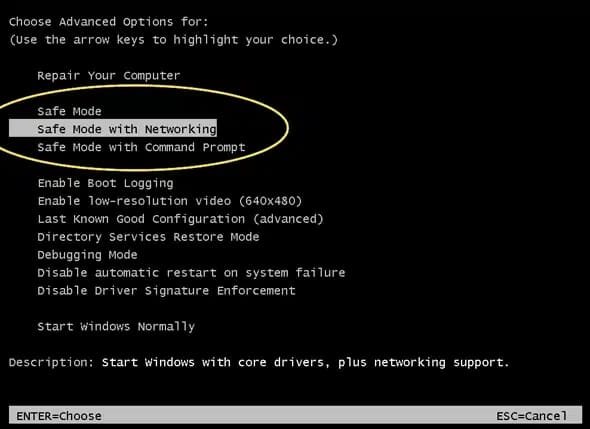
- First, open System Settings from the Start menu.
- Then, go to Recovery > Advanced Startup > Restart Now.
- After that, choose Troubleshoot > Advanced Options.
- Next, go to Startup Settings and restart.
- Once you are done with it, press F4 or F5 to enter Safe Mode.
Method 10: Use QuickBooks Tool Hub
In this step, use the Tool Hub to fix network and system issues automatically.
- First, download QuickBooks Tool Hub from Intuit.
- Then, install and open the application.
- After that, select company issues and then click on the “Run QuickBooks File Doctor” in the green button.
Method 11: Use TLS 1.2 Tool
In the next step, ensure secure internet connectivity using TLS 1.2 settings.
- First, open QuickBooks Tool Hub.
- Then, go to Installation Issues.
- After that, select the TLS 1.2 Tool and run it.
- Once you are done with it, restart your system.
- Finally, retry updating QuickBooks.
Method 12: Perform QuickBooks Clean Install
In this step, remove corrupted installation files and reinstall QuickBooks.
- First, download the QuickBooks Clean Install Tool.
- Then, run the tool and accept the license agreement.
- After that, select your QuickBooks version.
- Once you are done with it, follow the on-screen instructions to reinstall.
Method 13: Install a Fresh Security Certificate
In the next step, replace expired certificates that may block updates.
- First, locate the QuickBooks executable file.
- Then, open Properties > Digital Signature tab.
- After that, view and install the certificate.
- Once you are done with it, restart QuickBooks.
Method 14: Configure Windows Firewall
In this step, allow QuickBooks through the firewall settings.
- First, open Windows Firewall > Advanced Settings.
- Then, create a new inbound rule for QuickBooks.
- After that, allow the connection and save changes.
- Once you are done with it, repeat for outbound rules.
- Finally, restart QuickBooks.
Method 15: Check Date & Time Settings
In the next step, ensure system time settings are correct.
- First, click on the system clock.
- Then, select Adjust Date and Time.
- After that, correct the values and save changes.
- Once you are done with it, restart QuickBooks.
Method 16. Check Anti-Virus Settings & Permissions
In this step, you will ensure that your antivirus or security software is not blocking QuickBooks from accessing the internet or system resources.
- First, open your antivirus or security software
- Then, go to its settings and then the virus & threat protection panel
- Then, temporarily disable the real-time scanning or firewall protection to test the issue
- After that, add the QuickBooks folder to the list of exclusions/exceptions
- Other AVs will quarantine qbupdate.exe or qbwebpatch.exe. Once done, reboot them.
- Finally, restart your system and try updating QuickBooks again.
Method 17: Update Windows OS
In the final step, ensure your Windows system is up to date.
- First, open Windows Settings.
- Then, go to Update & Security.
- After that, click Check for Updates.
- Once you are done with it, install updates.
Method 18. Restart Your System
In this step, you will restart your system to apply all changes made during troubleshooting and clear temporary system glitches that may affect QuickBooks.
- First, close QuickBooks Desktop completely
- Then, save and close all open applications
- After that, click on the Start menu
- Next, select the Power option
- Then, click Restart
- Allow the system to shut down and restart fully
- Once the system boots up, open QuickBooks again
- Finally, check if the Error Code 12007 is resolved
What are the Preventive Tips for the QuickBooks Error Code 12007 Issue?
To minimize the chances of facing QuickBooks Error Code 12007, it is important to maintain proper system configuration, stable connectivity, and regular software maintenance. These preventive practices help ensure smooth updates and uninterrupted payroll processing.
- Ensure internet stability before starting any QuickBooks updates or payroll tasks to avoid the network timeout error.
- Keep QuickBooks Desktop updated to the latest release to fix known bugs and performance issues.
- Configure Internet Options in Windows and ensure TLS 1.2 is enabled while disabling older protocols like SSL 2.0/3.0 if required.
- In the Connections tab, select “Never dial a connection” and verify LAN Settings are set to “Automatically detect settings.”
- Configure firewall and antivirus settings to allow QuickBooks access, ensuring ports 80 and 443 remain open.
- Run QuickBooks in single-user mode during updates or payroll processing to avoid file conflicts.
- Use QuickBooks Tool Hub periodically and run the Quick Fix My Program tool to clear background process issues.
- Perform a Reset Update occasionally to remove corrupted or outdated update files that may trigger Error 12007.
- Keep security software updated and properly configured to prevent interference with QuickBooks operations.
- Run QuickBooks as an administrator to ensure it has proper system permissions during updates.
- Maintain the correct system date and time to prevent secure connection errors.
- Restart your system regularly to refresh network settings and improve performance stability.
Conclusion
QuickBooks Desktop Error Code 12007 occurs mainly due to network and configuration issues, but you can fix it using simple troubleshooting steps. By ensuring proper internet settings, updating QuickBooks, and configuring security tools correctly, you can resolve the error quickly. Follow preventive measures to avoid future disruptions and maintain smooth performance.
Frequently Asked Questions
Can QuickBooks Error 12007 affect payroll processing?
Yes, the QBDT Error Code 12007 can interrupt payroll updates or downloads, causing delays in processing employee payments and tax updates.
Is QuickBooks Error 12007 caused by internet problems only?
No, the error message 12007 in QuickBooks Desktop can also occur due to firewall restrictions, incorrect system settings, outdated QuickBooks versions, or SSL/TLS configuration issues.
Can VPN usage trigger Error 12007 in QuickBooks?
Yes, using a VPN or proxy server can sometimes block or slow down QuickBooks connections, leading to update failures.
Do I need technical expertise to fix Error 12007?
Not necessarily. Most solutions involve simple steps like checking internet settings, updating software, or adjusting security configurations.


