


QuickBooks Online Banking Error 103 interrupts the connection between QuickBooks Online and your bank account and prevents new transactions from sync automatically. This disruption affects your banking workflow and delays tasks such as transaction matching and bank reconciliation
This guide covers everything you need to know about QuickBooks Error 103, including what the error means, its common signs, along with troubleshooting methods. So that you can maintain a stable bank connection with ease.
Table of Contents
- 1 What Is QuickBooks Online Banking Error 103?
- 2 Why Does QuickBooks Online Banking Error 103 Occur?
- 3 Common Signs of QuickBooks Online Banking Error 103
- 4 How to Fix QuickBooks Error 103 in Easy Steps
- 4.1 Solution 1: Verify Your Bank Login Credentials
- 4.2 Solution 2: Reconnect the Bank Account in QuickBooks Self-Employed
- 4.3 Solution 3: Update Your Bank Sign-in Information in QuickBooks Online
- 4.4 Solution 4: Disconnect the Existing Bank Connection
- 4.5 Solution 5: Enable Third-Party Access for Your Bank Account
- 4.6 Solution 6: Resolve Security Verification Issues
- 5 Additional Tips to Prevent QuickBooks Online Banking Error 103
- 6 Conclusion
- 7 Frequently Asked Questions
- 8 Adams Williams
What Is QuickBooks Online Banking Error 103?
This error occurs when the bank login credentials entered in QuickBooks do not match the information registered with your financial institution. As a result, the bank rejects the sign-in request, and QuickBooks displays Error 103. The error blocks your bank connection until you update your login credentials or restore the connection in QuickBooks Online.
Why Does QuickBooks Online Banking Error 103 Occur?
QuickBooks Banking Error 103 usually appears when QuickBooks cannot verify your bank account credentials or establish a secure connection with your financial institution.
Several factors can be the reason for this error, including:
- Selection of the wrong financial institution or bank listing during account connection.
- Change of your bank login credentials without a corresponding update in QuickBooks Online.
- Hardware authorization or approval failures that interrupt the banking connection.
- Incorrect QuickBooks configuration or settings that prevent a successful bank connection.
- Entry of an incorrect or outdated username or password for your online banking account.
- Absence or blockage of browser cookies that interfere with the bank authentication process.
- Issues or bugs in the QuickBooks installation files that affect banking features.
Common Signs of QuickBooks Online Banking Error 103
QuickBooks Bank Error 103 breaks your bank connection and stops QuickBooks from downloading the latest transactions.
You may notice one or more of the following signs when this error occurs:
- You encounter Online Banking Error 103 when you connect or update your bank account in QuickBooks.
- Also, your bank transactions cease their download into QuickBooks.
- QuickBooks prompts you repeatedly to verify or update your bank login credentials.
- The Bank Transactions page displays a connection error for the affected bank account.
- Moreover, your manual or automatic bank feed updates fail.
- QuickBooks cannot establish or keep a connection with your financial institution.
- Apart from that, your bank account prompts you repeatedly to reconnect.
Prerequisites Before You Fix QuickBooks Online Banking Error 103
Users should complete the following checks before you begin troubleshooting QuickBooks Online Error 103:
- Keep your QuickBooks Online and bank login credentials ready.
- Verify that you can sign in to your bank’s official website.
- Ensure you have a stable internet connection.
- Complete any pending security verification, such as OTP or MFA.
- Confirm that your bank account and bank listing are correct in QuickBooks.
- Check whether your bank requires third-party access for QuickBooks.
How to Fix QuickBooks Error 103 in Easy Steps
Error 103 often results from login or bank connection issues. Hence, you should follow the troubleshooting methods below, one by one, to identify the cause and fix QuickBooks Banking Error 103 successfully.
Solution 1: Verify Your Bank Login Credentials
Incorrect bank login credentials cause most QuickBooks Online Banking Error 103 issues. First, confirm that the username and password stored in QuickBooks match the credentials you registered with your bank. To verify your credentials, follow these steps:
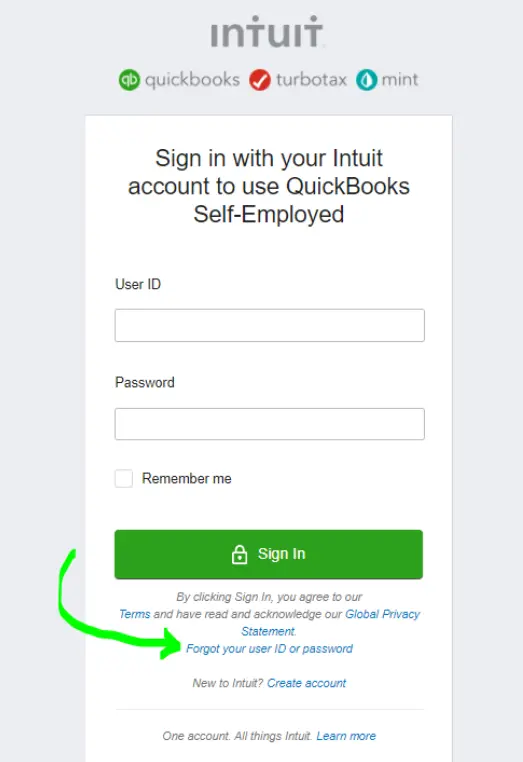
- Open QuickBooks Online and select Verify your credentials from the Error 103 message.
- A new browser window opens. You can access your bank’s official website directly instead.
- Disable your browser’s AutoFill feature to prevent old credentials from appearing.
- Enter your bank username or email address and password manually.
- Sign in to your bank account.
- Reset your username or password on the bank website if the login fails.
- Return to QuickBooks after confirming your credentials.
Note: Choose the correct account when your bank provides separate personal and business logins.
Solution 2: Reconnect the Bank Account in QuickBooks Self-Employed
QuickBooks Self-Employed users follow a slightly different process to resolve Error 103.
- Click Reconnect from the Error 103 message.
- Enter your bank username and password manually.
- Select Update Sign-in Info.
- Verify that you use the same bank login page URL used on the bank’s website.
- Search for the bank again when multiple connection options appear.
- Complete any additional security verification requested by your bank.
- Refresh the connection and confirm that QuickBooks downloads new transactions.
Note: Some banks require you to enable third-party application access from your online banking security settings before QuickBooks can reconnect successfully.
Solution 3: Update Your Bank Sign-in Information in QuickBooks Online
After verifying your bank credentials, update the same information in QuickBooks. You can update an existing bank connection or create a new one.
Option A: Update an Existing Bank Connection
- Sign in to QuickBooks Online.
- Open Transactions and select Bank Transactions.
- Choose the affected bank or credit card account.
- Click Edit and select Edit sign-in info.
- Remove any auto-filled username or password.
- Enter your latest bank login credentials manually.
- Review the information and click Update.
- QuickBooks attempts to reconnect using the updated credentials.
Option B: Create a New Bank Connection
Create a new connection when updating the existing one does not resolve the error.
- Open Transactions and select Bank Transactions.
- Click Link account. Select Connect account when connecting a bank for the first time.
- Search for your bank by entering its name or official website address.
- Select the appropriate bank from the search results.
- Choose the correct account type, such as Business or Personal.
- Remove any auto-filled login details.
- Enter your latest bank username and password manually.
- Click Continue and wait for QuickBooks to establish the connection.
- Repeat the process with another bank listing when multiple options appear, and the connection fails.
Solution 4: Disconnect the Existing Bank Connection
Disconnect the old bank connection after successfully creating a new one. This step removes outdated connection settings that continue triggering Error 103.
- Open Transactions and select Bank Transactions.
- Choose the affected bank account.
- Click Edit and select Edit account info.
- Select Disconnect this account on save.
- Click Save to complete the process.
Reconnect the bank account after disconnecting it and verify that transactions download correctly.
Solution 5: Enable Third-Party Access for Your Bank Account
Some banks block third-party applications, including QuickBooks, until you grant permission. Third-party access allows QuickBooks to communicate with your bank and download transactions successfully.
- Open your bank’s official website and sign in to your account.
- Navigate to your account’s Security, Privacy, or Connected Apps settings.
- Look for an option related to Third-Party Access, External Applications, or Connected Apps.
- Enable access for third-party applications by following your bank’s instructions.
- Save the changes and sign out of your bank account.
- Return to QuickBooks Online and refresh your bank connection.
- Note: The location and name of this setting vary by bank. Contact your bank when you cannot find the option.
Solution 6: Resolve Security Verification Issues
Failed login attempts or browser-related issues sometimes trigger additional security verification, which prevents QuickBooks from connect to your bank. A private browser session often resolves this problem.
- Open a private or incognito browser window.
- Visit your bank’s official website.
- Sign in using your current username and password.
- Complete any security questions, one-time password (OTP), or identity verification requested by your bank.
- Confirm that you are signing in to the correct online banking portal for your account.
- Close the private browser window after successful verification.
- Open QuickBooks Online and update your bank connection again.
- QuickBooks verifies your account successfully and restores the banking connection.
Note: Continue with the correct bank listing in QuickBooks. Some banks offer separate connections for personal and business accounts. Selection of the wrong one may trigger Error 103.
Additional Tips to Prevent QuickBooks Online Banking Error 103
Use the tips below to maintain a secure bank connection and prevent Error 103:
- Update your bank credentials in QuickBooks after changing your bank password.
- Enter your login details manually instead of using browser auto-fill.
- Use your bank’s official website to verify your login credentials.
- Avoid using public Wi-Fi when accessing your bank account.
- Contact your bank if it introduces new security or authentication requirements.
- Apart from that, refresh your bank connection regularly.
- Select the correct bank listing while connecting your account.
- Enable third-party access when your bank requires it.
Conclusion
Hopefully, this guide helped you understand the causes of QuickBooks Online Banking Error 103 and the best ways to fix it. You should now have everything needed to resolve Banking Error 103 in QuickBooks Online on your own. Also, you can reach out to QuickBooks Support or your bank’s technical support team for further assistance and restore your banking connection.
Struggling With Accounting or Bookkeeping?
Talk to our experts in minutes — No wait time!
- Free Consultation
- Fast Response
- Trusted Experts

Frequently Asked Questions
What does QuickBooks Online Banking Error 103 mean?
QuickBooks Online Banking Error 103 indicates that QuickBooks cannot verify your bank login credentials. The error prevents QuickBooks from connecting to your bank account until the correct sign-in information is provided.
Why does QuickBooks Online show Error 103?
Error 103 usually appears when the bank login credentials stored in QuickBooks do not match your bank records. Incorrect bank selection, security verification requirements, or third-party access restrictions may also trigger the error.
Does changing my bank password cause QuickBooks Error 103?
Yes, if you change your online banking password but do not update it in QuickBooks, this action often results in Error 103. You restore the connection when you update your bank credentials in QuickBooks.
Will disconnecting my bank account delete existing transactions?
No. Disconnecting the online banking connection removes only the bank feed. Transactions already recorded in QuickBooks remain unchanged.
How do I reconnect my bank account in QuickBooks Online?
Open Transactions > Bank Transactions, select the affected account, update your sign-in information or reconnect the account, and enter your latest bank login credentials.

Adams Williams
Adams Williams is a seasoned accounting professional with over 4 years of experience in bookkeeping, financial reporting, and business accounting solutions. Specializing in QuickBooks software, Adams combines technical expertise with clear, accessible content writing to help businesses streamline their financial processes. His insightful guides and how-to articles are crafted to assist both beginners and seasoned users in navigating accounting software with confidence.
Fix QuickBooks Desktop Bank Feeds Not Working
How to Fix QuickBooks Error 179
Complete List Of QuickBooks Errors and Their Solutions
QuickBooks Is Unable to Verify the Financial Institution Information


