


The QBCFMonitorService Not Running Error interrupts communication between QuickBooks Desktop workstations and the company file server. QBCFMonitorService keeps stopping when QuickBooks database services fail to start, firewall settings block database communication, or hosting configuration conflicts interrupt multi-user connectivity. This QuickBooks database service error prevents you from accessing shared company files, processing payroll tasks, generating reports, and maintaining stable multi-user sessions inside QuickBooks Desktop.
You should verify QuickBooks database services, hosting configuration settings, Windows administrator permissions, firewall rules, and QuickBooks Desktop updates before troubleshooting the QBCFMonitorService Not Starting Error. This guide explains the causes behind QuickBooks database service failures, the methods that restore QBCFMonitorService communication, and the practices that help you maintain uninterrupted QuickBooks multi-user operations.
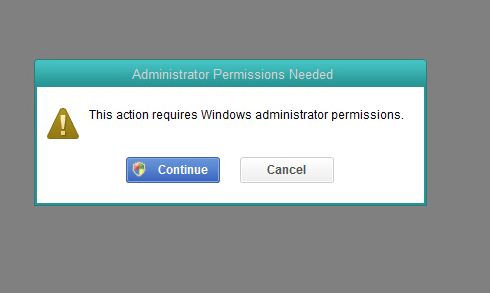
Table of Contents
- 1 Quick Overview of QBCFMonitorService Not Running Error
- 2 Common Causes of QBCFMonitorService Not Starting Error
- 3 QBCFMonitorService Error Diagnosis Table
- 4 Symptoms of QBCFMonitorService Not Running Error
- 5 Methods to Resolve QBCFMonitorService Not Running Error in QuickBooks
- 6 Conclusion
- 7 Frequently Asked Questions
Quick Overview of QBCFMonitorService Not Running Error
| Issue | Details |
| Error Name | QBCFMonitorService Not Running Error |
| Related Service | QuickBooks Company File Monitoring Service |
| Common Cause | Damaged QuickBooks Database Server Manager or disabled Windows services |
| Usually Appears During | Multi-user mode access |
| Affected Versions | QuickBooks Desktop Pro, Premier, Enterprise |
| Main Symptoms | Unable to switch to multi-user mode, server connection failure |
| Effective Fixes | Repair QuickBooks Database Server Manager, Configure firewall settings |
| Severity Level | Moderate to High |
| Affected Operating Systems | Windows 10 and Windows 11 |
Common Causes of QBCFMonitorService Not Starting Error
- A damaged QuickBooks Desktop installation prevents QBCFMonitorService from starting correctly.
- QuickBooks Database Server Manager failures interrupt communication between QuickBooks workstations and the company file server.
- Disabled Windows services prevent QBCFMonitorService from loading during system startup procedures.
- Firewall and antivirus restrictions block QuickBooks database communication ports.
- Corrupted QuickBooks company files interrupt QuickBooks database synchronization services.
- Incorrect hosting configuration settings create conflicts between QuickBooks servers and connected workstations.
- Interrupted Windows updates modify QuickBooks database service permissions and prevent QBCFMonitorService from loading correctly.
QBCFMonitorService Error Diagnosis Table
| QBCFMonitorService Symptom | Possible Cause | Recommended Solution |
| QBCFMonitorService keeps stopping | Disabled database service | Restart QuickBooks services |
| Multi-user mode unavailable | Hosting configuration conflict | Reconfigure hosting settings |
| Workstations lose connection | Firewall restriction | Allow QuickBooks firewall ports |
| Company file inaccessible | Database Server Manager stopped | Restart QuickBooksDBXX |
| QuickBooks server disconnects | Damaged QuickBooks installation | Repair QuickBooks Desktop |
| Repeated database service errors | Corrupted Windows permissions | Run QuickBooks as an administrator |
Symptoms of QBCFMonitorService Not Running Error
Here are a few impacts of facing QBCFMonitorService Not Starting Error:
- The QBCFMonitorService Not Starting Error blocks QuickBooks multi-user communication.
- QuickBooks Desktop disconnects active workstation sessions during database communication failures.
- Interrupted QuickBooks database services delay invoice processing and payroll operations.
- QuickBooks reporting tools fail to access shared company file data during service interruptions.
- Repeated QBCFMonitorService failures interrupt month-end accounting procedures.
- QuickBooks database communication failures reduce accounting workflow efficiency.
Checks Before Troubleshooting QBCFMonitorService Not Starting Error
- Verify that QuickBooksDBXX and QBCFMonitorService run with Automatic startup settings inside Windows Services.
- Restart the QuickBooks server and connected workstations before modifying QuickBooks database settings.
- Log in with Windows administrator permissions before troubleshooting QuickBooks database services.
- Update QuickBooks Desktop to the latest release before repairing QuickBooks database communication services.
- Confirm that only the QuickBooks server hosts the company file during multi-user operations.
- Create a backup of the QuickBooks company file before changing QuickBooks service configuration settings.
Methods to Resolve QBCFMonitorService Not Running Error in QuickBooks
Explore these expert-curated methods to resolve Database Service Errors in QuickBooks Online, compiled by our team of experienced error specialists.
Method 1: Repair QuickBooks Database Server Manager
Repair QuickBooks Database Server Manager refreshes QuickBooks multi-user communication settings and restores QBCFMonitorService connectivity.
- Open the Run dialogue box and type services.msc
- Find QBCFMonitorService in the list of services
- Right-click on the service and choose Restart
- Verify that the startup type is set to Automatic
- Close the dialogue box and reopen QuickBooks
This will update the connection between QuickBooks and the server.
Method 2: Run QuickBooks as Administrator
Windows administrator permissions allow QuickBooks Desktop to access protected QuickBooks database communication services.
- Close QuickBooks Desktop
- Right-click on the QuickBooks icon
- Choose Run as administrator
- Open the company file and switch to multi-user mode
Running QuickBooks as an administrator will allow the application to initiate background services freely.
Method 3: Repair QuickBooks Installation
Damaged QuickBooks Desktop installation files interrupt QuickBooks database communication services and prevent QBCFMonitorService from starting correctly.
- Open Control Panel
- Click on Programs and Features
- Find QuickBooks Desktop in the list of installed programs
- Click Uninstall or Change
- Select Repair and follow the prompts
- Restart the computer after the repair process
After the repair process, reopen QuickBooks and check if the service has started correctly.
Method 4: Configure firewall settings
Firewall restrictions block QuickBooks database communication ports and interrupt QuickBooks multi-user connectivity.
- Open Control Panel
- Click on Windows Defender Firewall
- Select Allow an app through the Firewall
- Make sure QuickBooks and its services are allowed
- Add QuickBooks ports if necessary
- Restart QuickBooks
QuickBooks requires specific firewall ports to allow database communication.
Make sure these ports are open on the server and workstations:
- QuickBooks 2024: 8019, dynamic port range
- QuickBooks 2023: 8019, 56727–56729
- QuickBooks 2022: 8019, 56726–56728
You can also open ports automatically using QuickBooks Tool Hub, then Firewall Tool.
Adding QuickBooks to the firewall settings will ensure smooth communication between services.
Method 5: Reconfigure Hosting Settings
On the server (the main computer with the company file):
- Open QuickBooks Desktop and load any company file
- Click File in the top menu, then hover over Utilities
- You’ll see Host Multi-User Access. Click it to turn hosting ON
(If it says “Stop Hosting Multi-User Access” instead, you’re already good, skip to workstations.)
On every workstation (other team computers):
- Open QuickBooks Desktop on the workstation
- Click File, then Utilities again
- If you see Stop Hosting Multi-User Access, turn it OFF. Workstations should not host the company file. Only the server should host it.
Finally: Close QuickBooks on all machines, wait 30 seconds, then reopen everywhere. Switch to multi-user mode and check if the error is gone.
Conclusion
The QBCFMonitorService Not Starting Error interrupts QuickBooks multi-user communication when QuickBooks database services fail during server initialization procedures. Restarting QuickBooks database services, repairing QuickBooks Desktop installation files, correcting firewall settings, and configuring hosting settings correctly restore QuickBooks database communication successfully.
Regular QuickBooks updates, stable database service configuration, correct hosting setup, and verified firewall permissions prevent recurring QBCFMonitorService startup failures and maintain uninterrupted QuickBooks Desktop multi-user operations.
Struggling With Accounting or Bookkeeping?
Talk to our experts in minutes — No wait time!
- Free Consultation
- Fast Response
- Trusted Experts

Frequently Asked Questions
-
Why does QBCFMonitorService keep stopping?
QBCFMonitorService keeps stopping when QuickBooks database services fail to start, firewall settings block QuickBooks communication ports, or Windows updates modify QuickBooks service permissions.
-
Does QBCFMonitorService error damage QuickBooks company files?
The QBCFMonitorService Not Starting Error interrupts QuickBooks multi-user communication but does not damage QuickBooks company files directly. You should still create company file backups before troubleshooting QuickBooks database services.
-
Why does the QBCFMonitorService error appear after Windows updates?
Windows updates modify firewall permissions, QuickBooks startup permissions, and QuickBooks database communication settings. These changes interrupt QBCFMonitorService startup procedures after Windows update installation.
-
How do you restart QuickBooks database services?
Open Windows Services using services.msc, locate QuickBooksDBXX and QBCFMonitorService, restart both services, and set the startup type to Automatic.
-
Can firewall settings block QBCFMonitorService?
Firewall restrictions block QuickBooks database communication ports and interrupt QuickBooks multi-user connectivity. You should allow QuickBooks services through Windows Firewall during QuickBooks Desktop operations.


