




The Gear icon in QuickBooks displays program options. It allows access to the software’s main processes through settings. This icon appears when the user signs in, but knowing its exact location is important if it’s not visible. The Gear icon’s location may vary slightly based on the QuickBooks version. It is usually visible after launching the software, but methods to find it differ between QuickBooks Desktop and Online. Before locating the Gear icon, understand its functions. Additionally, know how to restore it if it disappears.
Table of Contents
- 1 What is the Gear Icon in QuickBooks?
- 2 What does the Gear Icon Look Like in QuickBooks?
- 3 Where is the Gear Icon in QuickBooks Desktop?
- 4 Where is the Gear Icon in QuickBooks Online?
- 5 Which Services can be used by the Gear Icon in QuickBooks?
- 6 Troubleshooting Methods to Fix the Issue of the QuickBooks Gear Icon Disappearing.
- 7 Conclusion
- 8 Frequently Asked Questions
What is the Gear Icon in QuickBooks?
QuickBooks has a button that looks like a gear. It’s crucial since it grants you access to many Intuit software features. In addition to functionalities, the QuickBooks gear icon provides access to tasks that assist with managing your profile.
To be more precise, this sign or icon can be used for the following:
- Pressing the Gear symbol allows you to tap on important options like “Tools.”
- It enables you to view the software’s settings. This is the icon’s primary function as well. It can be difficult to start other QuickBooks methods if this goal is not fulfilled.
- “Lists” are necessary to locate your transactions. The icon is used to see the same thing.
- Using the Gear icon, you can import Stripe into QuickBooks or other similar platforms, for example.
What does the Gear Icon Look Like in QuickBooks?
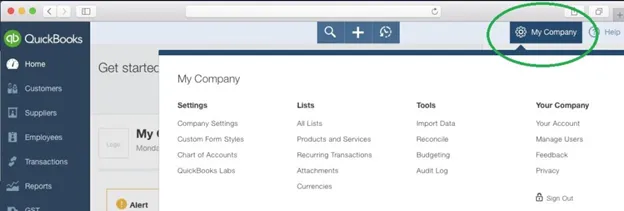
You should know how to recognize the Gear icon in addition to its functionalities. QuickBooks uses a wheel-like symbol to symbolize the Gear icon. When you launch the accounting program, it is available. As a result, recognizing this icon by its symbol and understanding its purpose is simple. This Intuit program is available in multiple versions for use. Keep in mind that the QuickBooks Online and Desktop versions’ Gear icon looks like this.
Where is the Gear Icon in QuickBooks Desktop?
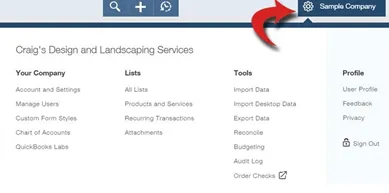
The first step in using QuickBooks Desktop is to click on the Gear icon to access any lists or options. It is crucial to ascertain the location of this emblem or symbol. The emblem can be found next to the company name in this version. But, if you’re using any other edition of the program, its location or position can be altered. Users of QuickBooks Desktop can find it near the top, sandwiched between two other icons.
Option 1: In the case of QuickBooks Desktop
In QuickBooks Desktop, there is a setting for Company Name. This option is helpful for matters of the name of your file. You can locate the Gear symbol near this. As soon as you get access to it, you can launch the necessary procedures and access the settings.
To learn more about QuickBooks Desktop’s Gear icon location, follow these steps:
- Ascertain that “QuickBooks Desktop” is operational.
- Select “Company Name” by tapping on the option.
- Examine the available button next to “Company Name.” It’s the QuickBooks Desktop Gear icon, so you can recognize it.
Read more: How to Upgrade QuickBooks From Older Version to a New version
Option 2: In the case of QuickBooks Desktop Pro Older Versions
Pro 2022, 2019, and 2017, etc. are among the primary year editions of QuickBooks Desktop. You can locate the Gear symbol in the upper right-hand corner of the page whether using QuickBooks Desktop. In both versions, you may find the icon next to the Help menu. This is where you can locate the mentioned icon or symbol in software versions from years identical to yours.
- Open “QuickBooks Desktop Pro 2019” or “QuickBooks Desktop 2017” for operation.
- Verify the program’s upper corner. The options “Plus” or “+” “?” or “Help” are visible here.
- A circle icon should appear between the alternatives listed above. This will show you the location of the gear icon in QuickBooks Desktop Pro.
Where is the Gear Icon in QuickBooks Online?
The Gear icon appears in comparable places across multiple iterations of the accounting program. It’s usually seen in the top corner. The QuickBooks Online Gear icon is visible in the upper corner, with this. You may therefore tap this button in a matter of seconds when you need to swiftly start any procedure.
It’s advised that you read the following instructions to get further assistance finding the gear button in QuickBooks Online:
- Launch the “QuickBooks Online” program correctly.
- Seek out the sign “Create.” The symbol for this is “+.”
- Please find “Help” on the side of the above icon. The product will be offered as a button.
- Look in the space between these two icons. “Gear” will be visible to you.
When a user clicks this button, QuickBooks Online options become visible. After that, you may import your budget, create a depreciation account in QuickBooks Online, and accomplish more using Gear.
Read more: How to Find QuickBooks Validation Code in Registry
Which Services can be used by the Gear Icon in QuickBooks?
The Gear icon in QuickBooks opens the Settings tab and serves other purposes:
- Tools: Access essential tools quickly.
- Settings: Make changes and adjustments in software and hardware.
- Lists: View recurring transactions and lists of services.
- Company: Manage and operate accounts effectively.
Troubleshooting Methods to Fix the Issue of the QuickBooks Gear Icon Disappearing.
If the Gear icon isn’t visible in QuickBooks, try reloading the page. If it’s still missing, follow these troubleshooting steps:
Over time, QuickBooks stores large amounts of cache and cookies, which can hide the Gear icon. Clearing these can help.
- Open QuickBooks in private mode.
- If the Gear icon appears in private mode, clear the cache in normal mode:
- Open your browser.
- Click the three dots in the upper corner.
- Select Settings.
- Scroll to Clear Browsing Data.
- Choose Advanced and check the boxes for:
- Cookies and site data
- Browsing and download history
- Cached files and images
- Select a time range and click Clear Data.
- Wait for the process to complete.
Solution 2: Reset the Internet Browser
Resetting your browser restores its default settings, which can resolve the issue.
- Click the three dots in the upper corner.
- Go to Settings > Advanced Settings.
- Select Reset and Cleanup.
- Click Restore Settings to Original Defaults.
- Confirm the reset if prompted.
Additional Tips
- Use a supported browser for QuickBooks.
- Set your default browser to the one you use most with QuickBooks.
- Refresh QuickBooks Online to resolve this and other potential issues.
Conclusion
See this article for a list of several reasons why QuickBooks needs the Gear icon. Knowing its position is crucial for a user. The location of this icon was examined based on the versions that are often used. It is hoped that with this knowledge, you will be able to find the Gear symbol easily and proceed with crucial procedures.
But sometimes, after having information, you may not be able to or face an issue in performing your job with the Gear Icon in QuickBooks. At that point, our experts will help you in resolving your issue, so that you can perform your job easily and complete your task.
Frequently Asked Questions
Why can’t I find the gear icon in QuickBooks?
It is usually hidden due to browser issues such as cache, zoom, or blocked scripts.
Is the gear icon available in QuickBooks Desktop?
No. It exists only in QuickBooks Online.
How do I restore the gear icon quickly?
Clear cache, update the browser, or switch to incognito mode.
Why does the gear icon work on some devices but not others?
Different browsers and resolutions can affect how QuickBooks loads.
What are the alternatives if I cannot open settings through the gear icon?
You can type the direct URL of some settings pages or try another admin account.


