


QuickBooks Error PS038 usually appears when users try to run payroll or send payroll data. It often occurs when one or more paychecks are stuck in the “Online to Send” status. This error can stop payroll processing and prevent payroll updates. This guide explains the causes of Error PS038, how to fix it step-by-step, and how to avoid it in the future.
What Is QuickBooks Payroll Error PS038?
Error PS038 is a payroll update error in QuickBooks Desktop Payroll. It occurs when the system detects unsent payroll data from a prior pay cycle that blocks the current update process.
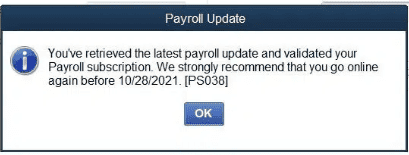
The error message reads:
“You’ve retrieved the latest payroll update and validated your Payroll subscription. We strongly recommend that you go online again before [date]. [PS038]”
Key characteristics of this error include:
- Payroll updates fail even after a successful download.
- Paychecks remain stuck with the status “Online to Send.”
- Tax table updates do not complete.
- Payroll processing stops until the stuck transactions are cleared.
- The error persists across multiple update attempts until the root cause is addressed.
Main Causes of QuickBooks Payroll Error PS038
To resolve the payroll error in QuickBooks quickly, understand its cause. Identifying the triggers of Error PS038 helps in troubleshooting. Below are the possible reasons for this error.
- One or more paychecks are stuck as “Online to Send.”
- The payroll data file is damaged.
- QuickBooks is not updated.
- The payroll tax table is outdated.
- Employee records have missing or incorrect information.
- The Payroll subscription is inactive.
- Network or connectivity issues.
- Interruption by firewall or security software.
- EIN or PSID is invalid.
Now that we know why this error happened, let’s examine some essential requirements to meet before fixing this payroll problem.
Signs of Payroll Error PS038
- QuickBooks freezes during payroll.
- A pop-up message with code PS038 appears.
- You can’t send payroll data.
- Payroll updates fail repeatedly.
- Paychecks remain in the “Online to Send” state.
Prerequisites Before Troubleshooting QuickBooks Error PS038
Complete these steps before applying any fix:
- Back up your company file: Go to File, select Back Up Company, then select Create Local Backup.
- Update QuickBooks Desktop to the latest release: Go to Help, select Update QuickBooks Desktop, then go to the Update Now tab and select Get Updates.
- Log in as an administrator: Certain payroll functions require admin-level access to the company file.
- Close all other programs: Background applications slow down payroll processes and interfere with update downloads.
- Verify your payroll subscription is active: An expired subscription blocks payroll updates regardless of other fixes applied.
Quick Diagnosis Table for QuickBooks Error PS038
Use this table to match the symptom you see to the correct fix.
| Problem | Possible Cause | Recommended Fix |
| PS038 message appears | Unsent payroll data from prior cycle | Send usage data or send payroll data |
| Payroll update fails after download | Stuck paychecks in “Online to Send” | Locate and toggle stuck paychecks |
| Update verification issue | Company file data damage | Run Verify Data then Rebuild Data |
| Payroll processing stop | Damaged payroll transaction | Identify, correct, and resend paycheck |
| Error persists after all steps | Deeper file or subscription issue | Contact Intuit Payroll Suppor |
How to Resolve QuickBooks Error PS038?
The troubleshooting methods below resolve QuickBooks Error PS038 by removing stuck payroll transactions and restoring payroll update functionality. Work through the solutions below in order. Restart QuickBooks after completing each step and test whether the error clears before moving to the next solution.
Solution 1: Update QuickBooks Desktop to the latest version
To guarantee that there are no compatibility problems while downloading the payroll and tax table changes, you must upgrade your QuickBooks Desktop to the most recent version. Follow the instructions below to obtain the most recent QB updates.
- Click Update QuickBooks Desktop from the Help menu after opening QuickBooks, and then click Update Now.
- Additionally, click Get Updates after choosing the Reset Update option, then reopen QuickBooks when the updates have finished downloading.
- To install the software updates, click Install Now. After that, restart your computer.
Solution 2: Verify Payroll and Usage Data Problems
If there is a problem processing the payroll data, you may see the QuickBooks error PS038. Analyzing payroll data might occasionally assist you in determining the root of the problem. Sending payroll or using data in QuickBooks is one way to do this. The steps are as follows:
- After selecting Employees in QuickBooks, choose Send Payroll Data.
- It opens the Send/Receive Payroll Data window. Click “Send All.”
- If the program asks for the payroll service pin, enter it.
Solution 3: Check for paychecks that are stuck.
You must use the following procedures to identify the paychecks that are stuck:
- First, select “find” under the edit tab.
- After doing that, choose the advanced tab.
- In the Select filter area, you must now select the detail level from the filter list.
- Additionally, just click on a summary.
- Going back to the filter list is the next step.
- Additionally, click online to submit and scroll down to select online status.
- You may view paychecks that weren’t issued to Intuit by clicking on Find.
- Proceed with the on-screen instructions after noting the number of matches displayed in the find window.
Solution 4: Switch Stuck Payments
- Accessing the old, stuck paychecks will be your first task.
- After doing that, you must select the option for paycheck details.
- Reviewing the paycheck window is the next step.
- Proceed to the earnings section and add the comparable earnings item to the list.
- If the item has an hourly rate, you will need to provide it afterward.
- Additionally, a Net Pay Locked notice will show up on the screen.
- After that, the user must select “no.”
- Keep in mind that you shouldn’t alter the tax amounts or net pay.
- After that, you must select the “OK” tab.
- It may display a notice about previous transactions.
- Click the “yes” tab if that’s the case.
- After that, you are advised to select the “Save and Close” tab.
- After that, click “Close the Payroll.”
- After completing that, select the “yes” tab, and then make another attempt to obtain the paycheck.
- Additionally, you must select the option for paycheck details.
- Additionally, take out the elements that correlate to earnings.
- Verify that the tax amounts and net pay have not been altered.
- Clicking the “OK” tab is the next step. And complete the procedures for every paycheck that is blocked.
- To make sure PS038 has been removed the user will then need to try downloading and installing the tax tables again.
Solution 5: Launch the Rebuild and Verify Data Tool
Rebuild and verify data tools are designed to fix issues with the company file. Fix the ps038 problem in QuickBooks Desktop by using these built-in tools from the file menu:
- Before using the Rebuild Data tool, be careful to create a backup.
- In the snapshot, click the Rebuild Now button.
- You may view the status of the blocked paychecks once the reconstruction procedure is finished.
- Rebuilding won’t be able to resolve all of the stopped paychecks, and PS038 QuickBooks Desktop will prevent you from updating payroll.
Payroll updates may be interrupted and the PS038 error may result if the tax table file is damaged or missing. Verify that your payroll service subscription is current and valid. You may verify this by following these steps:
- Close the QB Company file first.
- Launch your QuickBooks app now.
- After selecting My Payroll Service under Employees, select Manage Payroll Service Key.
- The window for Service Keys appears.
- Verify the status of the service. It ought to be in use. Check the service key number by selecting the Edit option if it is not active. Enter the right service key if it is invalid.
- Press Next.
- Click the Finish option after deselecting the Open payroll setup box.
Solution 6: Rename the damaged CPS folder.
When the CPS folder or the files within it are corrupted or damaged, QuickBooks Desktop error PS038 may appear. You must rename the folder using the procedures listed below to fix this problem.
- Click on This PC after launching Windows File Explorer by pressing the Windows + E keys.
- Go to Local Disc C, pick the Intuit folder, and then execute Program Files (x86).
- Navigate to the QuickBooks Desktop folder that corresponds to the most recent version of QuickBooks, choose Components, and choose the Payroll folder.
- Select Rename from the menu when you right-click the CPS folder, then type a new folder name.
- Finally, to correctly save the new folder name, hit the Enter key.
After finishing, reopen QuickBooks and attempt to update the tax tables and QB payroll to see whether the issue has been fixed. Use the following troubleshooting step if the PS038 issue continues.
Solution 7: Configure the antivirus and firewall settings
QuickBooks may not be able to access the internet due to firewall configuration restrictions. Since an active internet connection is required to download the updates, this might cause the QuickBooks error message PS038 to appear on the screen while updating payroll. You may set up the firewall and antivirus software as follows to fix this problem:
Step 1: Use the QB File Doctor Tool.
This File Doctor tool fixes network and business file problems in QuickBooks. However, it can only be used if the system has the QB Tool Hub installed. Let’s now follow the comprehensive instructions below to launch the File Doctor application with ease.
- First, open QB Tool Hub, pick QuickBooks File Doctor from the Company File Issues menu and then watch for the tool to open.
Note: It may take a minute for the QB File Doctor tool to open, but if it doesn’t, you may manually search for “QuickBooks Desktop File Doc” in the Windows search bar to get the utility.
- After that, pick your business file from the drop-down box. If you are unable to find it, click Browse and search to identify and select the company file that needs repair.
- Additionally, choose Check your file and Network, click Proceed, and input your QB admin login information.
- After the repair procedure is finished, select Next, restart QuickBooks, and access the business file.
Rerun QuickBooks when the procedure is complete to see how the payroll problem is progressing. Proceed to the next troubleshooting step and manually set up the Windows firewall if the issue continues.
Step 2: Configure the Firewall to Make QB Exceptions
If QB File Doctor is unable to resolve the firewall problems, you can take the following actions to manually set up the Windows firewall and provide exceptions that will let QuickBooks get beyond the limitations:
Create QuickBooks Firewall Port Exceptions
When upgrading Payroll, blocks can be manually removed from the Windows firewall. To do this, you must follow these procedures to create firewall exceptions for QB ports and executable files:
Note: You must follow the firewall configuration instructions for each local version of QB Desktop if you are running more than one version on the same machine. The port numbers for each year (versions) must also be included in the “specific ports” section in point 4 below.
- Go to the Start menu in Windows, type “Windows Firewall” into the search bar, and then launch the application.
- Go to Advanced Settings; choose New Rule by right-clicking the Inbound Rules option.
- Additionally, make sure the TCP option is checked, choose Port, and press next.
- Enter the port number in the “Specific Local Ports” column after locating the appropriate ports based on your version of QB Desktop.
Note: To grant the application exclusive usage of a given port, QBDT 2019 and later versions make use of dynamic ports that are assigned during installation.
To obtain the Dynamic Port Number based on your QB Desktop version, follow the instructions below:
- Open the QB Database Server Manager application by selecting the Windows Start menu and typing “QuickBooks Database Server Manager” into the search box that appears.
- You must then add your QuickBooks Desktop version to the list of port exceptions, so locate it in the Port Monitor section and record the port number.
Note: By choosing the Renew option, you can change the allocated port number (for QuickBooks Desktop 2019 and later editions). Go to the Scan Folder tab and choose Scan Now to reset the firewall permissions to renew the port number.
- Click Next, choose Allow the Connection, and then click Next once you have entered the port number in the list.
- Make careful to mark every profile (if requested), then click Next to create a new exception rule called “QBPorts(year).”
- After the rule has been generated, click Finish and follow the same procedures to build Outbound Rules for QB. Follow steps 1 through 7 above exactly, except make sure that in Step 2, you select Outbound Rules rather than Inbound Rules.
Add firewall exceptions for QuickBooks executable files in the next section if you continue to experience problems.
Create QB Executable File Firewall Exceptions
Executable files (.exe) for QuickBooks are used for a variety of purposes. Therefore, it is necessary to create exceptions for certain files to eliminate firewall blockages. Use the procedures listed below to add firewall exceptions:
- Access the tool by opening the Windows Start menu and typing “Windows Firewall” into the search field.
- Additionally, right-click Inbound Rules in the Advanced Settings menu, choose New Rule, and then click Program.
- Click This Program Path, hit next, and then choose Browse to choose an executable file from the list below.
- Click Allow the Connection, then click next one more to make sure all the profiles are chosen (if prompted).
- Create an exception rule called “QBFirewallException(name.exe)” and save it after selecting Next. Create Outbound Rules for the executable files by following the same procedures as before (steps 1 through 4). In step 2, when generating Outbound Rules, be sure to choose Outbound Rules instead of Inbound Rules.
Reopen QuickBooks Desktop after the rules have been successfully established to see if the firewall obstacles have been eliminated. Execute the payroll update procedure for QB. Nevertheless, adjust the antivirus program’s settings in the next step if the QuickBooks payroll problem number PS038 persists.
Step 3:Change the Antivirus Program’s Preferences.
Check your antivirus settings to ensure that QB has general rights if you have set up your Windows firewall but are still experiencing problems while executing the QB payroll updates. Depending on the antivirus software, the procedures could change. As a result, To adjust the settings appropriately, you must carry out precise actions or adhere to the precise instructions based on the antivirus. You can restart the payroll update procedure and examine the error’s status when the antivirus software has been set up to let QuickBooks.
Solution 8: Repair QuickBooks Desktop
You may resolve QuickBooks payroll problem PS038 to a certain degree by fixing QuickBooks. Quick Fix My Program and the QuickBooks tool center can be used to repair QuickBooks and resolve this problem. Here are the steps that are involved:
- The QuickBooks tool hub may be downloaded.
- Next, launch and install the QuickBookstoolhub.exe file that was downloaded.
- Run the InstallShield wizards as well.
- Accept the license agreement at this point.
- Choose Program Issues from within the QuickBooks Tool Hub application.
- Additionally, select “Quick Fix My Program.” This will somewhat resolve the problem.
Solution 9: Preserving the veracity of tax data
- All you have to do to follow this procedure is restart the computer and then launch QuickBooks again.
- After doing that, make sure the account information is correct and up to date. If not, then make the required changes.
- Installing the latest payroll tax table update is now required.
Tips to Prevent Payroll Error PS038
Follow these preventive practices to reduce payroll update failures and avoid paychecks becoming stuck in an “Online to Send” status.
- Install QuickBooks Desktop updates as soon as they become available.
- Send payroll data and usage data after every pay run without delay.
- Review payroll transactions for stuck or unsent records before each update cycle.
- Back up your company file regularly, especially before running payroll updates.
- Verify your payroll subscription renewal date and renew before it lapses.
- Monitor the Send/Receive Payroll Data window after each payroll run to confirm successful transmission.
Conclusion
QuickBooks Error PS038 stops payroll updates and interrupts paycheck processing when unsent payroll data or stuck transactions block the update cycle. The fixes above address the most common documented causes of this error: sending pending data, locating “Online to Send” paychecks, rebuilding company data, and correcting stuck transactions. Apply each solution in order, restart QuickBooks after each step, and confirm the payroll update completes before closing out.
Struggling With Accounting or Bookkeeping?
Talk to our experts in minutes — No wait time!
- Free Consultation
- Fast Response
- Trusted Experts

Frequently Asked Questions
Is QuickBooks Desktop the only program that encounters error PS038?
Yes, QuickBooks Desktop Payroll is usually linked to QuickBooks Error PS038. Because the payroll systems in QuickBooks Online and QuickBooks Online operate differently, it is not frequently reported in QuickBooks Online.
Will my payroll data change if I fix Error PS038?
Resolving the issue will assist in guaranteeing that your payroll information is handled accurately. Before beginning any significant troubleshooting procedures, it is usually advisable to create a backup of your QuickBooks business file, particularly if you plan to use the Verify and Rebuild Data tools.
Does Error PS038 only appear in certain QuickBooks versions?
The Pro, Premier, and Enterprise editions of QuickBooks Desktop are among the versions that offer payroll features and may experience error PS038. It has to do with payroll processing, but it’s not particular to any one version.
Can paychecks that are stuck in the “Online to Send” stage be safely deleted?
Since it may result in disparities between payroll records and employee payments, it is not advised to delete paychecks. To fix the status, attempt to amend or resubmit the paychecks.


