


QuickBooks Error 6000, 77 is a common company file error that blocks access to your business data and disrupts your accounting workflow. The issue can occur because of folder permissions, damaged .ND or .TLG files, firewall or security settings, or problems accessing the company file location. The right troubleshooting method depends on the underlying cause of the error.
This guide explains QuickBooks Error 6000, 77 in detail and provides practical solutions to fix it. You will learn about its common causes, proven troubleshooting methods, and preventive tips to restore access to your company file and keep QuickBooks running smoothly.
Table of Contents
- 1 Understanding QuickBooks Error 6000, 77
- 2 What Causes QuickBooks Error 6000, 77?
- 3 Symptoms of QuickBooks Error Code 6000 77
- 4 Methods to Fix QuickBooks Error 6000, 77
- 4.1 Method 1: Move the Company File to a New Folder
- 4.2 Method 2: Rename the .ND and .TLG Files
- 4.3 Method 3: Run QuickBooks File Doctor
- 4.4 Method 4: Open the Company File Through the UNC Path
- 4.5 Method 5: Remove Unnecessary Spaces from the Company File Name
- 4.6 Method 6: Review Firewall and Security Settings
- 4.7 Method 7: Perform Additional Troubleshooting
- 5 Best Preventive Tips for QuickBooks Error 6000, 77
- 6 Conclusion
- 7 Frequently Asked Questions
- 8 Adams Williams
Understanding QuickBooks Error 6000, 77
QuickBooks Company File Error 6000 77 is a company file error that occurs when QuickBooks cannot access the company file stored on a local drive, network server, or external storage device. The error usually appears because QuickBooks cannot communicate with the file location or lacks the required permissions to open it.
You may see the following message on your screen:
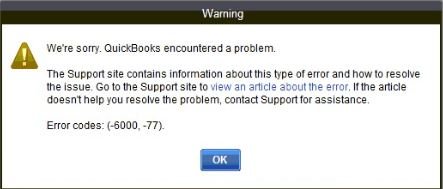
“We’re sorry. QuickBooks encountered a problem. Error codes: (-6000, -77)”
This error interrupts daily accounting tasks and prevents users from opening or working with their company data. It affects both single-user and multi-user environments, especially when the company file is stored on a shared network.
What Causes QuickBooks Error 6000, 77?
Several factors can be the reason for QuickBooks Error Code 6000 77. The most common causes include:
- The company file is stored in a damaged or inaccessible folder.
- Windows folder permissions restrict access to the company file.
- The .ND or .TLG files become damaged.
- Windows Firewall or antivirus software blocks QuickBooks services.
- The company file is accessed through a mapped drive instead of the UNC path.
- The company file is stored on an external storage device.
- Blank spaces or unsupported characters exist in the company file name.
- Network connectivity issues interrupt communication with the server.
- QuickBooks does not have administrator privileges.
Symptoms of QuickBooks Error Code 6000 77
Listed below are some signs that will confirm the QuickBooks error message 6000 77 on your computer and the QuickBooks program.
- QuickBooks stops working without any notification.
- Often, the Windows system freezes.
- The tabs and buttons do not react to any input.
- Access to other open software is blocked.
- Access to the company file is restricted.
Note: It is crucial to take instant action to resolve the error 6000 -77. This will assist the user in re-establishing complete access to QuickBooks.
Methods to Fix QuickBooks Error 6000, 77
Now that you understand the causes and impact of QuickBooks Error 6000, 77, it’s time to fix it. Start with the simplest solutions and work through each method until you regain access to your company file. The troubleshooting steps below address the most common causes of this error and help restore normal QuickBooks functionality.
Method 1: Move the Company File to a New Folder
A damaged folder or incorrect folder permissions often prevent QuickBooks from opening the company file. Moving the file to a new location helps eliminate folder-related issues.
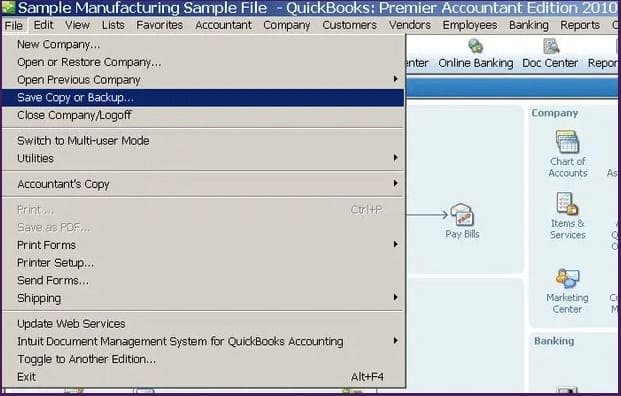
- Close QuickBooks Desktop.
- Open File Explorer and go to the folder that stores your company file.
- Locate the company file with the .QBW extension.
- Right-click the file and select Copy.
- Create a new folder on the C:\ drive.
- Open the new folder and paste the copied company file.
- Grant the required Windows permissions to the new folder so authorized users have access.
- Open QuickBooks and browse to the new folder.
- Open the company file and check whether the error is resolved.
Method 2: Rename the .ND and .TLG Files
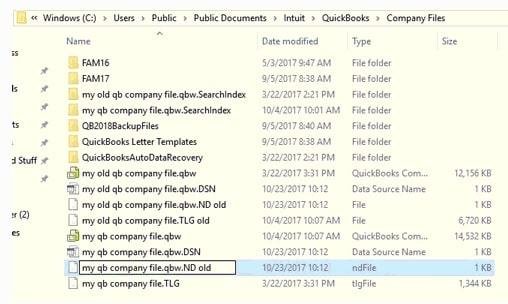
Damaged network configuration files often prevent QuickBooks from opening the company file. Renaming these files forces QuickBooks to create new ones.
- Open the folder that stores your QuickBooks company file.
- Locate the.ND and .TLG files with the same name as the company file.
- Example: CompanyFile.QBW, CompanyFile.QBW.ND, CompanyFile.QBW.TLG
- Right-click the .ND file and select Rename.
- Add .OLD to the end of the file name.
- Repeat the same process for the .TLG file.
- Open QuickBooks and access the company file again.
Method 3: Run QuickBooks File Doctor
QuickBooks File Doctor detects and repairs common company file and network issues that trigger Error 6000, 77.
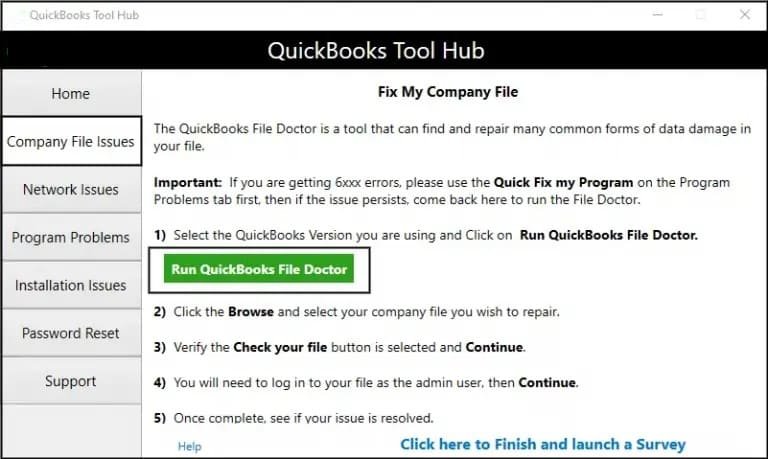
- Download and install QuickBooks Tool Hub.
- Open QuickBooks Tool Hub.
- Select Company File Issues.
- Click Run QuickBooks File Doctor.
- Choose the affected company file.
- Enter the QuickBooks administrator password when prompted.
- Start the scan and wait for the repair process to finish.
- Reopen the company file and verify that the error is gone.
Method 4: Open the Company File Through the UNC Path
Using the UNC path instead of a mapped drive often resolves network-related company file errors.

- Close QuickBooks Desktop.
- Hold the Ctrl key while opening QuickBooks until the No Company Open window appears.
- Select Open or Restore an Existing Company.
- Choose Open a Company File and click Next.
- Select Network from the left pane.
- Browse to the server that stores the company file.
- Open the company file by using the UNC path.
- Verify that QuickBooks opens the file without the error.
Method 5: Remove Unnecessary Spaces from the Company File Name
Extra spaces or unsupported characters in the company file name sometimes interfere with QuickBooks.
- Close QuickBooks on every workstation.
- Open the folder that stores the company file.
- Right-click the .QBW file and select Rename.
- Remove unnecessary spaces or unsupported characters from the file name.
- Keep the .QBW extension unchanged.
- Save the changes.
- Open QuickBooks and access the renamed company file.
Method 6: Review Firewall and Security Settings
Firewall or antivirus software sometimes blocks QuickBooks services and prevents access to the company file.
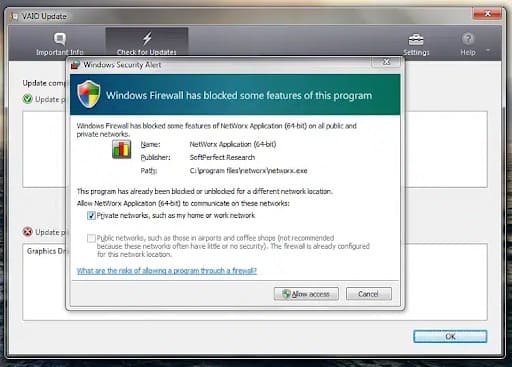
- Open Windows Defender Firewall.
- Allow QuickBooks through both Private and Public networks.
- Add firewall exceptions for QuickBooks program files and required ports.
- Exclude QuickBooks files from antivirus scans.
- Save the changes and restart the computer.
- Open QuickBooks and check the company file.
Method 7: Perform Additional Troubleshooting
Basic troubleshooting often resolves the error when the primary methods do not work.
- Run QuickBooks as an administrator.
- Restart the computer.
- Move the company file to a local drive if it is stored on an external storage device.
- Open the company file from the new location.
- Verify that the mapped network drive points to the correct server.
- Browse to the correct network location through File > Open or Restore an Existing Company.
- Open the company file and check whether the error is resolved.
Best Preventive Tips for QuickBooks Error 6000, 77
A few maintenance practices help reduce the chances of encountering QuickBooks Error 6000, 77.
- Store the company file on a reliable local drive or a properly configured network server.
- Keep QuickBooks Desktop updated with the latest releases.
- Install Windows updates regularly.
- Create company file backups on a routine basis.
- Grant proper Windows permissions to the folder that stores the company file.
- Avoid storing company files on external USB drives.
- Keep Windows Firewall and antivirus exclusions updated for QuickBooks.
- Scan the company file regularly with QuickBooks File Doctor.
- Use the UNC path instead of a mapped drive in multi-user environments.
- Close QuickBooks properly before shutting down the computer.
Conclusion
Hopefully, this guide helps you fix QuickBooks Error 6000 77, and restore access to your company file. Follow each method in order until the error is resolved. Persistent issues often indicate deeper company file damage or network configuration problems. Contact our QuickBooks experts for professional assistance and advanced troubleshooting. Following the preventive tips in this guide helps protect your company file and reduces the chances of facing the same error again.
Struggling With Accounting or Bookkeeping?
Talk to our experts in minutes — No wait time!
- Free Consultation
- Fast Response
- Trusted Experts

Frequently Asked Questions
Does QuickBooks Error 6000, 77 cause data loss?
No. The error does not delete your company data. It only prevents QuickBooks from accessing the company file. Following the correct troubleshooting steps usually restores access without affecting your data.
Does QuickBooks File Doctor fix Error 6000, 77?
Yes. QuickBooks File Doctor repairs many company file and network-related issues that trigger Error 6000, 77. It is one of the first tools you should use during troubleshooting.
Why does QuickBooks recommend using the UNC path instead of a mapped drive?
The UNC path connects QuickBooks directly to the shared folder on the server. This connection reduces file access issues that sometimes occur with mapped network drives.
When should I contact QuickBooks support for Error 6000, 77?
Contact QuickBooks support when the error continues after completing all troubleshooting methods, the company file remains inaccessible, or QuickBooks reports severe company file damage that requires advanced repair.

Adams Williams
Adams Williams is a seasoned accounting professional with over 4 years of experience in bookkeeping, financial reporting, and business accounting solutions. Specializing in QuickBooks software, Adams combines technical expertise with clear, accessible content writing to help businesses streamline their financial processes. His insightful guides and how-to articles are crafted to assist both beginners and seasoned users in navigating accounting software with confidence.
How to Fix QuickBooks Error 6000 Series?
How to Fix QuickBooks Error 6210


